
In This Article
Description
Location
Video Walkthrough
Use
🔹(Setup) Add Facilities and Practitioners
🔹Create a Consult
🔹Create a Consult within Chart Notes (Embeds)
🔹Edit a Consult
🔹Update the Status of a Consult
🔹Receive and Assign Specialist (Consult) Reports
🔹Review and Acknowledge New Consult Reports
Permissions
Description
Aeon’s Consult feature enables practitioners to quickly create and send specialist referrals using existing patient information. Each Consult is linked to a specific patient, giving teams clear visibility into referral status and supporting efficient, coordinated workflows.
Location
You can find this feature right in the clinician's workflow during patient visits, accessed through:
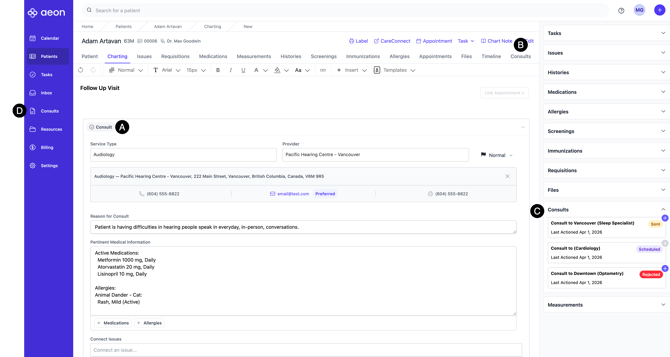
A. Chart Notes: Consults can be created and edited during patient encounters
B. Consult Index: Consults can be accessed from the Patient Profile, providing you with a list of Consults specific to that one patient
C. Patient (Right) Sidebar: For quick access to recent Consults during patient interactions
D. Left Sidebar: The main Consult page with all Consults across all patients in the clinic (can be filtered to display specific Consult(s) )
Video Walkthrough
Check out how to use the Consults features in this step-by-step tutorial:
📽️ The video walks through a potential "Lifecycle of a Consult" with steps assigned to either the Practitioner or Staff roles. Your clinic may handle this process differently and if you have any specific questions on how to handle this in Aeon, please reach out to Aeon Support!
Chapters:
00:35 Step 1: STAFF - Add Facilities and Practitioners
2:02 Step 2: PRACTITIONERS - Create a Consult in a Chart Note
04:11 Step 3: STAFF - Update Consult Status
04:30 Step 4: STAFF - Receive and Assign Specialist Report
05:05 Step 5: STAFF - Update Consult Status After Response
05:31 Step 6: PRACTITIONER - Review Specialist's Report
05:57 Step 7: PRACTITIONER - Review Results with Patient
06:31 WRAP UP - How to access historical Consults and Mark Consult as Complete
Use
Below, we will cover all the features of Consults and how to use them.
(Setup) Add Facilities and Practitioners (0:35 in video)
Within Aeon, you have titles named "Facilities" and "Practitioners" in the context of Consults.
- Facilities: The name of the medical clinic or office that provides the speciality services. For example, a cardiologist office, or an ENT clinic.
- Facilities may have more than one location. For example, a Vancouver office and a Surrey office.
- Practitioners work in a Facility and Aeon lets you "link them" together.
- Practitioners: These are the doctors/medical professionals that will carry out the consultation services. For example, a cardiologist, or a neurologist.
- Practitioners work in a Facility and Aeon lets you "link them" together.
Before using Consults, staff need to add Facilities and Practitioners. This is a one-time setup.
For step-by-step instructions on creating Facilities and Practitioners, click here.
Create a Consult
🎓 Training Tip: Consults can be created from the Consults tab in the left column or by opening the Patient Profile and then clicking the Consults sub-tab. If you'd like to create a Consult within a Chart Note, click here.
1. Click Consults in the left column
2. Click New Consult
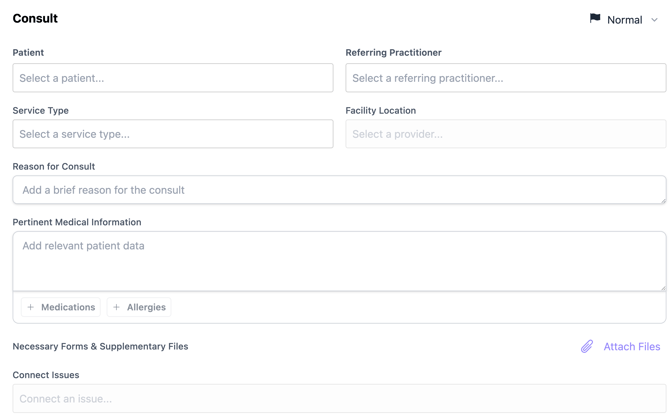
3. Fill in the fields:
-
Patient: Start to type in the patient's name and choose it from the dropdown.
- Referring Practitioner: Start to type in the name of the practitioner from your clinic and then choose it from the dropdown.
- Priority flag: Choose the priority (Low, Medium, High) in the top right corner.
- Service Type: Start to type in the service type and then choose it from the dropdown. You can also scroll through the list.
🎓 Training Tip: If the Service Type you wish to use is not in the list, you can add and create new Service Types within the Settings -> General. Click here for details.
- Facility Location: Once you choose the Service Type, when you click in the Facility Location field it will only show you Facilities that provide this type of service. For more information, see our article on creating Facilities and Providers. Choose the appropriate Facility from the results.
- Reason for Consult (*mandatory): Provide the provider with information about the Consultation.
- Pertinent Medical Information (*mandatory):
Type in information for the provider regarding the Consult.- + Medications: Click this button to pull all the Medications from the Patient Profile to this field. Note: new Medications that are in a DRAFT Chart Note, will not be pulled in until the Chart Note has been Signed and Saved.
- +Allergies: Click this button to pull all the Allergy information from the Patient Profile to this field. Note: new Allergies that are in a DRAFT Chart Note, will not be pulled in until the Chart Note has been Signed and Saved.
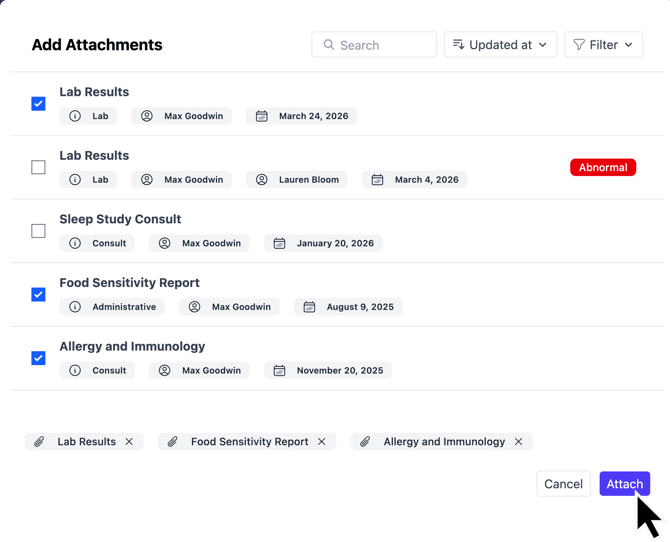
- Necessary Forms & Supplementary Files: This allows you to upload Files from that Patient's Profile. You will be able to choose the file(s) from the list and click Attach:
If the File doesn't currently exist in the Patient's File:
1. Choose Save at the bottom of the screen
2. Leave the Consult in Draft
3. Navigate to the Patient Profile -> Files
4. Click New Upload
5. Upload the File
6. Return to the Consult and attach the File
Create a Consult within Chart Notes (Embeds) (2:02 in video)
🔓 Only Practitioners can create Consults within Chart Notes, as Staff are unable to Create Chart Notes. Staff are able to create Consults from the Consults tab on the left-side of the screen.
1. Open the Patient Profile
2. Click Charting
3. Create your Chart Note
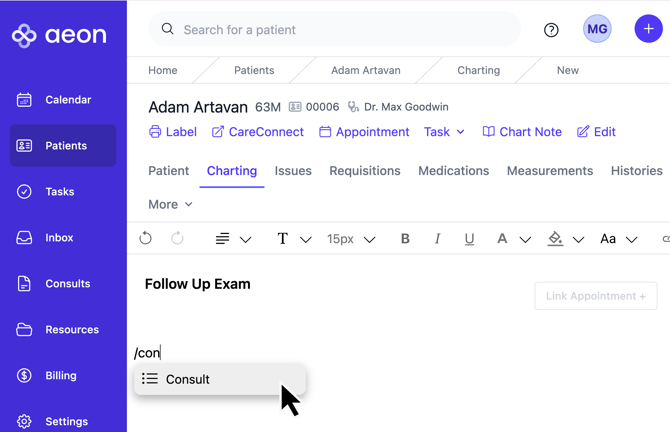
4. Within the Chart Note, start to type /consults and choose it from the dropdown:
5. Fill in the fields:
-
Patient: Start to type in the patient's name and choose it from the dropdown.
- Referring Practitioner: Start to type in the name of the practitioner from your clinic and then choose it from the dropdown.
- Priority flag: Choose the priority (Low, Medium, High) in the top right corner.
- Service Type: Start to type in the service type and then choose it from the dropdown. You can also scroll through the list.
🎓 Training Tip: If the Service Type you wish to use is not in the list, you can add and create new Service Types within the Settings -> General. Click here for details.
- Facility Location: Once you choose the Service Type, when you click in the Facility Location field it will only show you Facilities that provide this type of service. For more information, see our article on creating Facilities and Providers. Choose the appropriate Facility from the results.
- Reason for Consult (*mandatory): Provide the provider with information about the Consultation.
- Pertinent Medical Information (*mandatory):
Type in information for the provider regarding the Consult.- + Medications: Click this button to pull all the Medications from the Patient Profile to this field. Note: new Medications that are in a DRAFT Chart Note, will not be pulled in until the Chart Note has been Signed and Saved.
- +Allergies: Click this button to pull all the Allergy information from the Patient Profile to this field. Note: new Allergies that are in a DRAFT Chart Note, will not be pulled in until the Chart Note has been Signed and Saved.
🎓 Training Tip: Creating Chart Notes
For full instructions on creating Chart Notes, click here.
Edit a Consult
Depending on the status of a Consult, certain fields and information are editable.
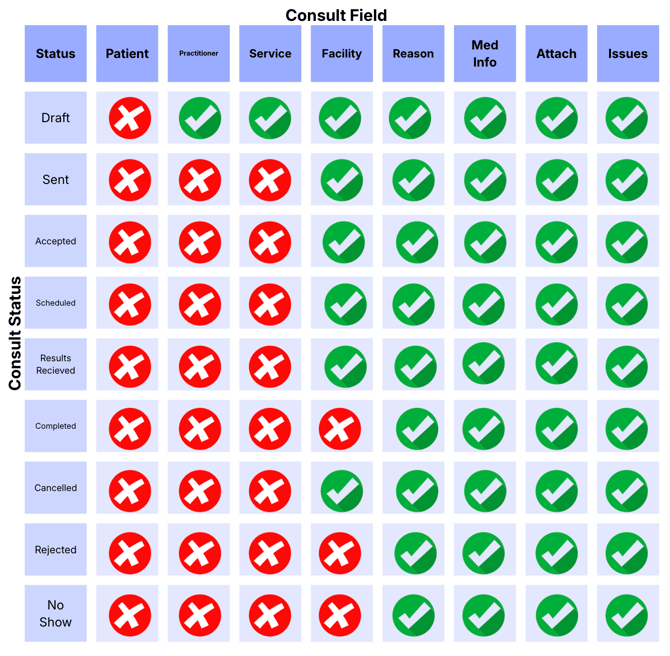
1. Open the Consult
2. At the bottom left of the screen, click the Edit Consult icon
3. Make your changes
4. Click Save
Update the Status of a Consult (4:11 in video)
1. Open the Consult
2. At the bottom left of the screen, click Update Status
3. Choose the Status
4. Optionally add a note for the timeline
5. Click Confirm
Receive and Assign Specialist Report (4:30 in video)
🎓 Training Tip: Receiving Faxes
If SR Fax is enabled, you can have the report/letter arrive directly in your Aeon Inbox. If not, you can upload the file manually.
Once the Consult report or letter has been received, staff can assign it to the patient in Aeon and assign the Responsible Practitioner to review it.
To do so, follow these steps.
Review and Acknowledge New Consult Reports (5:57 in video)
The Practitioner will have Review Tasks created to acknowledge and review new files (reports, letters, etc.). These are found in the Task > Review Tasks menu.
To see the step-by-step instructions, click here.
Permissions
-
Practitioner: Create, edit, change status, archive
-
Staff: Create, edit, change status