
In This Article
Description
Location
General Settings
Users
🔹View Users
🔹Edit Users
🔹Edit the User Settings of a Practitioner
Integrations
🔹SRFax Integration
Audit Exports
Description
Within Aeon Settings, clinics can configure their contact details, service offerings, user access, system integrations, and Audit Exports (practitioners only).
As a quick overview:
-
General Settings: Manage the clinic's name and contact information, time zone, Facility Number (pulled into Bill Claims), and Service Types your clinic provides.
- Users: See clinic users and manage their contact details. Practitioners also can manage their Practitioner Number, Payment Number, Payment Province (all pulled into Bill Claims) and their Signature (pulled into Prescriptions).
- Integrations: Manage the clinic's integrations, such as SRFax.
- Audit Exports (practitioners only): See and generate an Audit Export.
Location
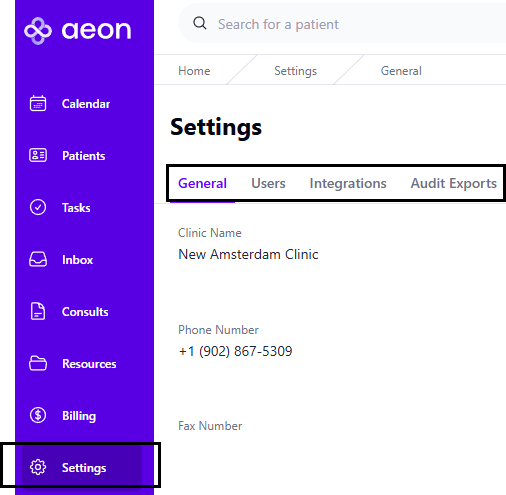
You can access the Settings area from the Settings icon in the left sidebar, then navigate to the relevant page from there.
General Settings
To edit the General Settings:
1. Click Settings in the left-hand bar
2. Click General at the top (you should be there by default)
3. Click the edit icon at the top right of the page
4. Make any changes to the following fields and then click Save:
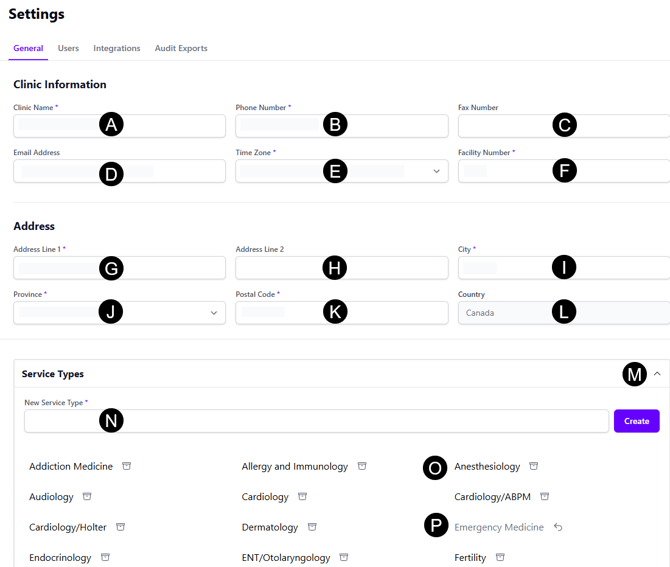
A. Clinic Name: The name of your medical clinic. This information is pulled into Prescriptions and other outgoing communication such as Consults and Fax Covers.
B. Phone Number: The phone number of your medical clinic. This information is pulled into Prescriptions and other outgoing communication such as Consults and Fax Covers.
C. Fax Number: The fax number of your medical clinic. This information is pulled into Prescriptions and other outgoing communication such as Consults and Fax Covers.
D. Email Address: The email address of your medical clinic. This information is pulled into Prescriptions and other outgoing communication such as Consults and Fax Covers.
E. Time Zone: The time zone for your medical clinic. This setting controls how times are displayed throughout the Calendar.
F. Facility Number: The MSP facility number that gets pulled into Bill Claims.
G. Address Line 1: The full mailing address of your medical clinic. This information is pulled into Prescriptions and other outgoing communication such as Consults and Fax Covers.
H. Address Line 2: Extra space for mailing address. This information is pulled into Prescriptions and other outgoing communication such as Consults and Fax Covers.
I. City: The city of your medical clinic. This information is pulled into Prescriptions and other outgoing communication such as Consults and Fax Covers.
J. Province: The province of your medical clinic. This information is pulled into Prescriptions and other outgoing communication such as Consults and Fax Covers.
K. Postal Code: The postal code of your medical clinic. This information is pulled into Prescriptions and other outgoing communication such as Consults and Fax Covers.
L. Country: By default is Canada and not editable. This information may be pulled into Prescriptions and other outgoing communication such as Consults and Fax Covers.
M. Drop down: Click this drop down to reveal the Service Types. Service Types are the specialty services you may create Consults/Referrals for. For example, if you go to Consults -> New Consults you will see the Service Type dropdown. All of the active Service Types on this page will show in the dropdown and you can add Custom Service Types.
N. New Service Type: Create a new Service Type by typing in the field and clicking Create. Please note: you should always check if the Service Type already exists before creating a new one to avoid duplicates.
O. Active Service Type: This is an example of an active Service Type with an Archive icon to the right of the name.
P. Archived Service Type: This is an example of an archived Service Type with an un-archive icon to the right of the name.
Users
View Users
To view a list of your clinic's users on Aeon:
1. Go to Settings -> Users
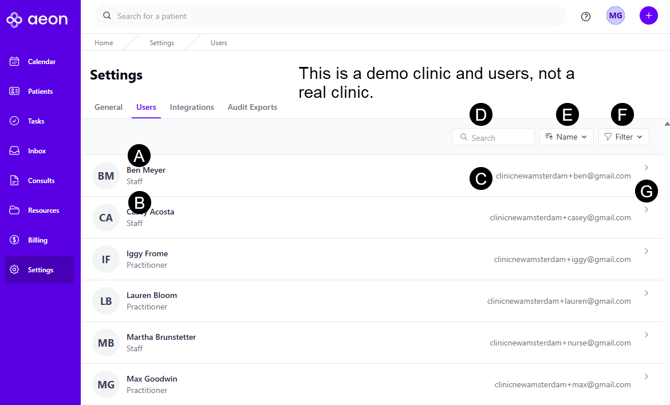
A. User's Name: The name of the user on the Aeon account.
B. User's Role: The role of the user on the Aeon account. This is practitioner or staff. If the user hasn't completed signing up yet, it is unassigned.
C. Email: The email address of the user.
D. Search: You can search for a name or email in this field to find someone quickly.
E. Name: Choose if you'd like to see the list ordered by name or email and in ascending or descending order.
F. Filter: Filter the list by role(s): practitioner, staff, or unassigned.
G. Open User dropdown: Click the arrow to open the user's profile to view or edit information.
Edit Users
To edit a user in your Aeon account:
1. Go to Settings -> Users
2. Click on the name of the user
3. Click edit
4. Make your changes
5. Click Save
Edit the User Settings of a Practitioner
The fields in a Practitioner's user page are as follows:
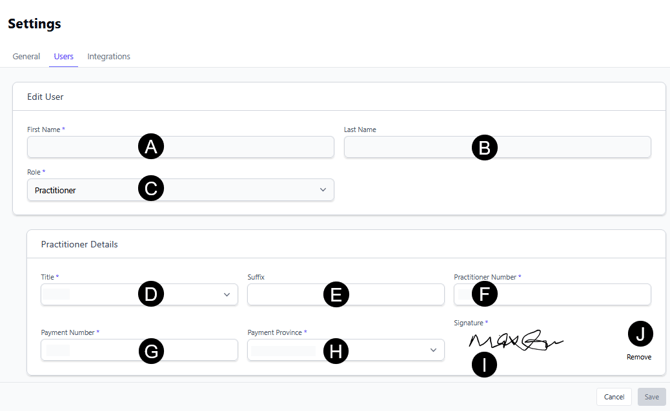
A. First Name: First name of the practitioner. This information is pulled into prescriptions, consults, and anywhere else the name is shown.
B. Last Name: Last name of the practitioner. This information is pulled into prescriptions, consults, and anywhere else the name is shown.
C. Role: This is set by the individual that invited you to Aeon and cannot be modified. The Practitioner role includes more permission levels throughout the program, compared to Staff.
D. Title: Choose from the dropdown. This information is pulled into prescriptions, consults, and anywhere else the name is shown.
E. Suffix: An optional field. This information is pulled into prescriptions, consults, and anywhere else the name is shown.
F. Practitioner Number: Used for bill claims. This information is pulled into all Bill Claims.
G. Payment Number: Used for bill claims. This information is pulled into all Bill Claims.
H. Payment Province: Currently the information about the province pulled into Bill Claims is captured in the Clinic Settings. You can set this to the same province as your clinic.
I. Signature: Create an electronic signature here. This information is pulled into prescriptions, consults, and anywhere else the signature is shown.
J. Signature button: Use this button to create or remove an electronic signature.
Integrations
SRFax Integration
In Aeon, integrating your SRFax account ensures incoming faxes are delivered directly to your Inbox. From there, staff can categorize each fax, link it to the correct patient record, and assign it to a practitioner for review, just like any other File. Outgoing faxes can be sent from multiple areas of Aeon, allowing you to manage referrals, prescriptions and external communications within your existing workflow. This integration streamlines document exchange with pharmacies, labs and other providers while supporting HIPAA/PHIPA‑aligned practices.
For more information about SRFax and how to connect it to Aeon, please see this article.
Audit Exports
Audit Export lets practitioners download a record of every user action on patient records. Use this export to demonstrate compliance with regulatory requirements or to review activity within your clinic. Each export arrives as a CSV file that shows who did what and when, making it easier to answer audit requests and monitor how your team uses the system.
For more information about Audit Exports, please see this article.