
In This Article
Description
Location
Set up Billing Information
Create Bill Claims
Payment Models
Permissions
📢 BC (Teleplan/MSP) is supported today. If you bill in another province, contact us - we'll help you confirm the best workflow for your clinic and share what we recommend next. Email support@aeon.health
.png?width=670&height=377&name=MSPTeleplan%20(2).png)
We'll discuss the Steps to Submit Billing Claims to MSP later in this article.
Description
The billing feature enables clinics to create claims for billing through the Aeon system. Claims can be generated from an appointment, a patient's chart note, or a patient profile. A billing index page provides a comprehensive list of claims for the clinic, each containing the required information for submission to insurance.
The system integrates with ClinicAid to retrieve fee schedules and procedure schedules per province. While the system does not handle direct claim submission to insurance, clinics can export claims from Aeon, manually upload them to ClinicAid, and submit them to the province from there. Features such as claim statuses or rejections are handled within ClinicAid.
The core tasks you'll complete with Aeon's billing include:
- Create billing claims from multiple access points: appointment calendar, chart notes, and patient profiles
- View and manage claims through the billing index
- Integrate with the ClinicAid API for automated fee schedule updates and procedure codes
- Export billing claims via the "Ready for Export" tab for upload to a billing management system
- Manually edit claims before and after export if needed
Location
There are several locations you can add and view your billing entries:
Create: Within a Calendar Entry
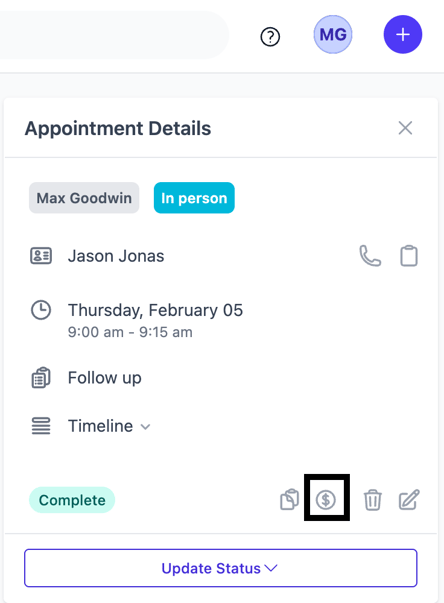
Once a Calendar Appointment has been created, you'll find the billing icon in the Appointment Details panel on the right of your screen:
Create: Within a Chart Note
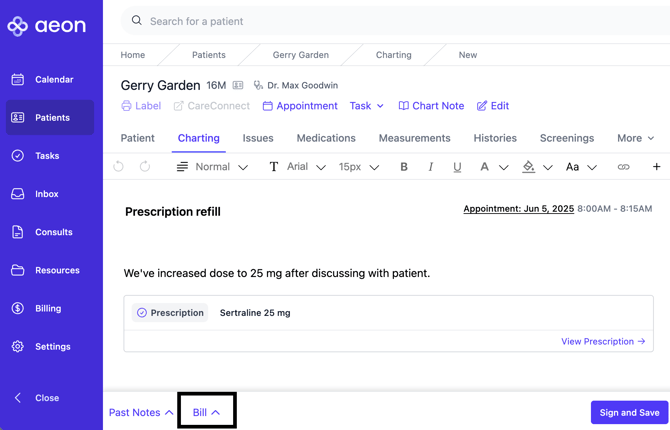
A billing entry can be created within a draft Chart Note or by adding an amendment to a Signed Chart Note:
🎓 Training Tip: In this Creating a Fee-for-Service Bill article, we discuss how you can link a Calendar Appointment to a Chart Note!
View: Billing Entries
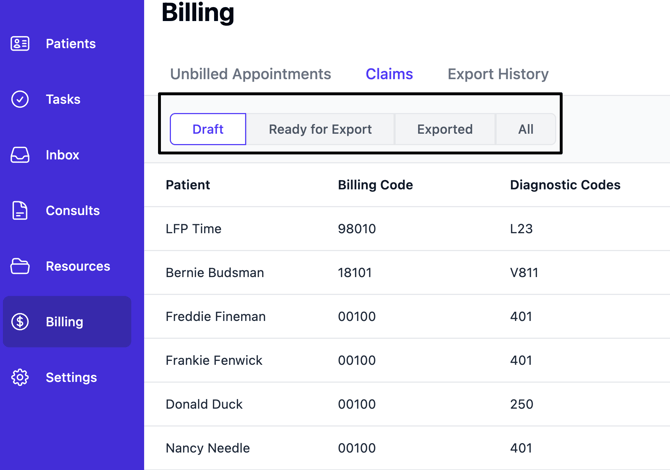
You can view the Draft, Ready for Exporting, and Exported billing entries by clicking the Billing icon on the left side of the page:
View & Create: Unbilled Appointments
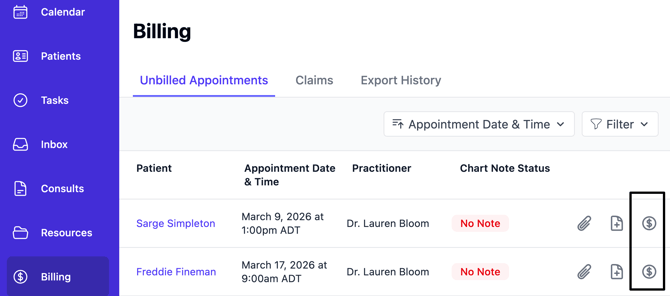
The Unbilled Appointments area gives you a list of calendar appointments that do not currently have a matching bill claim attached to it. This gives you the ability to review and create Bill Claims all in one page, while making sure all of your time is billed:
Set up Billing Information
If your clinic is new to Aeon, the first thing to do is complete these steps.
Create Bill Claims
Once the Billing Setup has been completed (and optionally LFP Setup), you are ready to create Bill Claims. There are two different processes:
Payment Models
Depending on your payment model, we have further information to guide you through the process:
- Bill Fee-for-Service Model: BC Physicians
- Bill MSC Longitudinal Family Physician (LFP) Payment Model
Permissions
There are no restrictions on billing features, regardless of role.
- Practitioners: Create, edit, and export claims
- Staff: Create, edit, and export claims