---
title: "Bill Fee-for-Service Model: BC Physicians"
description: Follow these instructions to prepare and submit fee‑for‑service billing claims in Aeon for British Columbia physicians, with examples and tips.
---
[Skip to content](https://help.aeon.health/how-to-bill-fee-for-service-bc-physicians#main-content)
English
Show submenu for translations
[Contact us](https://help.aeon.health/kb-tickets/new?hsLang=en)
[](https://aeon.health)
Open main navigation
Close main navigation
- English
Show submenu for translations
- [Contact us](https://help.aeon.health/kb-tickets/new)
- [Aeon's Status Page](https://status.aeon.health/)
[Aeon's Status Page](https://status.aeon.health/)
How can we help you?
- There are no suggestions because the search field is empty.
1. [Aeon Health Help Center](https://help.aeon.health/?hsLang=en)
2. [Aeon Features](https://help.aeon.health/aeon-features?hsLang=en)
3. [Billing: Fee-For-Service (FFS) BC](https://help.aeon.health/aeon-features?hsLang=en#billing-fee-for-service-ffs-bc)
April 21, 2026
# Bill Fee-for-Service Model: BC Physicians
## Detailed steps for BC physicians to create fee‑for‑service claims through Aeon
**Training Tip **🎓: For a full breakdown of Billing in Aeon, see the article [Billing: An Overview](https://help.aeon.health/billing-an-overview?hsLang=en)
**Quick Links**
[Environment](https://help.aeon.health/how-to-bill-fee-for-service-bc-physicians#Envi)
[Basic Components of an MSP Claim](https://help.aeon.health/how-to-bill-fee-for-service-bc-physicians#basic)
[Claim Creation Instructions](https://help.aeon.health/how-to-bill-fee-for-service-bc-physicians#create)
---
### Environment
- BC Practitioners billing for their time using the Fee-for-Service model
**Training Tip 🎓: ** If you are interested in LFP Billing, see the [Longitudinal Family Physician (BC Physicians) article](https://help.aeon.health/how-to-bill-longitudinal-family-physician-lfp-bc-physicians?hsLang=en)
---
### Basic Components of an MSP Claim
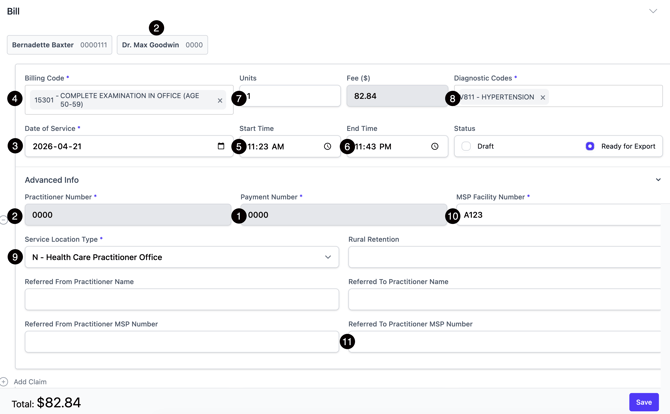
| | **Name** | **Where is the Information Entered?** | **Notes** |
| --- | --- | --- | --- |
| 1. | MSP Payee Number --- ❓The Payee Number tells MSP where payment of the claims should be sent. It's typically the same as your MSP Billing Number. You might need additional numbers if you bill at multiple locations or if you've set up a professional corporation. [More Info](https://www2.gov.bc.ca/gov/content/health/practitioner-professional-resources/msp/physicians/enrolment). | **Settings > Users > (Practitioner's name) > Edit > Payment Number** | In Aeon this is referred to as the "Payment Number". This only needs to be set up once unless the information changes. |
| 2. | Practitioner Number --- ❓Physicians licensed by the College of Physicians and Surgeons of British Columbia (CPSBC) are eligible to enrol with the Medical Services Plan (MSP) and obtain MSP billing numbers. [More Info](https://www2.gov.bc.ca/gov/content/health/practitioner-professional-resources/msp/physicians/enrolment). | **Settings > Users > (Practitioner's name) > Edit > Practitioner Number** | This only needs to be set up once unless the information changes. By default, the Practitioner Number automatically pulled into a Billing Claim will be based on the name of the assigned Practitioner in the Patient's Profile. |
| 3. | Date of service | Within the Billing Entry | The date the service took place |
| 4. | Fee Code(s) for services provided [See the latest MSC Payment Schedule (Jan 31, 2026)](https://www2.gov.bc.ca/assets/gov/health/practitioner-pro/medical-services-plan/msc_payment_schedule_-_january_31_2026.pdf) | Within the Billing Entry | In Aeon this is referred to as the "Procedure Code". |
| 5. | Start Time Start and end times are mandatory for specific fee items, particularly those related to time-based services, emergency visits, and out-of-office hours premiums. [See the latest MSC Payment Schedule (Jan 31, 2026)](https://www2.gov.bc.ca/assets/gov/health/practitioner-pro/medical-services-plan/msc_payment_schedule_-_january_31_2026.pdf) | Within the Billing Entry | If used, please include a.m. or p.m. |
| 6. | End Time Start and end times are mandatory for specific fee items, particularly those related to time-based services, emergency visits, and out-of-office hours premiums. [See the latest MSC Payment Schedule (Jan 31, 2026)](https://www2.gov.bc.ca/assets/gov/health/practitioner-pro/medical-services-plan/msc_payment_schedule_-_january_31_2026.pdf) | Within the Billing Entry | If used, please include a.m. or p.m. |
| 7. | Units | Within the Billing Entry | Number of services or units of the Fee Code used |
| 8. | Diagnostic Code | Within the Billing Entry | [See ICD9 Diagnostic Codes ](https://www2.gov.bc.ca/gov/content/health/practitioner-professional-resources/msp/physicians/diagnostic-code-descriptions-icd-9) |
| 9. | Location Code --- ❓Also called the MSP Service Locations Codes (SLCs), they are used to identify the type of facility or setting where publicly funded MSP services are provided. [MSP Location Codes for Family Physicians ](https://www2.gov.bc.ca/assets/gov/health/practitioner-pro/medical-services-plan/msp-service-locations-codes.pdf#:~:text=Revised%20location%20codes%20will%20be,to%20use%20the%20revised%20SLCs) | Within the Billing Entry > **Advanced Tab** | In Aeon this is called "Service Location" |
| 10. | MSP Facility Number --- ❓A unique identifier issued by the MSP in BC to qualifying facilities, primarily community-based offices. [MSP Application for MSP Facility Number (New)](https://www2.gov.bc.ca/assets/gov/health/forms/2948fil.pdf) | **Settings > General> Edit>Facility Number** | |
| 11. | Referring Physician (if applicable) | Within the Billing Entry > **Advanced Tab** | |
---
### Claim Creation Instructions
Let's look at 3 ways to create a Bill Claim.
##### #1: From a Draft Chart Note
For this example, we'll assume that you will create the billing entry from the Chart Note created during the visit, before you sign and save the Chart Note.
1. Open the **Patient Profile**
2. Create a [**new Chart Note**](https://help.aeon.health/charting-an-overview?hsLang=en) for this visit
3. In the Chart Note, click [**Link Appointment**](https://help.aeon.health/how-to-link-a-patient-appointment-to-a-chart-note?hsLang=en)
4. **Choose** the correct appointment from the list
**Training Tip 🎓:** This step links the patient's calendar appointment to the Chart Note. If you have your Calendar event open and click on the Chart Note icon, then the Calendar appointment will be automatically linked to your Chart Note!
5. Click the **Bill** link at the bottom of the page
6 Choose **Add Claim**
7. Fill in the information for the Billing Claim
**Training Tip 🎓:** The fields for **Procedure Code** and **Diagnostic Codes** are pre-populated with BC MSP codes. Start typing in the field (the number or name) and choose the desired code from the dropdown.
8. Optional: Use the **Advanced **tab to access any referral fields as needed
9. Click **Save** to save the billing claim (the [Chart Note](https://help.aeon.health/charting-an-overview?hsLang=en) will still need to be *Signed and Saved* to be finalized)
10. Add any additional Billing Claims for the same appointment by clicking **Add Claim**
11. **Save**
**#2: From a Completed Chart Note**
For this example, we'll assume that you will create the billing entry from a signed and saved (complete) Chart Note.
1. Open the **Patient Profile**
2. Click **Charting**
3. Click the **title** of the Chart Note to open it
4. Click **Create New Revision**
5. At the bottom of the page, click **Bill**
6.Fill in the information for the Billing Claim
7. Optional: Use the **Advanced **tab to access any referral fields as needed
8. Add any additional Billing Claims for the same appointment by clicking **Add Claim**
9. Click **Save** to save the billing claim
10. Click **Amend and Save** to save the Chart Note
**#3: From a Calendar Appointment**
For this example, we'll assume that you will create the billing entry from within a Calendar Appointment.
1. Go to **Calendar** in the left column
2. Find the Calendar entry and click on it to open up the **Appointment Detail**s on the right side
3. Click the **$ icon** at the bottom of the appointment
4. A Billing tray will open along the bottom of your screen. **Fill in the fields**
5. Optional: Use the **Advanced **tab to access any referral fields as needed
6. Add any additional Billing Claims for the same appointment by clicking **Add Claim**
7. Click **Save** to save the billing claim
**Training Tip 🎓: ** **MSP Billing Cycle**
For a full overview of the MSP Billing Cycle, click [here.](https://help.aeon.health/billing-in-bc-msp-overview?hsLang=en)
.png?width=670&height=377&name=MSPTeleplan%20(2).png)
- [Get Started](https://help.aeon.health/get-started?hsLang=en#main-content)
- [Quickstart Checklists ( ✅ Start Here! )](https://help.aeon.health/get-started?hsLang=en#quickstart-checklists-start-here)
- [Training](https://help.aeon.health/training?hsLang=en#main-content)
- [Practitioner Training](https://help.aeon.health/training?hsLang=en#practitioner-training)
- [30 Minute Onboarding](https://help.aeon.health/training?hsLang=en#30-minute-onboarding)
- [Aeon Features](https://help.aeon.health/aeon-features?hsLang=en#main-content)
- [Aeon Basics](https://help.aeon.health/aeon-features?hsLang=en#aeon-basics)
- [Allergies](https://help.aeon.health/aeon-features?hsLang=en#allergies)
- [Audit Exports](https://help.aeon.health/aeon-features?hsLang=en#audit-exports)
- [Billing: General](https://help.aeon.health/aeon-features?hsLang=en#billing-general)
- [Billing: Fee-For-Service (FFS) BC](https://help.aeon.health/aeon-features?hsLang=en#billing-fee-for-service-ffs-bc)
- [Billing: Longitudinal Family Physician (LFP) BC](https://help.aeon.health/aeon-features?hsLang=en#billing-longitudinal-family-physician-lfp-bc)
- [Calendar](https://help.aeon.health/aeon-features?hsLang=en#calendar)
- [Charting](https://help.aeon.health/aeon-features?hsLang=en#charting)
- [Consults](https://help.aeon.health/aeon-features?hsLang=en#consults)
- [Files](https://help.aeon.health/aeon-features?hsLang=en#files)
- [Histories](https://help.aeon.health/aeon-features?hsLang=en#histories)
- [Immunizations](https://help.aeon.health/aeon-features?hsLang=en#immunizations)
- [Inbox](https://help.aeon.health/aeon-features?hsLang=en#inbox)
- [Issues](https://help.aeon.health/aeon-features?hsLang=en#issues)
- [Measurements](https://help.aeon.health/aeon-features?hsLang=en#measurements)
- [Medications & Prescriptions](https://help.aeon.health/aeon-features?hsLang=en#medications-prescriptions)
- [Patient Profile](https://help.aeon.health/aeon-features?hsLang=en#patient-profile)
- [Requisitions](https://help.aeon.health/aeon-features?hsLang=en#requisitions)
- [Resources](https://help.aeon.health/aeon-features?hsLang=en#resources)
- [Settings](https://help.aeon.health/aeon-features?hsLang=en#settings)
- [Screenings](https://help.aeon.health/aeon-features?hsLang=en#screenings)
- [SRFax Integration](https://help.aeon.health/aeon-features?hsLang=en#srfax-integration)
- [Tasks](https://help.aeon.health/aeon-features?hsLang=en#tasks)
- [Settings](https://help.aeon.health/settings?hsLang=en)
[](https://aeon.health)
[mailto:email@email.com](mailto:email@email.com)
Copyright © 2024, Aeon Health