
Introduction
Aeon’s billing module helps clinics create fee‑for‑service and longitudinal family physician (LFP) claims directly from the appointment schedule, Chart Notes or the Patient Profile. Aeon acts as the system of record for patient and service information; it does not transmit claims to insurers. ClinicAid submits MSP claims through Teleplan, where claims are processed and remittance responses are returned.
This article details how to export claims from Aeon, upload them to ClinicAid, submit claims in ClinicAid, and handle reconciliation.
To understand how ClinicAid handles payer‑specific rules (MSP, ICBC, WorkSafeBC, Private Pay, and others), click here.
In This Article
Billing Workflow Diagram (MSP)
🔹Step 1: Capture the claim in Aeon
🔹Step 2: Review, Prepare & Export in Aeon
🔹Step 3: Import into ClinicAid from Aeon
🔹Step 4: Submit Billing in ClinicAid
🔹Step 5: Reconcile and Track in ClinicAid
🔹Weekly Billing Checklist (MSP)
Billing Workflow Diagram (MSP)
The diagram below summarizes the recommended workflow. Aeon captures and structures encounter notes and Bill Claims and ClinicAid transmits Claims and supports private billing. Use this overview to train your team and explain the process to colleagues.
.png?width=670&height=377&name=MSPTeleplan%20(2).png)
⚠️ First Time Billing with Aeon?
If this is your first time billing with Aeon, read this article before you continue with the steps below.
Step 1: Capture the Claim in Aeon
🎓 Training Tip: See Aeon's instructions on Fee-for-Service or LFP Billing for step-by-step instructions on creating a Bill Claim.
1. If it hasn't been done yet, create the Patient in Aeon
2. During the appointment, create the Chart Note
3. At the bottom of the Chart Note, open the Bill Claim form
5. Note: Time‑coded LFP claims also require start and end times and the L23 diagnostic code
Step 2: Review, Prepare & Export in Aeon
1. Before exporting, review Unbilled Appointments to ensure all visits have associated Bill Claims
2. In the Billing tab, the billing index separates claims into Draft, Ready to Export, and Exported
3. Review the Draft claims, ensure all required fields are present and move them as Ready to Export
4. Export each practitioner’s claims to a CSV file - each practitioner must be done separately!
🚀 Best Practice: Export at least twice per week as most MSP claims must be submitted within 90 days of the service date. Always confirm exceptions in the MSP Payment Schedule. (Source: Appendix C – Claim Submission and Payment, Longitudinal Family Physician Payment Schedule – page 62 of Longitudinal Family Physician Payment Schedule, updated February 23, 2026)
Claims typically move through the following statuses:
- Draft → claim is incomplete
- Ready to Export → claim is complete and ready for export
- Exported → claim has been exported to ClinicAid
- Submitted / Paid → tracked in ClinicAid after submission
Step 3: Import into ClinicAid from Aeon
🎓 Training Tip: See ClinicAid's documentation on Importing Claims.
1. In ClinicAid, go to Create Invoice → Import Invoices
2. For most clinics, under Create/Update Patient Record, click YES (and then define what to do with duplicates in the next step) - however, if you are unsure or already have a full patient roster in ClinicAid, please speak to ClinicAid Support before proceeding
3. Under Duplicate Record Action, choose the option that you prefer:
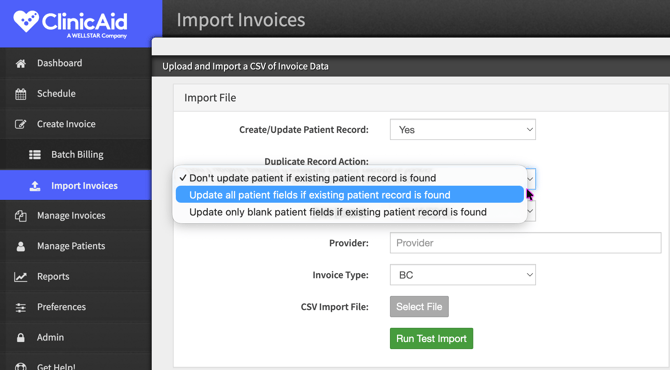
4. Choose the date format YYYY-MM-DD
4. Choose your option from the Provider field
5. According to ClinicAid's documentation, for Invoice Type, choose BC (for provincial billing) or Private (for 3rd party insurers or to bill the patient directly)
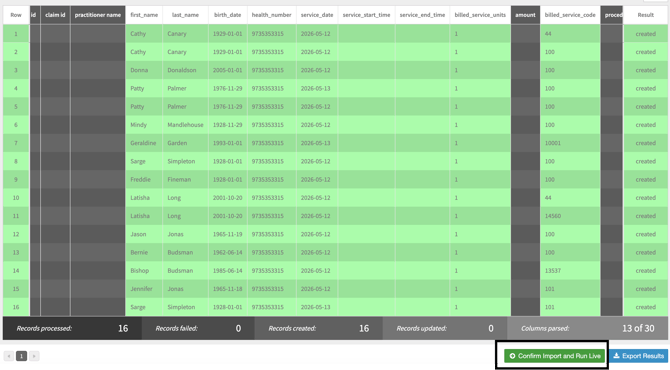
6. Run a test import and confirm claims imported correctly (see Importing claims)
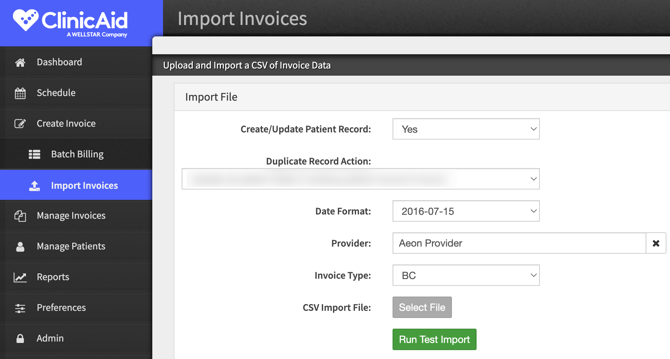
7. Correct any errors, or otherwise, click Confirm Import and Run Live:
Step 4: Submit Billing in ClinicAid
1. Click Manage Invoices in the left column:
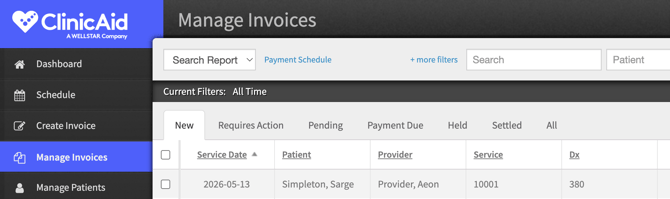
2. Follow the instructions here to review and edit your bill claims
3. Once you've reviewed your invoices for accuracy in ClinicAid, click the top checkbox (next to Service Date) - this will select all of the claims visible on the page (or you can select them individually)
4. Choose to either:
- Click Send to send the claims you are viewing per page; or
- Click Send All to send ALL claims in the New tab
🎓 Training Tip: What comes after you click Send?
According to ClinicAid's support documentation, once claims have been sent, they will move into the Pending tab until they are assessed by the Ministry and sent back with updated statuses. You will not be able to edit claims that are pending until you receive a response from the Ministry on them.
Step 5: Reconcile and Track in ClinicAid
🚀 Best Practice: We suggest you run weekly reconciliations in ClinicAid and then resolve issues.
1. Keep track of your Bill Claims under the Manage Invoice section - click here to see a summary of each status and what action to take
- View MSP Explanatory Codes (Rejection Reasons) here
- View Cut Off and Remittance Schedule MSP 2026 here
See ClinicAid's documentation for common questions regarding Managing Invoices and Reconciliation
Weekly Billing Checklist (MSP)
| 🔲 | Review the Unbilled Appointments and Ready to Export lists in Aeon |
| 🔲 | Prioritize claims that are more than 60 days old so they are submitted before the 90-day MSP deadline |
| 🔲 | Export ready claims for each practitioner from Aeon |
| 🔲 | Import the exported claims into ClinicAid |
| 🔲 | Confirm that each exported claim appears in ClinicAid after import |
| 🔲 | Compare the number of claims exported from Aeon with the number of invoices submitted and paid in ClinicAid |
| 🔲 | Investigate any discrepancies and correct missing information or errors in ClinicAid |
| 🔲 | Review rejected claims in ClinicAid, correct the affected fields, and resubmit them before the submission deadline |