
Introduction
This article is for clinics who are new to Aeon and need to submit claims through Teleplan using ClinicAid.
Aeon’s billing module allows you to create fee-for-service and longitudinal family physician (LFP) claims directly from the appointment schedule, Chart Notes, or the Patient Profile. Aeon acts as the system of record for patient and service information, while ClinicAid is used to submit claims and manage billing rules.
On day 1, your clinic will use Aeon to capture billing information and ClinicAid to submit claims through Teleplan. Before you begin, it’s important to complete a few key setup steps to ensure your claims export correctly. This article outlines what needs to be configured and how to get up and running with billing right away.
What each system does (Day 1):
- Aeon: Captures patient, appointment, and billing information, and generates claim export files. Aeon does not submit claims or track private payments
- ClinicAid: Imports claims from Aeon, submits to Teleplan, and manages private billing and payment tracking
- Teleplan: The network where claims are submitted and processed, and where remittances are returned
Checklist
This is a simplified chart of the instructions below.
| ✅ | What | Description |
| 1. | Setup ClinicAid and Connect ClinicAid to Teleplan | As mentioned above, Teleplan is the network where claims are submitted and processed, and where remittances are returned |
| 2. | Create the Clinic in ClinicAid | The clinic must be configured in ClinicAid to successfully process Bill Claims |
| 3. | Add Practitioners in ClinicAid | Each practitioner must be configured in ClinicAid to successfully process Bill Claims |
| 4. | Connect Payment Processor to ClinicAid | If you will be accepting Private Pay in your clinic, you need a payment processor that is connected to ClinicAid |
| 5. | Configure the General Settings in Aeon | The clinic must be configured in Aeon to successfully process Bill Claims |
| 6. | Configure each Practitioner in Aeon | Each practitioner must be configured in Aeon to successfully process Bill Claims |
| 7. | Create patients in Aeon | Populating patients in Aeon is necessary before any appointments or Bill Claims |
| 8. | LFP Setup in Aeon | If you will be billing under the LPF payment model, this setup is necessary. |
In This Article
Setup ClinicAid and Connect ClinicAid to Teleplan
🔹Payment Processor
Configure Aeon
LFP Billing Setup
Understand Submission Deadlines (BC Billing)
Create & View Bill Claims
Permissions
Setup ClinicAid and Connect ClinicAid to Teleplan
⚠️ Before you Proceed
These instructions assume that you have already completed at least the steps in the Admin: Quickstart Checklist -> Pre Checklist. In that checklist, the Admin was instructed on what programs to sign up for. If no one in your clinic has completed the Admin Checklist, please do so before continuing.
1. Watch ClinicAid's Getting Started video here or written instructions here, and follow the instructions to:
- Create the clinic – add the payee number and banking details
Complete the steps in this video or written guide to setup ClinicAid - Add practitioners – link each doctor’s MSP number to your clinic
To set this up, please follow these instructions - Connect ClinicAid to Teleplan – enter Teleplan credentials so that ClinicAid can submit claims
To set this up, please follow these instructions
3. Optionally: you can watch the instructions for creating your first invoices, the BC MSP Billing Cycle, and BC Contacts and Additional Resources. Otherwise, as you move through your instructions in these Aeon guides, we'll let you know when you need to learn each topic.
Payment Processor
If you will be taking private payments, you will need to set up your own separate payment processor and the terminals would need to be activated. When you collect payment for private pay invoices, you would use this payment processor.
Configure Aeon
⚠️ Don't Skip this Step!
Billing will fail if this information is incomplete.
- Set up your clinic in Settings → General – enter the clinic name, address and payment number
Complete the steps here to set up the General Settings - Add practitioners in Settings → Users – create a record for each doctor and add their MSP practitioner number, payment preferences and facility number
Complete the steps here to setup each Practitioner - Add patients
Complete the steps here to create patients
LFP Billing Setup
If any practitioners in your clinic will be billing under the LFP payment model, there are configurations that must be setup. Click here to see the step-by-step instructions.
Understand Submission Deadlines (BC Billing)
Understanding submission timelines is critical to ensure your clinic is paid on time.
- MSP / Teleplan & WorkSafeBC:
Claims must be submitted within 90 days of the service date. Claims submitted after this window require special submission codes (e.g., C, X, I, W, A) as defined in the LFP Payment Schedule. - WorkSafeBC Forms:
Form 8 must be submitted within 3 business days, and Form 11 within 5 business days of the patient’s visit. See forms here. - ICBC Billing:
For services billed outside MSP (e.g., physiotherapy), invoices should be submitted within 45 days of treatment (ICBC Fee Guide for Health Care Providers). - ICBC (Physician Services Update):
As of November 27, 2025, physician services related to motor vehicle accidents are billed through MSP, not ICBC.
Create & View Bill Claims
Now it's time to create Bill Claims. The workflow depends on the billing type:
-
For MSP billing, see the step-by-step instructions here.
.png?width=670&height=377&name=MSPTeleplan%20(2).png)
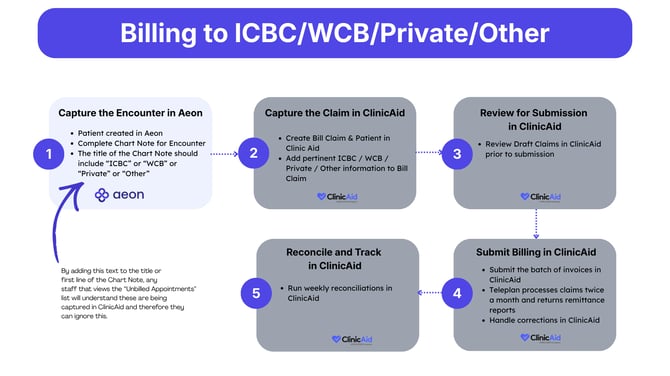
- For ICBC/WCB/Private/Other billing, see the step-by-step instructions here.
Permissions
There are no role‑based restrictions on billing features. Both practitioners and clinic staff can create, edit and export claims.
🚀 Best Practice: Assign a Billing Owner for the Clinic
We suggest that clinics assign a billing owner who is responsible for regular reconciliation and ensuring that all claims are submitted within the appropriate deadlines.