
Introduction
Aeon’s billing module helps clinics create fee‑for‑service and longitudinal family physician (LFP) claims directly from the appointment schedule, Chart Notes, or the Patient Profile. Aeon acts as the system of record for patient and service information; it does not transmit claims to insurers.
This article details how to use Aeon and ClinicAid to submit ICBC/WCB/Private Pay/Other Bill Claims in BC. ClinicAid submits these claims through Teleplan, which processes MSP, ICBC, and WorkSafeBC billing workflows in BC.
To understand how to use Aeon to submit claims for MSP, click here.
In This Article
Billing Workflow Diagram (ICBC/WCB/Private/Other)
🔹Step 1: Capture the Encounter in Aeon
🔹Step 2: Capture the Claim in ClinicAid
🔹Step 3: Review for Submission in ClinicAid
🔹Step 4: Submit Billing in ClinicAid
🔹Step 5: Reconcile and Track in ClinicAid
Private Billing & Payment Tracking in ClinicAid
Links to Detailed Guides
Billing Workflow Diagram (ICBC/WCB/Private/Other)
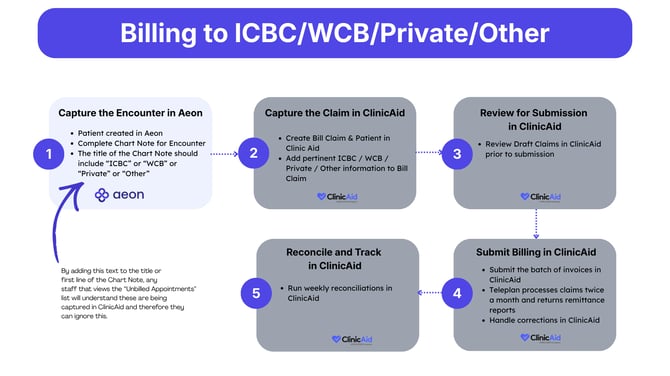
The diagram below summarizes the recommended workflow. Aeon captures the details about the patient's appointment; ClinicAid captures the Bill Claim, transmits claims, and supports private billing. Use this overview to train your team and explain the process to colleagues.
⚠️ First Time Billing with Aeon?
If this is your first time billing with Aeon, read this article before you continue with the steps below.
Step 1: Capture the Encounter in Aeon
1. If it hasn't been done yet, create the Patient in Aeon
2. During the appointment, create the Chart Note
3. In the title of the Chart Note, add "ICBC" or "WCB" or "Private" or "Other Billing" so that it's very clear to others in your clinic that the Bill Claim will entirely be captured within ClinicAid
4. Do not create a Bill Claim in Aeon for ICBC, WCB, or private billing. These claims are created and submitted in ClinicAid.
🎓 Training Tip: Unbilled Appointments
We suggest that you add the information to the title of the chart note because if a staff member is viewing the list of Unbilled Appointments, they need to understand how this encounter is going to be billed and can safely ignore this "unbilled appointment".
Step 2: Capture the Claim in ClinicAid
All claim creation and submission is completed in ClinicAid. To do so, follow ClinicAid's documentation on how to create the patient and the appropriate type of billing:
- ICBC Claims
- WCB Claims
- Private Pay
- Out of Province
- For any other types of Billing, see ClinicAid's documentation
Step 3: Review for Submission in ClinicAid
1. Review your Draft Bill Claims in ClinicAid to ensure accuracy, prior to submission
Step 4: Submit Billing in ClinicAid
1. Once you've reviewed your invoices for accuracy in ClinicAid, click the top checkbox (next to Service Date) - this will select all of the claims visible on the page
- Click Send to send the claims you are viewing per page; or
- Click Send All to send ALL claims in the New tab
🎓 Training Tip: What comes after you click Send?
According to ClinicAid's support documentation, once claims have been sent, they will move into the Pending tab until they are assessed by the Ministry and sent back with updated statuses. You will not be able to edit claims that are pending until you receive a response from the Ministry on them.
Step 5: Reconcile and Track in ClinicAid
🚀 Best Practice: We suggest you run weekly reconciliations in ClinicAid and then resolve issues.
1. Keep track of your Bill Claims under the Manage Invoice section - click here to see a summary of each status and what action to take
- View MSP Explanatory Codes (Rejection Reasons) here
- View Cut Off and Remittance Schedule MSP 2026 here
See ClinicAid's documentation for common questions regarding Managing Invoices and Reconciliation
Private Billing & Payment Tracking
ClinicAid supports private billing workflows, including invoicing and payment tracking. While it does not integrate directly with payment processors (e.g., Square or Stripe), it provides tools to manage payments within the platform.
- Record Payments:
Track payments made via Visa, Mastercard, Cash, Debit, or Cheque using the Add Payment function in ClinicAid - Create Private Invoices:
Generate invoices for uninsured services or third-party insurers directly in ClinicAid
Links to Detailed Guides
- ClinicAid private billing guides:
- ClinicAid WCB & ICBC guides: