Training Tip 🎓: For a full breakdown of Billing in Aeon, see the article Billing: An Overview
Environment
- Aeon users who have previously exported their Billing Claims from Aeon to ClinicAid and now wish to reconcile differences
Editing an Exported Billing Claim
Training Tip 🎓: At this time, Aeon users are not submitting their billing claims to the province through Aeon; however, we've enabled a process to submit through ClinicAid. Therefore, any corrections should be made in that ClinicAid . It's not necessary to reconcile the changes in Aeon afterwards, but if you wish to do so for tracking purposes, these are the instructions for you.
1. Click Billing in the left column
2. Open the Exported tab
3. Find the billing entry you want to edit
4. Click on the entry to open it
5. Make edit(s)
6. Save
7. Repeat for any other entries
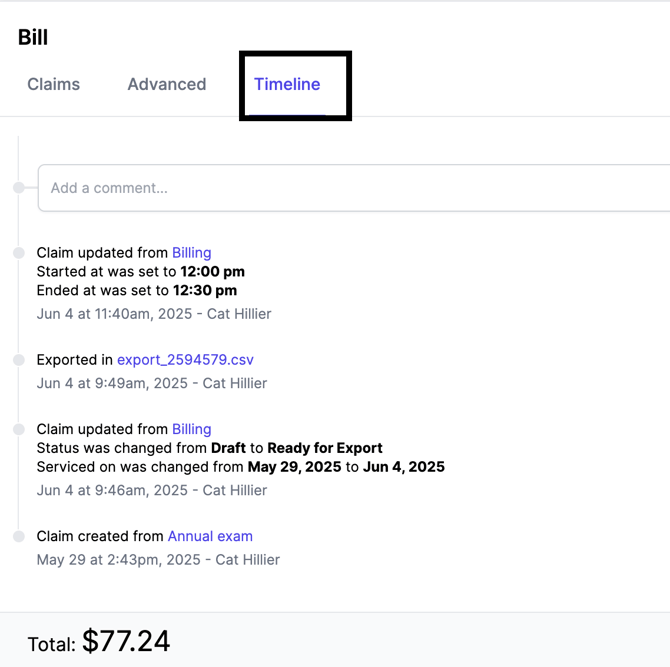
Training Tip🎓: Each Exported Billing Claim has a Timeline tab where you can view changes made: