---
title: Manage the Inbox & Assign New Files for Review
description: Step‑by‑step guide to managing Aeon’s inbox, assigning incoming files or faxes to practitioners for review and tracking tasks to completion.
---
[Skip to content](https://help.aeon.health/how-to-manage-the-inbox-and-assign-for-review#main-content)
English
Show submenu for translations
[Contact us](https://help.aeon.health/kb-tickets/new?hsLang=en)
[](https://aeon.health)
Open main navigation
Close main navigation
- English
Show submenu for translations
- [Contact us](https://help.aeon.health/kb-tickets/new)
- [Aeon's Status Page](https://status.aeon.health/)
[Aeon's Status Page](https://status.aeon.health/)
How can we help you?
- There are no suggestions because the search field is empty.
1. [Aeon Health Help Center](https://help.aeon.health/?hsLang=en)
2. [Aeon Features](https://help.aeon.health/aeon-features?hsLang=en)
3. [Inbox](https://help.aeon.health/aeon-features?hsLang=en#inbox)
January 28, 2026
# Manage the Inbox & Assign New Files for Review
## The workflow for triaging the inbox and assigning incoming files to practitioners.
### Environment
- Staff Role (Practitioners can complete steps and have greater permissions)
- Incoming faxes via SR Fax linked to Aeon and/or paper Files/documents received by the clinic
🎓 **Training Tip: SR Fax Integration**
In order to have your SR faxes sent directly to Aeon, you can add this information at **Settings > Integrations**. We suggest testing after you set it up. New faxes will arrive in **Inbox > New**.
### Instructions
There are two ways that Files can be added to Aeon - via SR Fax connected to your Aeon account, and by uploading any physical mail or email attachments received.
1. Click **Inbox** in the left column
2. By default, you are looking at **New** items; here is a breakdown of each category:
- **New: **New, unreviewed files that have not yet been assigned to a practitioner.
- **Admin:** These are internal clinic files assigned to the **Admin** category. These are not linked to a patient.
- **Archived:** Files that have been archived because they’re junk, duplicates, or unrelated to a patient or the clinic.
- **All:** Every file across all categories. Use the filter to display based on the File category or the practitioner assigned.
3. Click the **title** of the first File
The File Details will appear on the right side of the screen (if your screen is minimized, then expand it)
4. Choose if the File is a **Patient File or an Admin File**
- A Patient File is linked to a patient in your clinic (See the *Patient File Steps*)
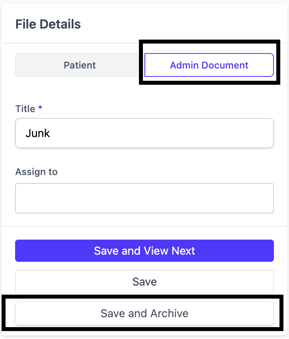
- An Admin Document is *not* linked to a patient and can be used for items related to the operation of your clinic, for example (See *Admin Document Steps*)
| **Patient File Steps** | **Admin Document Steps** |
| --- | --- |
| 5. Fill in the details: - **Patient:** Start to type in the patient's name and choose it from the dropdown - this will link the File to the Patient Profile (\*mandatory) - **Observation Date:** By default, this is the date it was received in the Inbox - you can change this now - **Title:** Give the File a clear title (\*mandatory) - **Category:** Choose from the dropdown based on the type of File it is (\*mandatory) - **Assign To:** Start to type in the name of the Practitioner and choose it from the dropdown - this will assign the File to the Practitioner for review Mark **Abnormal** if applicable to highlight this information | 5. Fill in the details: - **Title: ** Give the File a clear title (\*mandatory) - **Assign To:** Start to type in the name of the Practitioner and choose it from the dropdown - this will assign the File to the Practitioner for review |
**Assigned To is Blank:** For both the Patient File and Admin Document categories, if you do not assign a Practitioner for review, then no one will receive a Task to review the item.
- In the case of a Patient File not assigned, the File will be found in the File Tab of the linked Patient Profile. However, no Review Task will be created, so no individual is reminded to review and act on the File.
- In the case of an Admin Document not assigned, the File will be found in **Inbox > Admin**. However, no Review Task will be created, so no individual is reminded to review and act on the File.
6. Click one of the following:
- **Save and View Next: ** Save the changes you made and move on to the next item in the Inbox > New
- **Save: Save your changes. ** You will remain on the same page and can navigate away from here
- **Save and Archive: ** Save your changes and archive the File. A good use for Junk mail arriving in the Inbox:
7. Move on to the next File
If a Practitioner has been assigned to the File, then when that Practitioner goes to their Tasks, they will see the [File to be reviewed](https://help.aeon.health/how-to-review-new-patient-documents?hsLang=en).
- [Get Started](https://help.aeon.health/get-started?hsLang=en#main-content)
- [Quickstart Checklists ( ✅ Start Here! )](https://help.aeon.health/get-started?hsLang=en#quickstart-checklists-start-here)
- [Training](https://help.aeon.health/training?hsLang=en#main-content)
- [Practitioner Training](https://help.aeon.health/training?hsLang=en#practitioner-training)
- [30 Minute Onboarding](https://help.aeon.health/training?hsLang=en#30-minute-onboarding)
- [Aeon Features](https://help.aeon.health/aeon-features?hsLang=en#main-content)
- [Aeon Basics](https://help.aeon.health/aeon-features?hsLang=en#aeon-basics)
- [Allergies](https://help.aeon.health/aeon-features?hsLang=en#allergies)
- [Audit Exports](https://help.aeon.health/aeon-features?hsLang=en#audit-exports)
- [Billing: General](https://help.aeon.health/aeon-features?hsLang=en#billing-general)
- [Billing: Fee-For-Service (FFS) BC](https://help.aeon.health/aeon-features?hsLang=en#billing-fee-for-service-ffs-bc)
- [Billing: Longitudinal Family Physician (LFP) BC](https://help.aeon.health/aeon-features?hsLang=en#billing-longitudinal-family-physician-lfp-bc)
- [Calendar](https://help.aeon.health/aeon-features?hsLang=en#calendar)
- [Charting](https://help.aeon.health/aeon-features?hsLang=en#charting)
- [Consults](https://help.aeon.health/aeon-features?hsLang=en#consults)
- [Files](https://help.aeon.health/aeon-features?hsLang=en#files)
- [Histories](https://help.aeon.health/aeon-features?hsLang=en#histories)
- [Immunizations](https://help.aeon.health/aeon-features?hsLang=en#immunizations)
- [Inbox](https://help.aeon.health/aeon-features?hsLang=en#inbox)
- [Issues](https://help.aeon.health/aeon-features?hsLang=en#issues)
- [Measurements](https://help.aeon.health/aeon-features?hsLang=en#measurements)
- [Medications & Prescriptions](https://help.aeon.health/aeon-features?hsLang=en#medications-prescriptions)
- [Patient Profile](https://help.aeon.health/aeon-features?hsLang=en#patient-profile)
- [Requisitions](https://help.aeon.health/aeon-features?hsLang=en#requisitions)
- [Resources](https://help.aeon.health/aeon-features?hsLang=en#resources)
- [Settings](https://help.aeon.health/aeon-features?hsLang=en#settings)
- [Screenings](https://help.aeon.health/aeon-features?hsLang=en#screenings)
- [SRFax Integration](https://help.aeon.health/aeon-features?hsLang=en#srfax-integration)
- [Tasks](https://help.aeon.health/aeon-features?hsLang=en#tasks)
- [Settings](https://help.aeon.health/settings?hsLang=en)
[](https://aeon.health)
[mailto:email@email.com](mailto:email@email.com)
Copyright © 2024, Aeon Health