
In This Article
Files, Aeon's Document Management System, is here to help clinics easily store, review, organize, and manage all sorts of patient and administrative files. It makes uploading, categorizing, and linking Tasks a breeze!
Staff and practitioners can effortlessly upload Files like lab results, imaging, and consult notes into patient charts, review new items, and share important data with other providers. You can access it during Charting and administrative workflows, making your day a little smoother.
Some common tasks you will perform using Files include:
- Upload and categorize Files by type, observation date, and assignees
- Review and acknowledge/dismiss Files
- Attach Files to Tasks or Consults
- Edit File details
🎓 Training Tip: Files are any type of document/attachment related to the patient that you receive or create and want to save to the patient's file.
Location
You can find this feature right in the clinician's workflow during patient visits, accessed through the Patient Profile:
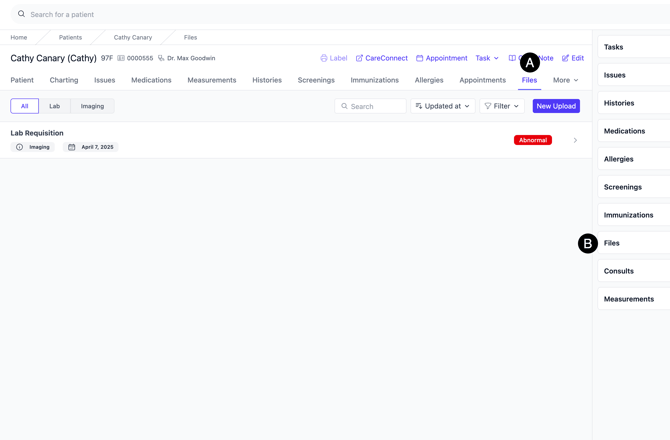
A. Files Index: list of all Files associated with this patient
B. Patient Sidebar: for quick access to recent Files during patient encounters
Additionally, in areas where you can attach a File to another Aeon component, you will see this option. For example, in Consults, you can attach Files.
Use
Below, we will cover all the features of Files and how to use them.
View a Patient's Files
1. Open the Patient Profile
2. Click on Files
3. View a list of the Files linked to the Patient
To view a specific File:
4. Click on the title
5. View it on your screen
Upload Files
1. Open the Patient Profile
2. Click on Files
3. Click Upload File
4. Complete the information. If your File doesn't fall into a listed category, use "Other"
Edit a File
While you cannot make direct edits to a File, you can edit the File details.
1. Open the Patient Profile
2. Click on Files
3. Click on the title
4. On the right-hand side, you will find the File details (if you've minimized your screen, expand it)
5. Click the edit icon
6. Make your changes
7. Click Save
If you view the Timeline of the File, you will see the changes made