
This is a continuation of Lesson 2, and in this lesson, we will continue to use our test Mickey Mouse Profile to learn about Aeon's features.
Here are the items we'll cover in Lesson 3:
Are you a Practitioner? If so, you can complete this training if you'd like but keep in mind that your Aeon screen may look a bit different as you have additional permissions. For Practitioner training, click here.
Quick Links
Training Setup
🔹Create Tasks
🔹Uploading Files to the Inbox
🔹Assign Files for Review by Practitioners
🔹Assign Incoming Faxes to the Practitioners for Review
Training Setup
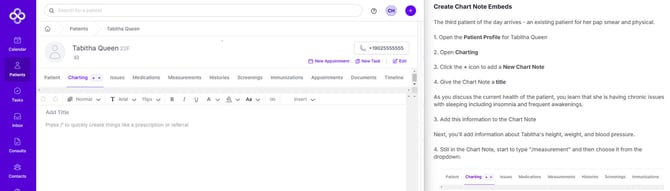
1. To complete this training, we suggest you have your screen set up with two windows (or two monitors) so that you can view both the lesson and the Aeon account side by side. It will look like this:
2. This training will take you through practice situations that will help you become familiar with how Aeon will help your practice stay organized and save you time.
Create Tasks
We are now going to run through a standard scenario you may see in your clinic. We'll be working with the features we covered in Lessons 1 and 2, and also learn about Files, Tasks, and the Inbox. Through this training, I will have you upload Documents into your Aeon account. The links I provide are to a Google Drive folder with sample Test Documents that are clearly labelled:
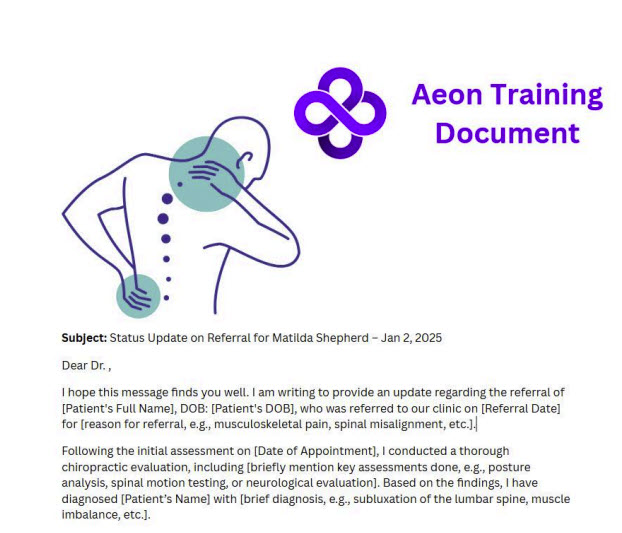
You can use these training documents OR you can take a blank piece of paper and type "TEST DOCUMENT" on it and save it as a PDF and then use that for any document-related Tasks. The choice is yours. Keep in mind that we only have one test patient in Aeon! So all the items you will do will be for him.
📋8:00 a.m. Your Day Starts
You check the voicemails, and there are two items that you will need to take care of. The first is a call from Mickey Mouse regarding needing a sick note for today. The second is a call from Minnie Mouse, letting you know about Mickey's new home address. You will create two tasks for yourself: the sick note with a high priority and the address change with a low priority.
Aeon's Task management system is like having a trusty sidekick in your clinic, helping you keep track of tasks, assign them, and get everything done without a hitch. It's a perfect fit for staff, practitioners, and anyone else in the clinic, making it a breeze to handle patient care tasks, document processing, and appointment follow-ups. You can easily access Tasks through a user-friendly interface that links up with scheduling, lab results, and consult flows.
You can assign Tasks to yourself, to Practitioners, and to other Staff! Anyone with an Aeon account can have a Task assigned to them.
1. Go to Tasks in the left column
This is where you will find all of your Tasks across all patients.
2. Click New Task
3. Click New Booking Task
4. In the top field, enter a title - Call re: sick note
5. In the detail field, enter - Mickey left a vm advising he needs a sick note. Call him to set up.
6. In the Assigned To field, start to type in your name and then choose it from the dropdown
7. In the Patient field, start to type in Mickey's name and then choose it from the dropdown
8. At the top right of the Task screen, click the dropdown next to Normal and change it to High
9. Click Add Task
10. Click New Task
11. Choose a General Task
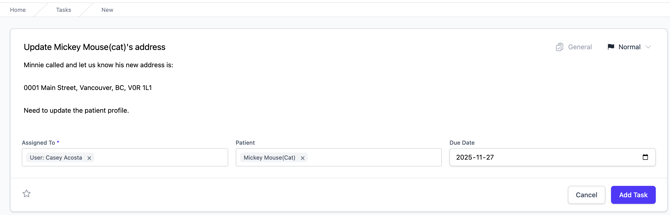
12. Create a Task to update Mickey's new address; it will look something like this:
13. Click Add Task
Let's have a look at the Task screen now that we have some Tasks created.
14. Go to your main Task page
Here is a breakdown of what you will see on this page. Note that this image shows Tasks that are not in your account, for teaching purposes:
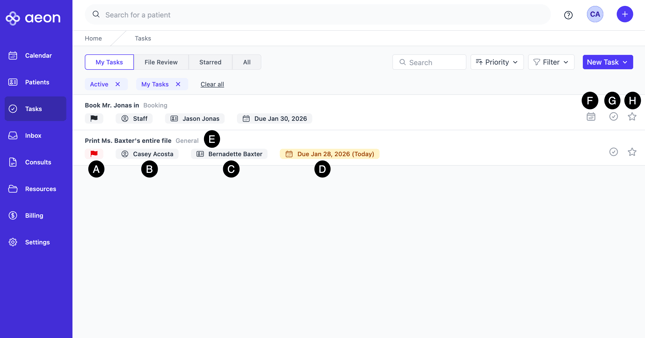
A. Priority: This shows the priority of the task. Red for High, and Grey for Normal and Low.
B. Assigned To: This shows who the Task was assigned to. In this example, the first Task was assigned to the group Staff, whereas the second Task was assigned to Casey. As Casey is part of the Staff type of user in her clinic, she will see those Tasks as well. Anyone part of the Staff group can complete the Task.
C. Patient: The patient that the Task is linked to.
D. Due Date: Dates due today and overdue will be highlighted.
E. Type of Task: Task will be noted as Booking or General.
F. Book an Appointment: For Booking Tasks if you click on the calendar icon you will be taken to the next available spot in the responsible physician's Calendar for that patient.
G. Close Task: When you've completed the Task, click this icon to close it. Anyone who has Starred the Task will see that it is complete.
H. Starred: If you'd like to follow a Task, click this icon. All Starred Tasks will show under the Starred tab.
15. Click Starred Tasks
To follow a Task, click the star icon. All Tasks you are following will appear here. In my example, you can see:

A. This Task I'm following has been completed. We can tell as the checkmark icon is filled in on the right. When you follow a Task, you will continue to follow it until you unfollow it. To do so, click the star icon again to change it from a coloured icon to empty.
B. This Task I'm following is incomplete. The checkmark icon is empty.
16. Click All Tasks
These are all Tasks in your clinic, assigned to everyone, both complete and incomplete.
17. Take a moment to go through the Search and Filter options in the All Tasks so that you can see how you can manipulate the results.
Uploading Files to the Inbox
📋8:30 You check the paper mail
Going through the mail, you find a food sensitivity report back on the patient, Mickey Mouse. You've already scanned it to the computer, and now it's time to add it to Aeon.
1. Go to Inbox in the left column
The Inbox Management System helps clinics efficiently handle incoming documents and files. New items land in the Inbox, where staff categorize them, link them to the correct patient, and assign them to the appropriate practitioner. Once assigned, the practitioner receives a Review Task to acknowledge and act on the file.
In short, the Inbox supports the full lifecycle of a file: upload, categorize, assign, review, and add to the patient chart or consultation.
Clinics use it to manage items like faxes, lab results, and consult reports.
2. On the right side of the screen, you'll see the New Upload button
3. Click Choose Files
4. Choose the file from your computer (you'll need to download this document or use your own)
5. Click Start Upload
The file will now appear in the Inbox.
Great! Next up, we'll assign that file to be reviewed by Mickey's Practitioner.
Assign File for Review by Practitioners
📋8:45 Assign Uploaded Files for Review
Now that the file is in the Inbox, let's assign it.
Warning ⚠️: The File will be Assigned!
This next task will actually assign the test file to a Practitioner in your clinic. You can't delete or undo it after you assign it. So if you do not want to assign this test file, then just read the following steps.
It's important to assign the appropriate Practitioner to review patient files.
1. Click on the title of the file to open it
2. Follow these steps to assign it (or just review if you don't actually want to assign)
3. The Food Sensitivity Report will now be removed from the main Inbox. However, you can find it on the All page of the Inbox:

Let's see it in the Practitioner's Inbox.
4. Go to Tasks
5. Go to All Tasks
You will now see the File here, assigned to the appropriate Practitioner. You can use the filter button to narrow down your search on this page.
Now, let's review what happens on the Practitioner side.
6. Review this workflow for Practitioners to understand what they must do on their end
Assign Incoming Faxes to the Practitioners for Review
Faxes incoming to your clinic are sent directly to Aeon once the integration is set up.
Only one individual needs to perform the setup, so please speak to the appropriate individual at your clinic about this.
Once it is set up, all faxes will arrive in the Inbox. Just like Files from paper mail and email that you upload to Aeon, they will be found in the Inbox. Then, you will assign them for review by a Practitioner.
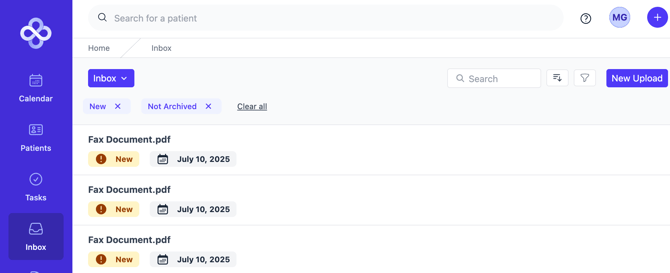
Here you can see a few new Faxes received at my clinic:
Training Tip 🎓: Managing the Inbox Workflow
We have a handy workflow document for Staff on the Knowledge Base here.
That's it for this lesson! We'll continue with your day in Lesson 4. See you then.