
This is a continuation of Lesson 1 and in this lesson, we will continue to use our test Mickey Mouse Profile to learn about Aeon's features.
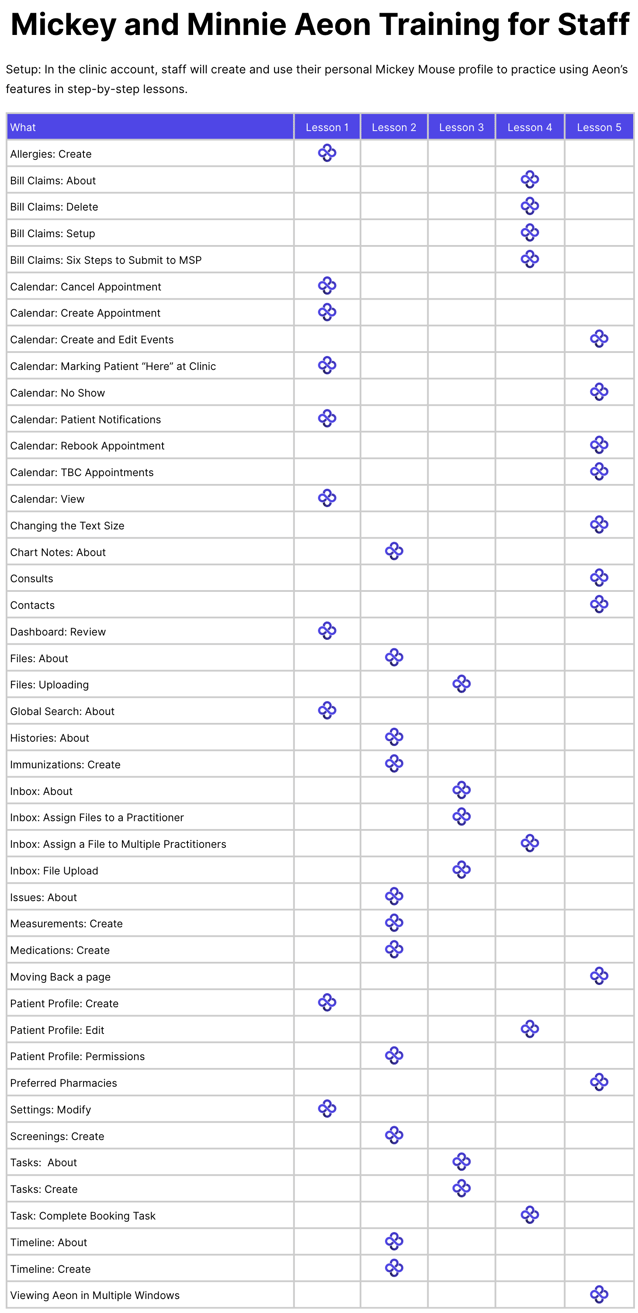
Here are the items we'll cover in Lesson 2:
Are you a Practitioner? If so, you can complete this training if you'd like, but keep in mind that your Aeon screen may look a bit different as you have additional permissions. For Practitioner training, click here.
Quick Links
Training Setup
🔹Patient Profile Information and Permissions
Training Setup
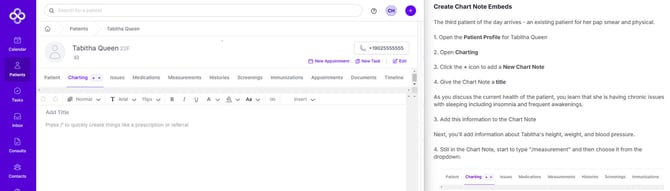
1. To complete this training, we suggest you have your screen set up with two windows (or two monitors) so that you can view both the lesson and the Aeon account side by side. It will look like this:
2. This training will take you through practice situations that will help you become familiar with how Aeon will help your practice stay organized and save you time.
Patient Profile Information and Permissions
In Aeon, Staff have stricter permissions regarding adding or modifying data. If there is information about the patient's medical history that should be added to the Patient Profile, you can add it yourself. We are going to use Mickey Mouse(your name)'s profile to add this information.
1. In a new tab in your browser, open this knowledge base article
This article neatly outlines how to create New Patient Profiles, what each sub-tab means, and what permissions Staff have. Keep this tab active in your browser as you complete this lesson, as you will go back and forth. I'll refer to it as "the KB article".
2. In Aeon, open your testing Mickey Mouse profile
3. Click on Charting
4. Open the KB article and read the description and your permissions. Right now, this is blank, and you cannot create them, so we'll move on.
5. Click on Issues
6. Open the KB article and read the description and your permissions. Right now, this is blank, and you cannot create them, so we'll move on.
7. Click on Medications
8. Open the KB article and read the description of both Medications and Prescriptions, and your permissions. You'll see that staff can enter Medications, so let's do so for Mickey.
According to the records from Mickey's last GP, here were his Prescriptions:
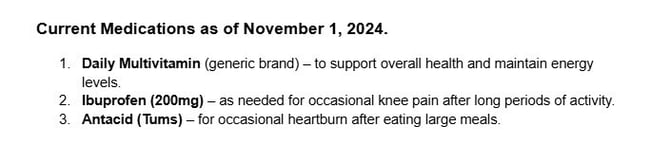
We want to create this record in Aeon so that Mickey's new practitioner will be able to see what he has been taking.
9. Click Add Medication
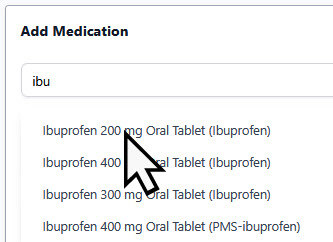
10. In the search field, start to type Ibuprofen and then choose the correct dosage from the list:
Warning ⚠️: Take your time using the Medication search fields
We are aware of a current issue with this field where, if you move or type too quickly, you may experience issues saving the Medication. We are working to address this.
11. Add the Prescriber - Dr. Donald Duck, MD
As we don't know the rest of the information, we'll leave it blank.
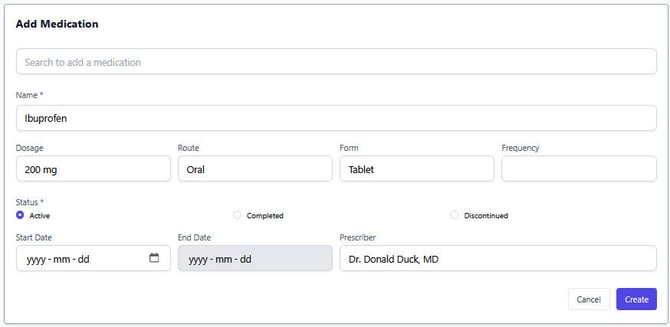
12. Click Create
You will now see the medication listed in the Medications tab.
13. Click the 🔽 to the right of the Medication name
14. Click the Timeline icon
15. Add a comment - Entered from previous GP's CPP
16. Click Post
Now, if any Practitioners or Staff in your clinic look at this, they will see where the information came from.
Supplements are not in the Medications list, so if you wanted to capture that information, you'd need to create a list and upload it to Files.
Staff cannot create new Prescriptions, so we'll move on.
17. Click Measurements
18. Open the KB article and read the description and your permissions. Staff can create these, so let's do so for Mickey.
Here is the information from Mickey's CPP:
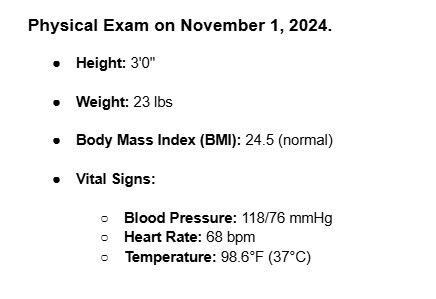
19. Click New Measurement
20. Under Type, choose Height
21. In Value, enter 3
22. In Unit, choose feet from the dropdown
23. Change the Observation Date to November 1, 2024
24. In the Comment field, add - From Dr. Donald Duck's Physical Exam on 2024-11-01
25. Click Create
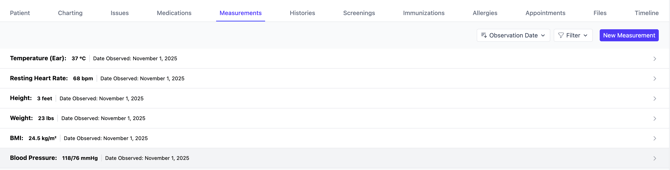
26. Now create all the other Measurements in the same way. When you are done, it will look like this:
27. Click Histories
28. Open the KB article and read the description and your permissions. Right now, this is blank, and you cannot create them, so we'll move on.
29. Click Screenings
30. Open the KB article and read the description and your permissions. You are able to enter new Screenings, so let's do so.
31. Click New Screening
According to the previous GP notes on Screenings, this is what we know:

32. Under Type, choose PSA
33. Leave the status as "Performed"
34. Change the Date Performed per the notes
35. Leave the Next Screening Due date as the doctor should review
36. Change the Results to Normal
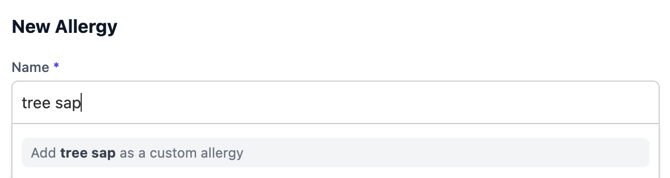
37. In the Comment, add - From Dr. Donald Duck's Records
38. Click Create
Best Practice 🚀:
It may be part of your duties at the clinic to enter the next screening date, so go ahead if so.
If the physician should review an entry like this to determine when the next Screening should be, then we suggest you create a Task for the practitioner to do so. You'll learn about Tasks in the next lesson.
39. Click Immunizations
40. Open the KB article and read the description and your permissions. You are able to enter new Immunizations, so let's do so.
Here is the information we have from the previous GP:

41. Click New Immunization
42. Under Type, choose Covid-19
43. Leave the Status as Administered
44. Change the Date Administered - we don't know the month/dates, so change the date to 2024-01-01.
45. For Reaction, there is no mention of a reaction, so you can leave it as Pending
46. Under Comment, add - From Dr. Donald Duck's Records. The date of the last shot is unknown. 2 shots in 2024. No mention of reactions.
47. Click Create
48. Follow the same steps to create the Flu Vaccine; however, for the Next Dose Due, make it one year from the administered date
49. Click Allergies
50. Open the KB article and read the description and your permissions. You are able to enter new Allergies, so let's do so.
51. Click New Allergy
52. In the Name field, search for and choose Animal Dander - Cat
53. In the Reaction Type field, choose Allergy
54. In the Reaction Description field, choose Rash
55. In the Severity field, choose Mild
56. Leave the Status as Active
57. Enter an Onset Date
58. Click Create
59. Create a second Allergy following the same steps but make it an allergen that is not in the list. To do so, type in the name and then choose the Custom Allergy option that appears:
60. Click Appointments
61. Any upcoming appointments for this patient will be shown here. As there are none, let's move on.
62. Click Files
63. Open the KB article and read the description and your permissions. We'll come back to Files soon.
64. Click Timeline
Here, you can see the changes to the Patient Profile. Remember, if you want to see any timeline comments specific to any of the sub-tabs, you can click on that tab and open the timeline for any entry.
Congrats! You've successfully entered information about Mickey's historical records and learned about the various components of the Patient Profile. In Lesson 3, we'll move on to Files and Tasks.