
In This Article
Description
Location
Use
🔹View the Inbox
🔹Assign Files to a Practitioner
🔹Review a File assigned for your Review
Permissions
Description
The Inbox Management System helps clinics efficiently handle incoming documents and Files. New items land in the Inbox, where staff categorize them, link them to the correct patient, and assign them to the appropriate practitioner. Once assigned, the practitioner receives a Review Task to acknowledge and act on the File.
In short, the Inbox supports the full lifecycle of a File: upload, categorize, assign, review, and add to the patient chart or consultation.
Clinics use it to manage items like faxes, lab results, and consult reports.
Common tasks you’ll perform in the Inbox include:
-
Uploading and categorizing Files
-
Assigning Files to patients and practitioners
-
Marking tasks as acknowledged or dismissed
-
Creating and managing tasks and comments
Location
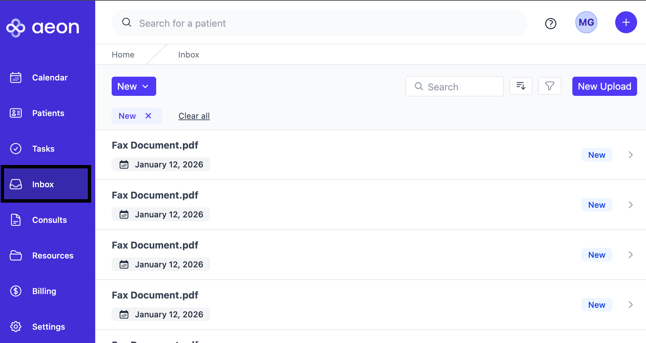
The Inbox icon is located in the left-hand column:
Use
Below, we will cover all the features of the Inbox and how to use it.
View the Inbox
1. Click on the Inbox icon in the left column
A. Inbox
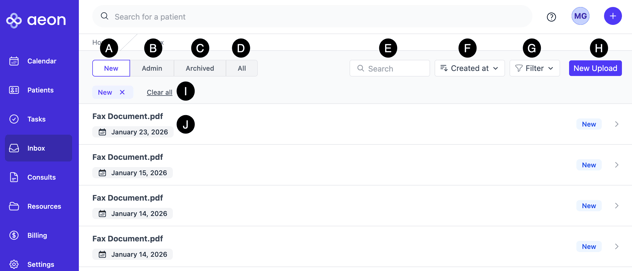
New, unreviewed Files that have not yet been assigned to a practitioner
B. Admin
These are internal clinic Files assigned to the Admin category; these are not linked to a patient
C. Archived
Files that have been archived because they’re junk, duplicates, or unrelated to a patient or the clinic
D. All
Every File across all categories
E. Search
Search Files by title
F. Created at
Choose if you want to sort the Files by Title or Observation date
G. Filter
Choose to filter the File list by File Category and/or Assigned Practitioner
H. New Upload
Upload a File directly to the Inbox (incoming faxes can be configured to appear here automatically)
I. Clear Filters
Click "x" next to the filter or Clear all to remove filters
J. File
Represents the individual File in the Inbox; click the title to open it and assign it to a practitioner
Assign Files to a Practitioner
Staff will assign Files for review by a Practitioner in the clinic. Click here for step-by-step instructions.
Review the File assigned for your Review
Permissions
- Practitioners: Have access to their File review tasks and the unassigned items. Access to other practitioners’ tasks is not restricted at this time; however, actioning other practitioners' tasks is not available. The user must add themselves to the File review task to acknowledge or dismiss it.
- Staff: Can view unassigned and archived items but not actioned tasks unless specified. They do not have a “File Review” Task type