
In This Article
Description
Location
Use
🔹View a Patient's Requisitions
🔹Create a Requisition
🔹Create a Requisition within Chart Notes (Embeds)
🔹Edit Requisitions
🔹Archive a Requisition
🔹Restore an Archived Requisition
🔹Reviewing Completed Labs Returned to your Clinic
Permissions
Description
Requisitions enable a seamless, integrated workflow for ordering labs directly within the practitioner’s existing charting process. You can send and fax requisitions while creating a Chart Note, and results are routed automatically: if Excelleris is integrated, they appear in the practitioner’s Document Review Tasks; if not, Aeon’s SRFax integration delivers results to the Aeon Inbox for triage. This creates a predictable, safe, and transparent requisition-status workflow that reduces cognitive load for clinicians.
Location
You can find this feature right in the clinician's workflow during patient visits, accessed through:
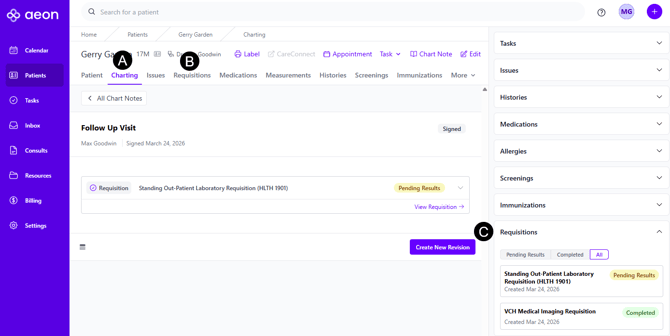
A. Chart Notes: to be created and edited during patient encounters
B. Requisitions Index: consolidated view of all Requisitions with the ability to create and edit Requisitions
C. Patient Sidebar: for quick access to recent Requisitions during patient interactions
Use
Below, we will cover all the features of Requisitions and how to use them.
View a Patient's Requisitions
1. Open the Patient Profile
2. Click on Requisitions sub-tab
To then view the specifics of a particular Requisition:
3. Click the title of the Requisition to expand it
Create a Requisition
🔒Only Practitioners may Create a Requisition.
🎓 Training Tip: Multiple ways to create Requisitions
These instructions will guide you through creating an Requisitions in the sub-tab of a Patient Profile. If you'd like to create a Requisition within a Chart Note during a patient encounter, click here.
1. Open the Patient Profile
2. Click on Requisitions sub-tab
3. Click New Requisition
4. Click into the dropdown for Requisition Form and choose from the list
🚀 Best Practice: Request a New Form!
If the form you need is not on the list, we're happy to assist. Please send us an email at support@aeon.health and include the following information:
- Form Name
- Official source URL (not a scanned copy/attachment)
- What is the form used for?
- What is the urgency?
5. Optional: After you choose the form, the title will be filled in automatically. However, you can edit this.
6. Add the information necessary to the form
7. Click Create Requisition at the bottom of the page
⚠️ Ensure the Information is Correct before Creating!
Requisitions are not editable, so ensure all information is captured and complete before clicking Create Requisition. Note, practitioners are able to archive Requisitions.
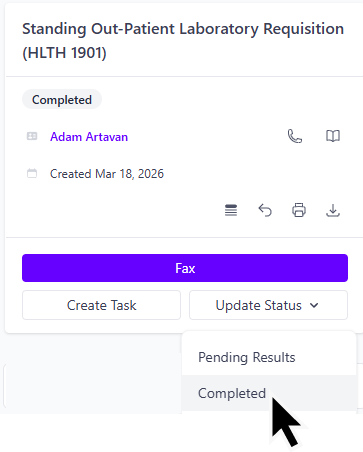
8. On this page you can Fax, Create a Task, Update the Status, Download, Print, Archive and more by accessing the links/icons in the right menu
9. Update the Status of the Requisition by using the Update Status dropdown in the top right of the screen
Create a Requisition within Chart Notes (Embeds)
🔒Only Practitioners may Create a Requisition.
1. Open the Patient Profile
2. Click Charting
3. Create your Chart Note
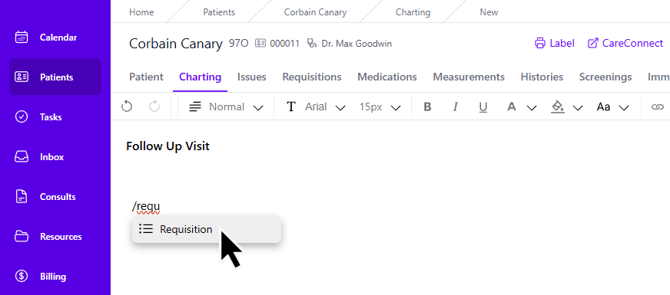
4. Within the Chart Note, start to type /requisition and choose it from the dropdown:
5. Click into the dropdown for Requisition Form and choose from the list
🚀 Best Practice: Request a New Form!
If the form you need is not on the list, we're happy to assist. Please send us an email at support@aeon.health and include the following information:
- Form Name
- Official source URL (not a scanned copy/attachment)
- What is the form used for?
- What is the urgency?
6. Optional: After you choose the form, the title will be filled in automatically. However, you can edit this.
7. Add the information necessary to the form
8. Click Create at the bottom of the embed
9. Click Confirm in the pop up box to confirm the details are accurate
⚠️ Ensure the Information is Correct before Creating!
Requisitions are not editable, so ensure all information is captured and complete before clicking Create Requisition. Note, practitioners are able to archive Requisitions.
10. You will be redirected to the Requisitions full page in Aeon - don't worry your Chart Note entries have been saved! On this page you can Fax, Create a Task, Update the Status, Download, Print, Archive and more by accessing the links/icons in the right menu
11. Update the Status of the Requisition by using the Update Status dropdown in the top right of the screen
12. Click the back button in the browser to get back to the list of Chart Notes and open the Draft you were working on
13. Continue with your Draft Chart Note
🎓 Training Tip: Creating Chart Notes
For full instructions on creating Chart Notes, click here.
Edit Requisitions
At this time, requisitions cannot be edited after they are created. This helps preserve an accurate record of what was ordered and when. If a requisition was created in error, practitioners can archive it. If an incorrect requisition has already been sent, please contact the recipient (the owner of the fax number or the integrated destination) to inform them of the error.
Archive a Requisition
🔒Only Practitioners may Archive a Requisition.
Instead of deleting Requisitions, Aeon gives you the ability to archive Requisitions, which removes them from active view. These archived Requisitions can be viewed or restored if desired.
1. Open the Patient Profile
2. Click on Requisitions sub-tab
3. Find the Requisition you wish to archive
4. Click on the title of the Requisition
5. Click on the archive icon to the right of the Requisition
Restore an Archived Requisition
🔒Only Practitioners may Unarchive a Requisition.
1. Open the Patient Profile
2. Click on Requisitions sub-tab
3. Click the filter button
4. Choose Archived
5. Click the title of the Requisition
6. Choose Archived
7. Click the title of the Requisition
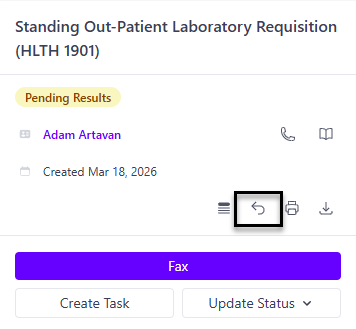
7. Click the Unarchive icon to the right of the Requisition:
Reviewing Completed Labs Returned to your Clinic
Once labs have been sent via the SRFax integration, or the Excelleris integration, you will want to see the results as soon as they come in.
SRFax Integration
1. Completed labs will arrive in the Inbox in Aeon
2. Staff will triage the fax, and assign it to the Responsible Practitioner
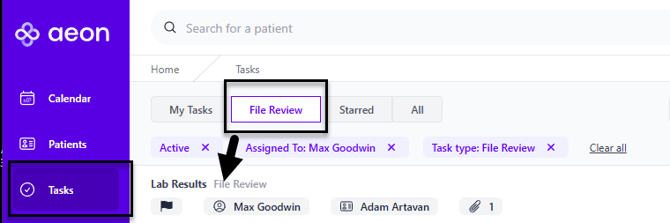
3. This will create a Task for you, the practitioner, that will appear by navigating to Tasks > File Review:
4. You will be directed to review and acknowledge the file
5. Practitioners can go to the Requisitions tab of the patient's Profile to update the status as Completed and optionally create a note in the patient's chart regarding the results.
Excelleris Integration
1. Completed labs will arrive as a Task Review for you, the practitioner, that will appear by navigating to Tasks > File Review:
2. You will be directed to review and acknowledge the file
3. Practitioners can go to the Requisitions tab of the patient's Profile to update the status as Completed and optionally create a note in the patient's chart regarding the results.
Permissions
- Practitioners: View, create, archive, unarchive, print, download, update status, access Requisition Forms, fax, confirm a fax.
- Staff: View, print, download, update status, fax, confirm a fax.