
Environment
- Practitioner Role
🎓 Training Tip: For a full overview of Medications and Prescriptions, click here.
Video Instructions
The SR Fax Integration is required to fax from Aeon.
You'll see icons at the bottom right of the video screen that will allow you to change the speed, quality, or size of the video and move between chapters. You can also turn on the CC/Subtitles.
Written Instructions
The SR Fax Integration is required to fax from Aeon.
2. On the right side of the screen, you'll see the Fax Prescription button with different text depending on whether you have not set up the patient's Preferred Pharmacy (continue with Step 3), or you have set up the patient's Preferred Pharmacy (continue with Step 9):
3. If you have not set up the Preferred Pharmacy this is what the screen will look like:
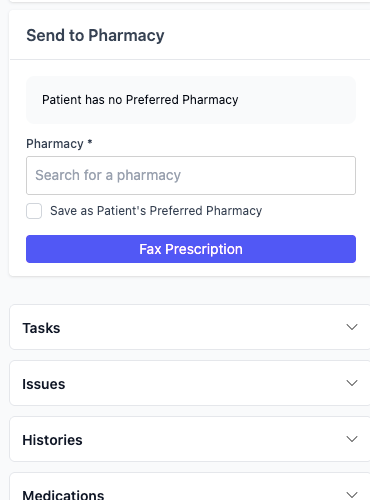
4. Start to type in the name of the pharmacy and choose it from the dropdown list:
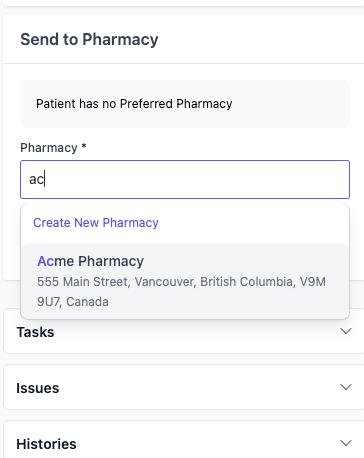
🎓 Training Tip: If you don't see the desired pharmacy in the list, click Create New Pharmacy to create it. Once created, it can be linked to any other patient in the future.
5. Check the box Save as Patient's Preferred Pharmacy if applicable
6. Click Fax Prescription
7. View the pop up asking you to confirm
8. Click Fax Prescription (continue with Step 13)
9. If you have set up the Preferred Pharmacy this is what the screen will look like:
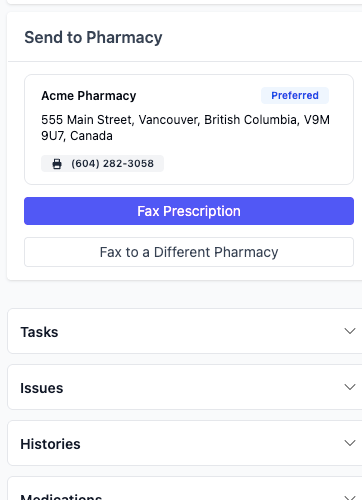
10. Click Fax Prescription (Or Fax to a Different Pharmacy if that is the case)
11. View the pop up asking you to confirm
12. Click Fax Prescription
13. Once the Prescription has been faxed you can see the status in two places:
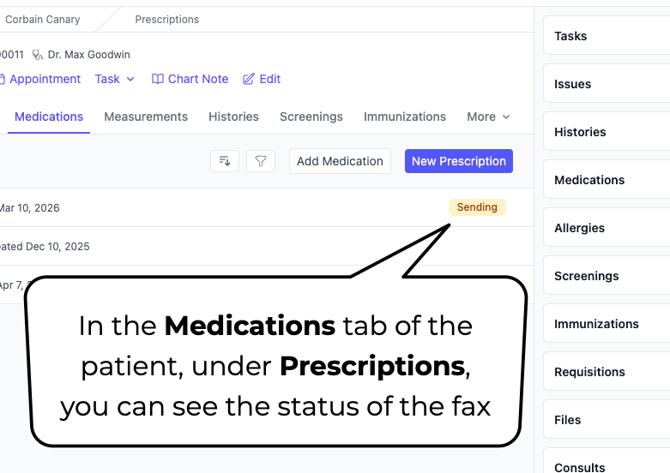
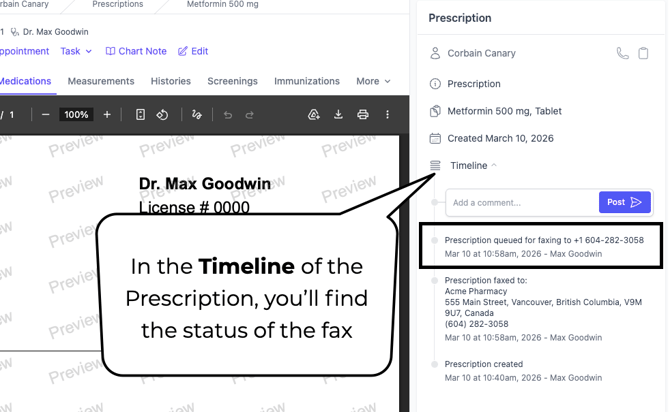
🚀 Best Practice: Refresh the browser to pull in new information (such as the status of fax changing).