---
title: Connect SRFax to Aeon
description: Integrate Aeon with SRFax to send, receive, and manage faxes using Aeon's interface.
---
[Skip to content](https://help.aeon.health/connect-srfax-to-aeon#main-content)
English
Show submenu for translations
[Contact us](https://help.aeon.health/kb-tickets/new?hsLang=en)
[](https://aeon.health)
Open main navigation
Close main navigation
- English
Show submenu for translations
- [Contact us](https://help.aeon.health/kb-tickets/new)
- [Aeon's Status Page](https://status.aeon.health/)
[Aeon's Status Page](https://status.aeon.health/)
How can we help you?
- There are no suggestions because the search field is empty.
1. [Aeon Health Help Center](https://help.aeon.health/?hsLang=en)
2. [Aeon Features](https://help.aeon.health/aeon-features?hsLang=en)
3. [SRFax Integration](https://help.aeon.health/aeon-features?hsLang=en#srfax-integration)
February 2, 2026
# Connect SRFax to Aeon
## Connect SRFax to receive, send, and manage faxes in Aeon
🎓 T**raining Tip:** For an overview of the integration with SRFax, [click here.](https://help.aeon.health/sr-fax-integration-an-overview?hsLang=en)
### Environment
The SRFax integration only needs to be set up once, by one person.
### Instructions
1. Ensure you have an **[SRFax account](https://www.srfax.com/sem/standard/?cq_src=google_ads&cq_cmp=11663554227&cq_con=112722649919&cq_term=srfax&cq_med=&cq_plac=&cq_net=g&cq_plt=gp&gad_source=1&gad_campaignid=11663554227&gbraid=0AAAAABxZTUxX4VA-sZ4boF7-1-nIwg4jj&gclid=Cj0KCQiAp-zLBhDkARIsABcYc6viI_USipYUqncjBDic5dlZtKV2qNCoIFDd2CIjZ0BjLHjIag79p7gaAspLEALw_wcB)** set up
📝 **Note: ** You can either purchase a new number through SRFax or you can [port a number from another provider](https://www.srfax.com/porting-your-number-to-srfax/), but be aware that there is a delay (and a small cost) for this process. For all considerations, see [SRFax: An Overview](https://help.aeon.health/sr-fax-integration-an-overview?hsLang=en)
2. Click **Settings** in the left column
3. Click **Integrations**
4. Under Fax Providers, click the **edit icon** to the right of SRFax
5. Enter the **required information** from SRFax to Aeon:
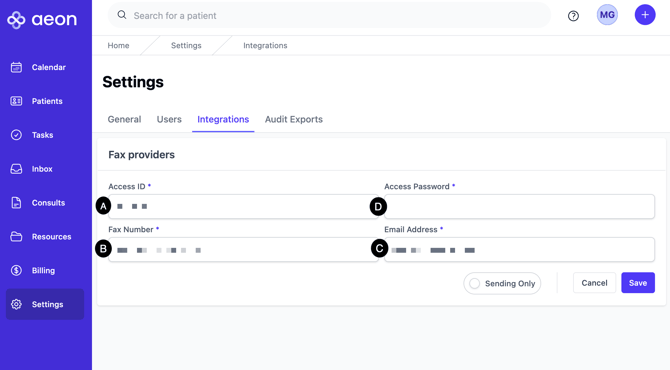
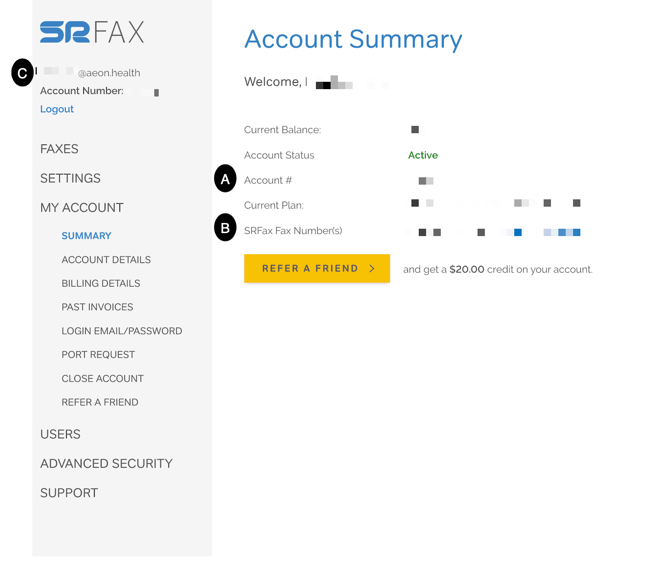
**A. Access ID: ** The Access ID field in Aeon maps to the Account # in SRFax
**B. Fax Number:** The Fax Number field in Aeon maps to the SRFax Fax Number in SRFax
**C. Email Address:** The Email address is found at the top left of the Dashboard and is used to log into your SRFax account.
**D. Access Password:** The Access Password field in Aeon is the password you use to log into your SRFax account.
6. **Save**
🚀 **Best Practice: ** We recommend faxing yourself to test that the fax arrives in Aeon after you've set it up.
🎓 **Training Tip:** When faxes arrive in Aeon, they land in the Inbox. [Click here](https://help.aeon.health/inbox-an-overview?hsLang=en) to learn more about the Inbox.
- [Get Started](https://help.aeon.health/get-started?hsLang=en#main-content)
- [Quickstart Checklists ( ✅ Start Here! )](https://help.aeon.health/get-started?hsLang=en#quickstart-checklists-start-here)
- [Training](https://help.aeon.health/training?hsLang=en#main-content)
- [Practitioner Training](https://help.aeon.health/training?hsLang=en#practitioner-training)
- [30 Minute Onboarding](https://help.aeon.health/training?hsLang=en#30-minute-onboarding)
- [Aeon Features](https://help.aeon.health/aeon-features?hsLang=en#main-content)
- [Aeon Basics](https://help.aeon.health/aeon-features?hsLang=en#aeon-basics)
- [Allergies](https://help.aeon.health/aeon-features?hsLang=en#allergies)
- [Audit Exports](https://help.aeon.health/aeon-features?hsLang=en#audit-exports)
- [Billing: General](https://help.aeon.health/aeon-features?hsLang=en#billing-general)
- [Billing: Fee-For-Service (FFS) BC](https://help.aeon.health/aeon-features?hsLang=en#billing-fee-for-service-ffs-bc)
- [Billing: Longitudinal Family Physician (LFP) BC](https://help.aeon.health/aeon-features?hsLang=en#billing-longitudinal-family-physician-lfp-bc)
- [Calendar](https://help.aeon.health/aeon-features?hsLang=en#calendar)
- [Charting](https://help.aeon.health/aeon-features?hsLang=en#charting)
- [Consults](https://help.aeon.health/aeon-features?hsLang=en#consults)
- [Files](https://help.aeon.health/aeon-features?hsLang=en#files)
- [Histories](https://help.aeon.health/aeon-features?hsLang=en#histories)
- [Immunizations](https://help.aeon.health/aeon-features?hsLang=en#immunizations)
- [Inbox](https://help.aeon.health/aeon-features?hsLang=en#inbox)
- [Issues](https://help.aeon.health/aeon-features?hsLang=en#issues)
- [Measurements](https://help.aeon.health/aeon-features?hsLang=en#measurements)
- [Medications & Prescriptions](https://help.aeon.health/aeon-features?hsLang=en#medications-prescriptions)
- [Patient Profile](https://help.aeon.health/aeon-features?hsLang=en#patient-profile)
- [Requisitions](https://help.aeon.health/aeon-features?hsLang=en#requisitions)
- [Resources](https://help.aeon.health/aeon-features?hsLang=en#resources)
- [Settings](https://help.aeon.health/aeon-features?hsLang=en#settings)
- [Screenings](https://help.aeon.health/aeon-features?hsLang=en#screenings)
- [SRFax Integration](https://help.aeon.health/aeon-features?hsLang=en#srfax-integration)
- [Tasks](https://help.aeon.health/aeon-features?hsLang=en#tasks)
- [Settings](https://help.aeon.health/settings?hsLang=en)
[](https://aeon.health)
[mailto:email@email.com](mailto:email@email.com)
Copyright © 2024, Aeon Health