
In This Article
Description
Location
Use Medications
🔹View a Patient's Medications
🔹Create Medications
🔹Create Medications within Chart Notes (Embeds)
🔹Edit a Medication
🔹Discontinue a Medication
🔹Archive a Medication
🔹View Archived Medications
🔹Restore an Archived Medication
Use Prescriptions
🔹View a Patient's Prescriptions
🔹Create a Prescription
🔹Fax a Prescription
🔹Create Prescriptions within Chart Notes (Embeds)
🔹Edit a Prescription
🔹Discontinue a Prescription
🔹Archive a Prescription
🔹Restore an Archived Prescription
Permissions
Description
This feature lets you create, manage, and review a patient’s medications and prescriptions in one place. It provides a clear, clinician-friendly workspace to prescribe safely and quickly reference a complete medication history.
Medications: These drugs were prescribed to the patient in the past or by another provider outside the clinic or Aeon system.
Prescriptions: These are medication orders generated through Aeon to be given to the patient or sent to the pharmacy to be filled.Some common tasks you will perform with this feature include:
- Create and manage a patient’s medications
- Prescribe new medications
- Print, fax or download prescriptions
- Re-prescribe medications (that were prescribed through Aeon)
- Timeline history for all actions performed
- Integration with DrugBank
- Associate a patient with their preferred pharmacy
Location
You can find this feature right in the clinician's workflow during patient visits, accessed through:
---
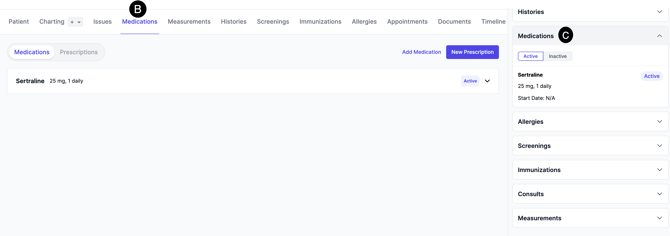
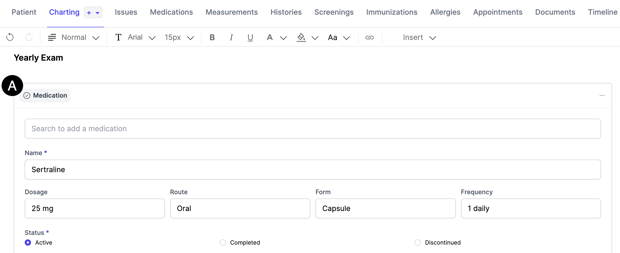
A. Chart note embeds (by typing /medication within a chart note)
B. Patient’s Profile Index: consolidated view of all patient Medications and Prescriptions with the ability to create and edit from this area
C. Patient’s Sidebar: for quick access to Medications during patient interactions
Use Medications
Below, we will cover all the features of and how to use Medications (see below for Use Prescriptions).
View a Patient's Medications
Quick View
1. Open the Patient Profile
2. Click Medications in the right-hand sidebar
Here you can see the Medications the patient is taking.
Detailed View
3. Click the title of the Medication to be taken to the full information
👉 Note the three icons to the right of the Medication: Timeline, Delete, and Edit
Create Medications
1. Open the Patient Profile
2. Click on Medications sub-tab
3. Click Add Medication
4. Enter the information
5. Click Create
Create Medications within Chart Notes (Embeds)
1. Open the Patient Profile
2. Click Charting
3. Enter your Chart Note
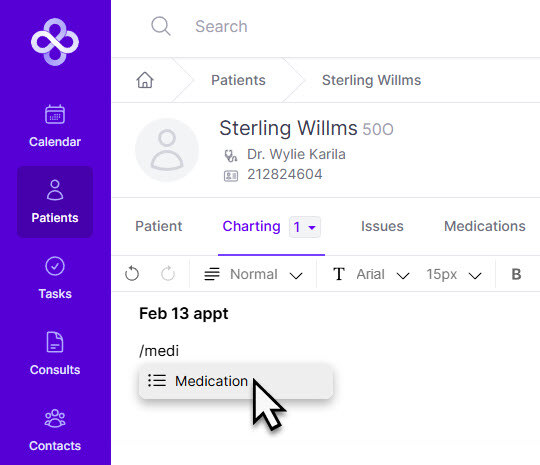
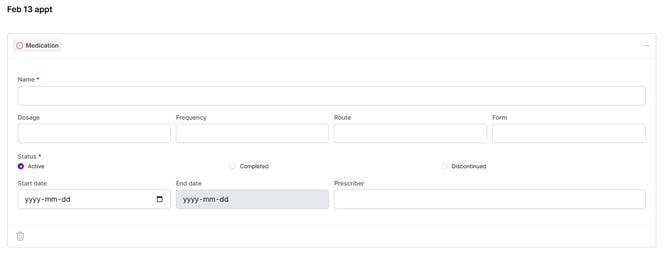
4. Within the Chart Note, start to type /medication and choose from dropdown:
Edit a Medication
If you'd like to make a change to a Medication in Aeon, you'd need to Archive or Discontinue the Medication and create a new one.
🚀 Best Practice: Use the Timeline to add a note to indicate why you are Archiving/Discontinuing the prescription.
⚠️: If you've already faxed a Prescription to a Pharmacy and then realized there was a mistake, you'd need to manually contact the Pharmacy to resolve this issue.
Discontinue a Medication
1. Open the Patient Profile
2. Click on the Medications sub-tab
3. Click on the Medications button
4. Click on the title of the Medication
5. To the right of the Medication, click on the ellipses (three dots)
6. Click Discontinue
7. Choose the date
8. Click Confirm
🚀 Best Practice: Add a Timeline Note
Add a Timeline note to indicate the reason why the Medication is being Discontinued. This will assist anyone viewing this file in the future.
Archive a Medication
Instead of deleting Medications, Aeon lets you archive Medications, removing them from active view. These archived Medications can be viewed or restored if desired.
1. Open the Patient Profile
2. Click on Medications sub-tab
3. Find the Medication you wish to edit
4. Click on the title of the Medication
5. Click on the archive icon to the right of the Medication
6. View the confirmation message about Archiving the Medication
7. Click Confirm
🚀 Best Practice: Add a Timeline Note
Add a Timeline note to indicate the reason why the Medication is being Archived. This will assist anyone viewing this file in the future.
View Archived Medications
1. Open the Patient Profile
2. Click on Medications sub-tab
3. Click the line "Show Archived Medications"
4. Click on the title of the Medication to see the details
Restore an Archived Medication
1. Open the Patient Profile
2. Click on Medications sub-tab
3. Click the line "Show Archived Medications" (located under the list of your Medications
4. Click on the title of the Medication to see the details
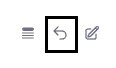
5. Click the Unarchive icon to the right of the Medication:
Use Prescriptions
View a Patient's Prescriptions
Quick View
1. Open the Patient Profile
2. Click Medications in the right-hand sidebar
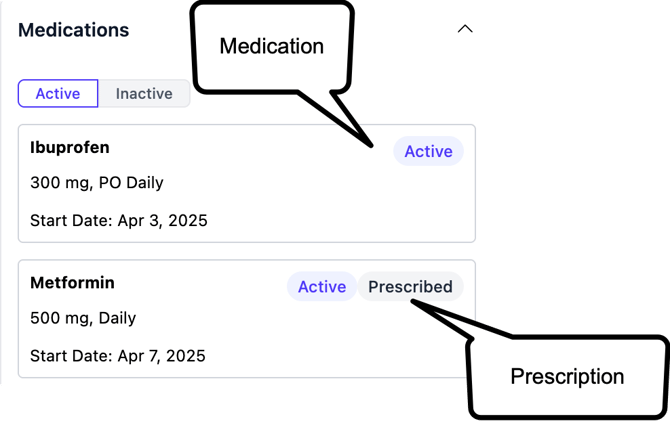
Here you can see both the Medications and Prescriptions the patient is taking. You can tell which ones are Prescriptions via the tag:
Detailed View
3. Click the title of the Prescription to be taken to the full information
👉 Note the three icons to the right of the Medication: Timeline, Delete, and Edit
Create Prescriptions within the Patient Chart
1. Open the Patient Profile
2. Click on Medications sub-tab
3. Click New Prescription
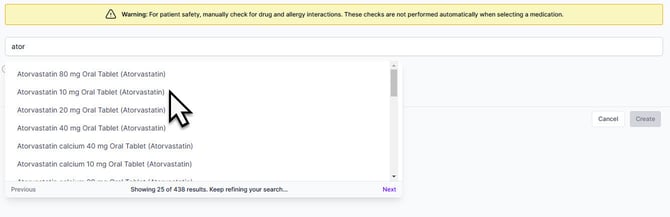
4. Start typing the name in the Search field, and it will populate
5. Choose the appropriate item from the list:
6. Fill in (and/or modify) the required fields
7. Click Create
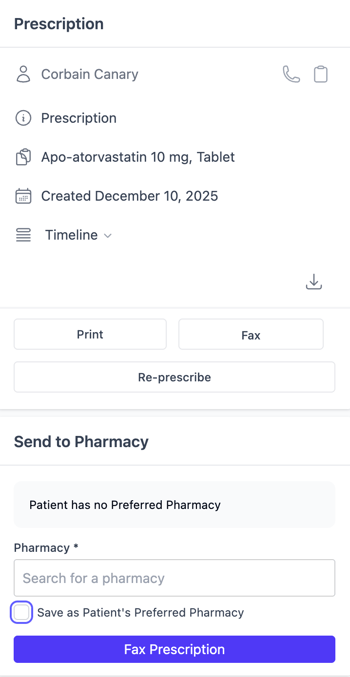
Once you've created the Prescription, you will see it on your screen. On the right-hand side, you will see several options where you can:
- View and add comments to the Timeline
- Fax
- Download
- Re-Prescribe
- Send to the Patient's Preferred Pharmacy
Click here to learn how to set up the patient's Preferred Pharmacy.
Fax a Prescription
Using Aeon's integration with SRFax, you can fax your Prescriptions as soon as you create them. For step by step instructions, click here.
Create Prescriptions within Chart Notes (Embeds)
1. Open the Patient Profile
2. Click Charting
3. Enter your Chart Note
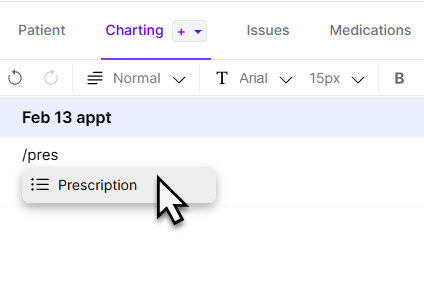
4. Within the Chart Note, start to type /prescription and choose from dropdown:
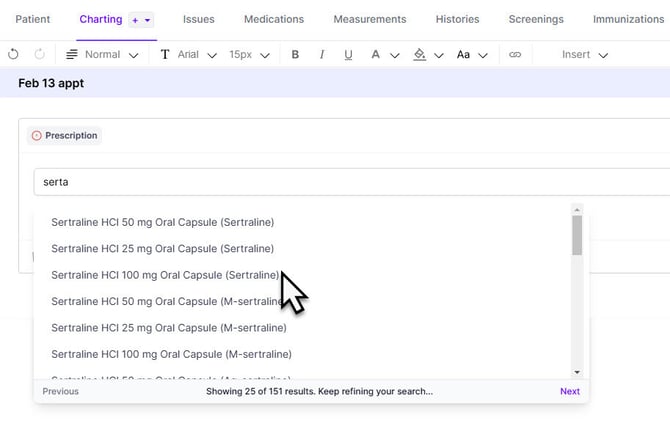
5. Start to type in the name of the drug and choose it from the list:
 6. Fill in (and/or modify) the required fields
7. Click Create
You will be taken to the Prescriptions sub-tab (don't worry, your Chart Note is saved in draft), where on the right-hand side you can find options to:
- View and add comments to the Timeline
- Fax
- Download
- Re-Prescribe
- Send to the Patient's Preferred Pharmacy
-
Click here to learn how to set up the patient's Preferred Pharmacy.
Edit a Prescription
There is no ability to edit a Prescription. If you'd like to make a change, you'd need to Archive or Discontinue the Prescription and create a new one.
🚀 Best Practice: Use the Timeline to add a note to indicate why you are Archiving/Discontinuing the prescription.
⚠️: If you've already faxed a Prescription to a Pharmacy and then realized there was a mistake, you'd need to manually contact the Pharmacy to resolve this issue.
Discontinue a Prescription
Once a Prescription has been created, you can Discontinue it within the Medications tab.
1. Open the Patient Profile
2. Click on Medications sub-tab
3. Click on Medications button
4. Click on the title of the Prescription
5. To the right of the Prescription, click on the ellipses (three dots)
6. Click Discontinue
7. Choose the date
8. Click Confirm
🚀 Best Practice: Add a Timeline Note
Add a Timeline note to indicate the reason why the Prescription is being Discontinued. This will assist anyone viewing this file in the future.
Archive a Prescription
Once a Prescription has been created, you can Archive it within the Medications tab.
1. Open the Patient Profile
2. Click on Medications sub-tab
3. Click on Medications button
4. Click on the title of the Prescription
5. To the right of the Prescription, click on the archive icon
6. Click Confirm
🚀 Best Practice: Add a Timeline Note
Add a Timeline note to indicate the reason why the Prescription is being Archived. This will assist anyone viewing this file in the future.
Restore an Archived Prescription
Once a Prescription has been archived, you can restore it.
1. Open the Patient Profile
2. Click on Medications sub-tab
3. Click Prescriptions
4. Click the line "Show Archived Prescriptions" (located under the list of your Medications
5. Click on the title of the Prescription to see the details
6. Click the Unarchive icon to the right of the Prescription:
Permissions
Medications
- Practitioners: Can view, create, edit, update status, destroy, and archive
- Staff: Can view, create, and edit
Prescriptions
- Practitioners: Can view, create, update status, destroy, and archive
- Staff: Can view