
Official source
This guide is based on the LFP Payment Schedule dated Feb 23 2026. See the full schedule on the BC government website.
Disclaimer
This article supports the use of the Aeon EMR. Billing decisions remain the responsibility of the physician. Always consult MSP guidelines and the LFP Payment Schedule for authoritative rules.
Last reviewed
June 8, 2026
In This Article
Article Overview
Video Recording
Start of Day Overview
⭐Standard Workflow for LFP Patient Interactions
Example of Indirect Patient Care
Example of Standard Workflow for LFP Patient Interactions
Example of Two 15 Minute Blocks in Calendar
Example Two Billing Entries on One Chart Note
Example of One Calendar Appointment for Multiple Patients
Example of Standard Visit & Procedure Claim
Example of WCB Visit
Example of Split Billing (MSP and WCB)
Example of a Video Visit
Example of No-Patient, Ad Hoc Appointment
Example of 1 Procedure Claim and 1 Minor Test Claim
Example of a Working Lunch
Example of a quick fit in /walk in
Example of a 98021 Procedure Code
Example of Private Pay
Example of Overlapping Appointments - Saving a Time Block
Example of New for 2026 MVA Rule
Example of Two Related Patients, back to back
Example of After Hours Indirect Patient Care
Example of After Hours Clinical Administration
Calculating Time Codes
🔹Appointment to Capture Daily Time Codes
🔹Standard Procedure for Entering Time Codes
🔹Export to ClinicAid and Submit (Part 2 Video)
Article Overview
Let's walk through a day of LFP Billing that you might see in your clinic. This example is based on the BC Family Doctors' "Sample Daysheet with LFP Clinic-based Time and Interaction Codes".
Other sources of information used to build this example are:
During the day, the practitioner documents each patient visit and creates the related LFP Interaction Code claim directly from the patient’s appointment.
At the end of the day, the practitioner uses a recurring ‘LFP Time’ appointment to submit cumulative LFP Time Codes for direct and indirect patient care.
Patient encounters that bill to WCB/ICBC/Private Pay are documented in Aeon; however, the bill claims are made directly in ClinicAid.
Video Recording
🎓 Video or Text Learning (or both!)
For this learning you have the option of learning via a step-by-step video, or by using the text instructions. It's up to you!
You'll see icons at the bottom right of the video screen that will allow you to change the speed, quality, or size of the video and move between chapters. You can also turn on the CC/Subtitles.
Chapters:
0:47 Start of Day Overview
Creating Bill Claims
1:36 Standard Workflow for LFP Patient Interactions
1:59 Example of Indirect Patient Care
2:59 Example of Standard Workflow for LFP Patient Interactions
07:35 Example of Two 15 Minute Blocks in Calendar
08:32 Example Two Billing Entries on One Chart Note
10:40 Example of One Calendar Appointment for Multiple Patients
12:17 Example of Standard Visit & Procedure Claim
12:57 Example of WCB Visit
13:45 Example of Split Billing (MSP and WCB)
14:50 Example of a Video Visit
15:17 Example of No-Patient, Ad Hoc Appointment
16:27 Example of 1 Procedure Claim and 1 Minor Test Claim
17:11 Example of a Working Lunch
19:01 Example of A quick fit in/walk in
19:24 Example of a 98021 Procedure Code
19:47 Example of Private Pay
21:17 Example of Overlapping Appointments - Saving Time Block
22:31 Example of New for 2026 MVA Rule
23:48 Example of Two Related Patients, back to back
24:28 After Hours Indirect Patient Care
Calculating Time Codes
25:21 Appointment to Capture Daily Time Codes
25:21 Standard Procedure for Entering Time Codes
See Part 2 of this Video Series where we will export the claims from Aeon and Import them into ClinicAid for submission!
Start of Day Overview (00:47 in Video)
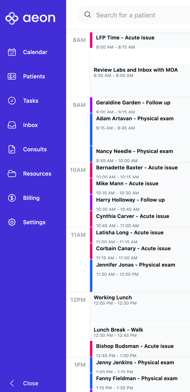
Here's a full day in a BC family practice. Twenty-something appointments, a couple of walk-ins, a working lunch, and a pile of paperwork. By the end of it, every one of these blocks has to turn into a billing claim, and if you get the rules wrong, MSP just quietly doesn't pay you.
So let's do the whole day, top to bottom. I'll show you the one workflow you'll repeat all day, the handful of moments where the rules actually change, and the fastest way to enter your time at the end. Stick around for that last part, it's where most of the rejected claims come from, and it's the easiest thing in the world to get right once you've seen it once.
Standard Workflow for LFP Patient Interactions (1:36 in Video)
You will use these steps for every standard patient interaction, as the workflow is the same.
- In the Calendar's Appointment Details, mark the status as In Progress
- Click the Start or Resume a Chart Note icon
- Document the visit (e.g., SOAP note)
- Add Embeds for critical patient data
- Click the Bill icon at the bottom of the Chart Note
- Enter the appropriate LFP Interaction Code
- Enter the patient-specific ICD-9 diagnostic code
- Set the claim status to Ready for Export (or Draft if you'd like to review it later)
- Click the dropdown next to Advanced Info to make sure all the information is correct
- Click Save
- Click Sign & Save to save the chart note
- Go back to the Calendar
- Click on the appointment you just finished
- In the Appointment Details, change the status to Complete
Let's see some examples of the Standard Workflow.
Example of Indirect Patient Care (1:59 in video)
Start of Day: Indirect Patient Care
The practitioner views their calendar when they arrive at the clinic. It's a standard day of appointments. In this case, an Event was created in the Calendar to capture this time. Events are not linked to patients:
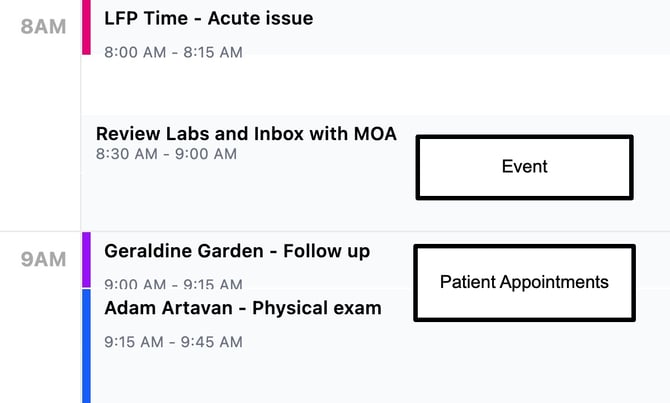
Before patient appointments begin, the practitioner reviews labs, inbox items, and referrals with the MOA.
Because this work is not attached to one specific patient encounter, no interaction claim is created at this time. This aligns with the February 23, 2026, LFP Payment Schedule:
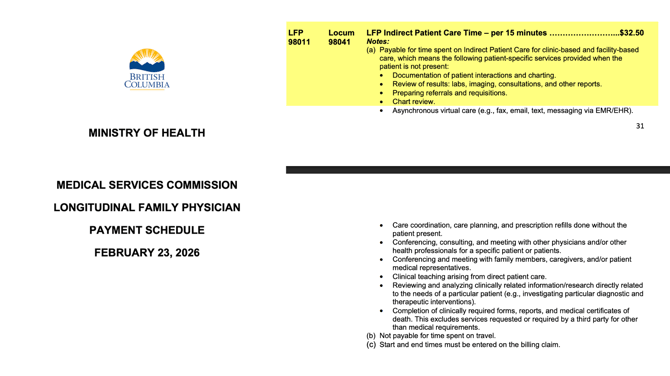
Instead, this work will later be captured as cumulative indirect patient care time.
⏱️ LFP Time Calculation Notes
At the end of the day, I'll come back and count this towards my LFP Time Code Bill Claim as 2 units of 15 minutes towards Indirect Patient Care (98011)
Example of Standard Workflow for LFP Patient Interactions (2:59 in Video)
9:00 AM – Hypertension Follow-Up (2:59 in Video)
I’ll open the 9:00 AM appointment and follow the Standard Workflow for LFP Patient Interactions:
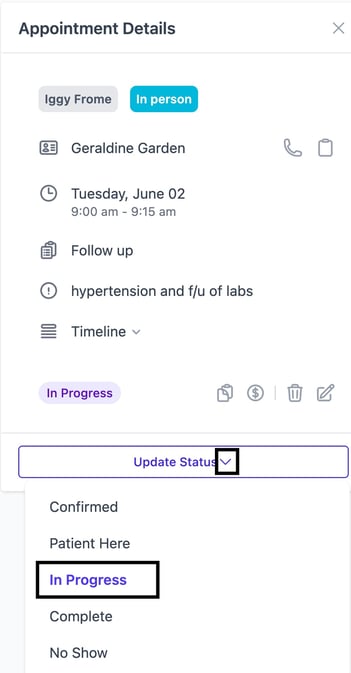
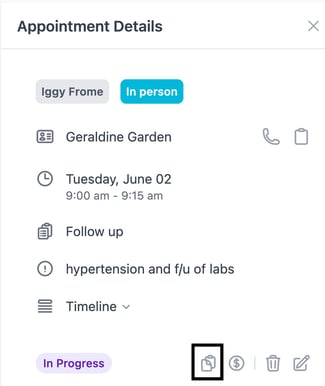
- In the Calendar's Appointment Details, I'll mark the status of Geraldine Garden's appointment as In Progress:
- Click the Start or Resume a Chart Note icon:
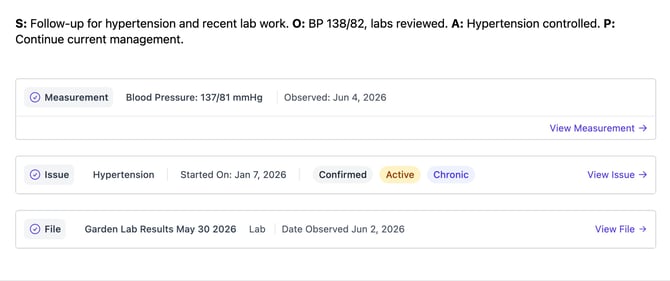
- Document the visit - in this case, I'll add a
SOAP note summary
- Create the appropriate Embeds to capture critical patient information in their Patient Profile:
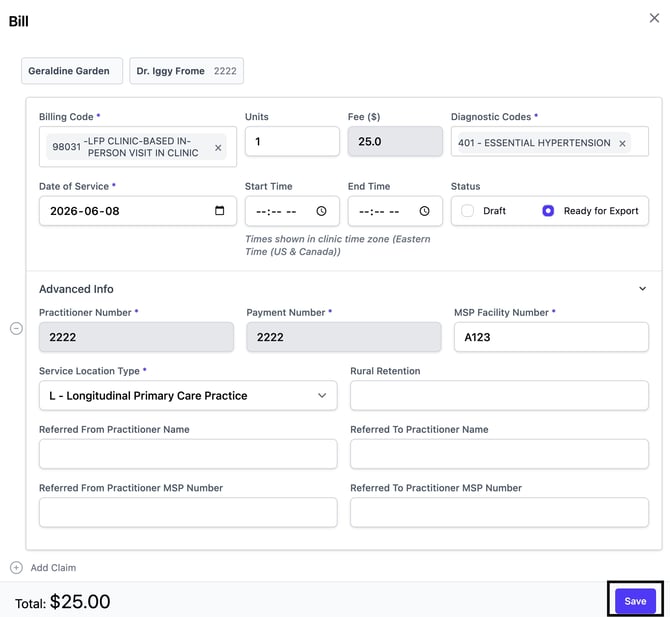
- Click the Bill icon at the bottom of the Chart Note:

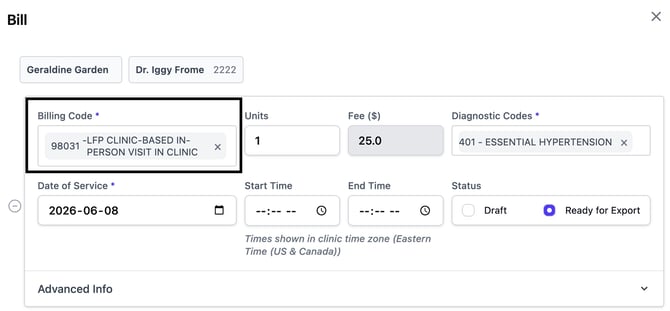
- Enter the appropriate LFP Interaction Code - in this case, that is 98031:
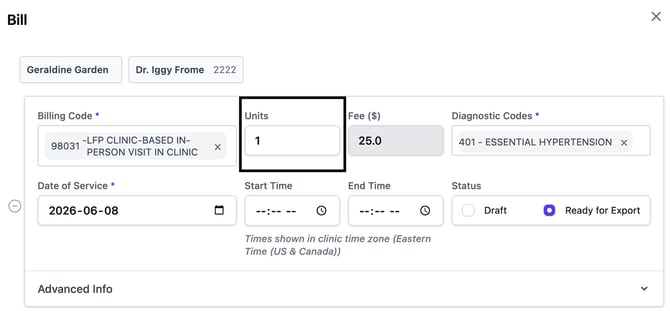
- There is only 1 unit of the Billing Code:
- Enter the patient-specific ICD-9 diagnostic code - for this patient appointment, that is 401:
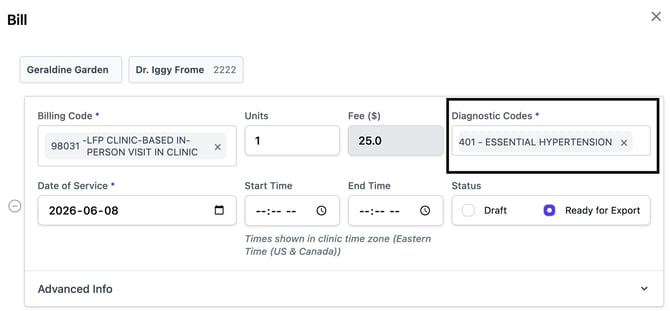
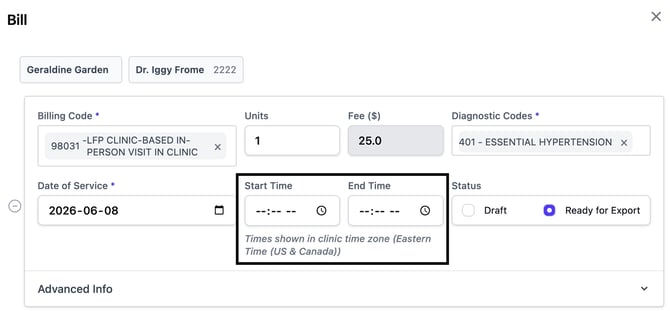
- For this Patient Interaction, I do not need to enter a start and end time. I would always refer to the LFP Payment Schedule for edge cases.
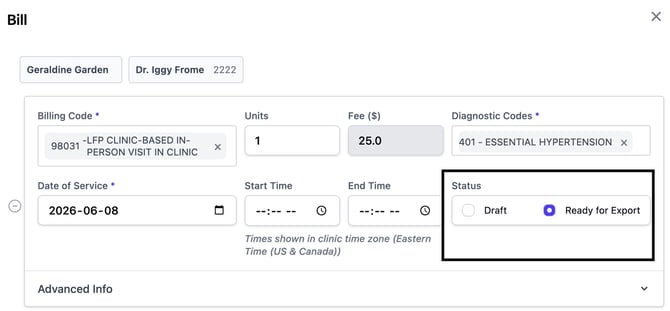
- Set the claim status to Ready for Export (or Draft if I wanted to review it later):
- I'll click the dropdown next to Advanced Info to make sure all the information is correct:
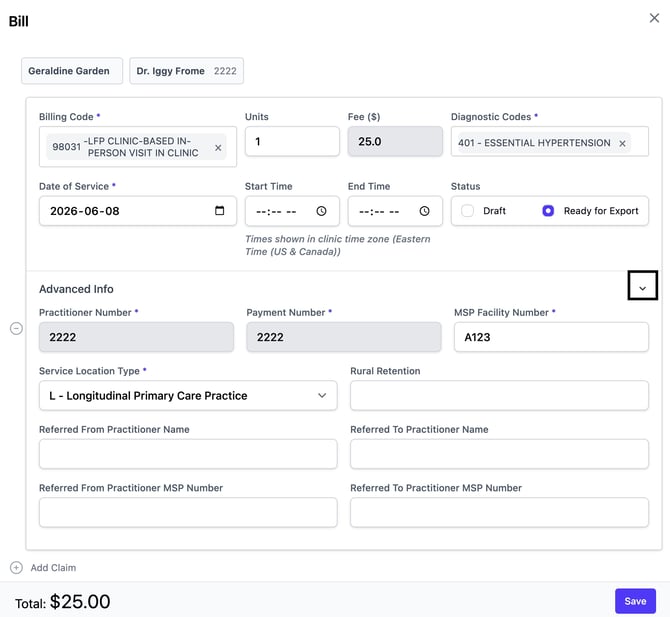
- Click Save:
- Click Sign & Save to save the chart note:

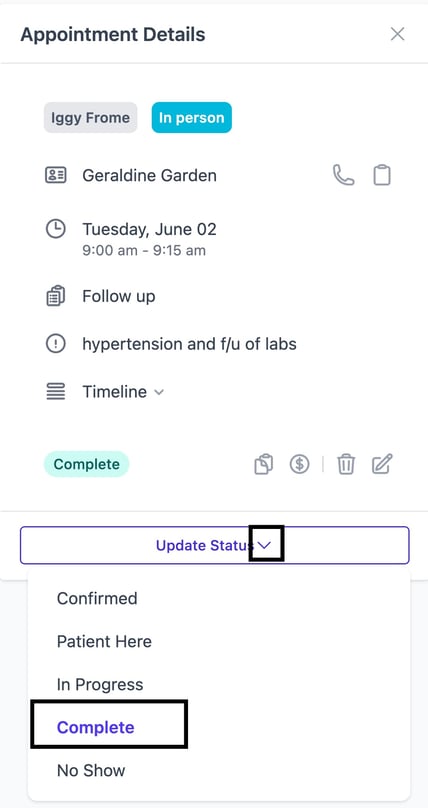
- Go back to the Calendar
- Click on Geraldine's appointment
- In the Appointment Details, change the status to Complete:
Great. The Patient Interaction Bill Claim has been created in Aeon.
⏱️ LFP Time Calculation Notes
At the end of the day, I'll come back and count this towards my LFP Time Code Bill Claim as 1 unit of 15 minutes towards Clinic-Based Direct Patient Care (98010)
Example of Two 15 Minute Blocks in Calendar (07:35 in Video)
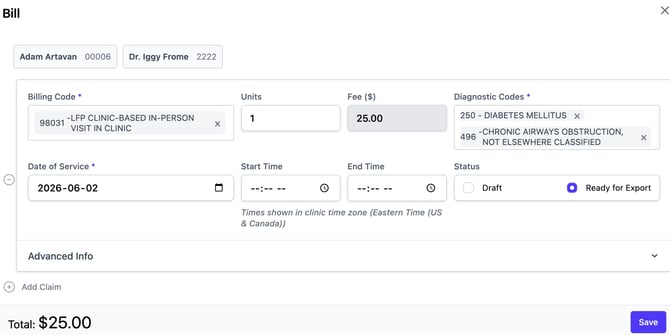
Next, I’ll open the 9:15 AM physical exam appointment for Adam Artavan.
1. I'll follow the Standard Workflow for LFP Patient Interactions
2. For this patient, I'll create the Patient Interaction Bill claim with the following:
- Interaction Code: 98031
- ICD-9: 250, 496 (Patient Specific ICD-9)
Here is the Bill Claim for this appointment:
⏱️ LFP Time Calculation Notes
Adam's appointment is booked across two 15-minute blocks. The interaction is still one claim, but when I count my time at the end of the day, Adam is worth two units, not one of Clinic-Based Direct Patient Care (98010). Length of visit and number of claims are two completely different things.
Now, let's look at a patient visit where there is an Additional Service Claim.
Example Two Billing Entries on One Chart Note (08:32 in Video)
9:45 AM – 12-Month Well Baby Visit with Immunizations
Now I'll open the 9:45 a.m. well baby visit.
1. I'll follow the Standard Workflow for LFP Patient Interactions
First Bill Claim
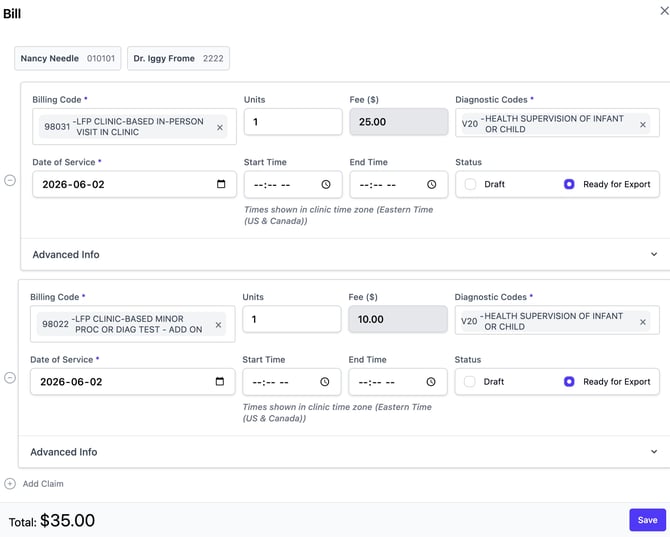
2. I'll create a Bill Claim with the following:
- Interaction Code: 98031
- ICD-9: V20
Additional service claim
3. Because immunizations were administered during the visit, I’ll create a second Bill Claim for the additional service.
Second bill claim:
- Interaction Code: 98022
- ICD-9: V20
The ICD code remains the same because both claims relate to the same patient encounter.
Here is the Bill Claim for this appointment:
I’ll save both claims and then save the chart note.
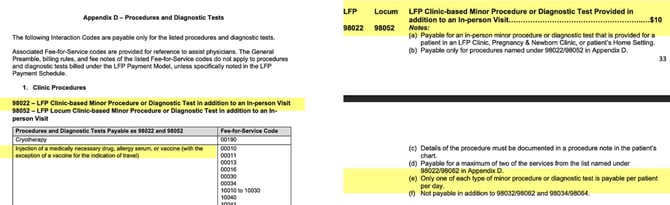
This aligns with the February 23, 2026, LFP Payment Schedule
Two rules combine here. Appendix D lists “injection of a medically necessary drug, allergy serum, or vaccine” as a single type of 98022 minor procedure. Then the 98022 notes in Section 54 cap it: note (e) only one of each type per patient, per day. Four needles, one type, one claim.
⏱️ LFP Time Calculation Notes
This appointment counts towards one 15 minute unit of Clinic-Based Direct Patient Care (98010)
Now, let's look at an example where there is one appointment for three patients.
Example of One Calendar Appointment for Multiple Patients (10:40 in Video)
10:00 AM – Fever and Cough (3 Patients)
At 10:00 AM, there are 3 patients booked for fever and cough symptoms:
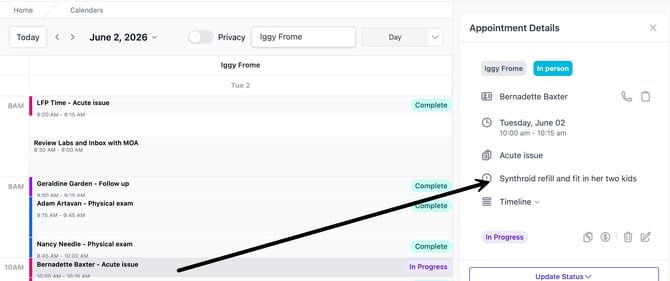
According to the February 23, 2026, LFP Payment Schedule, interaction codes are payable per patient per practitioner per day. In Aeon, this means each patient encounter should have its own chart note and interaction claim.
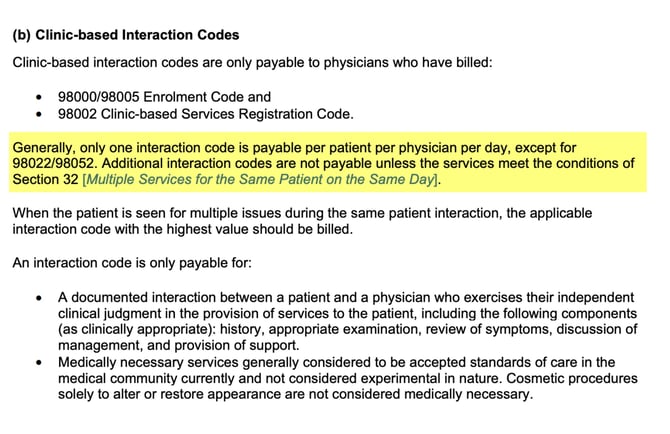
In the Calendar, this appointment was booked under the mother, Bernadette Baxter. She has brought her two young children, Bea and Benny, with her.
Patient 1 - The Mother
1. For this patient, I'll create a SOAP note summary:
- Cough and mild fever
- URI symptoms
- Supportive care advised
2. I'll capture the Embeds for the critical Patient information
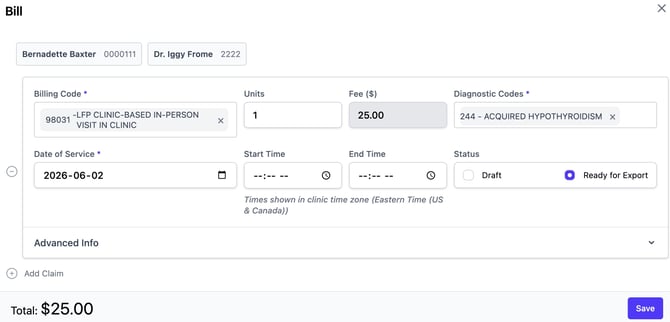
3. I'll create a Standard Workflow for LFP Patient Interaction Bill Claim with the following:
- Interaction Code: 98031
- ICD-9: 460
Here is the Bill Claim for the Mother:
4. I'll save the Bill Claim and Sign and Save the Chart Note.
Patient 2
5. Next, I’ll open the patient profile for Bea Baxter (the daughter) and create a new Chart Note. The SOAP note summary:
- Fever and cough
- Stable exam
6. I'll create Embeds for critical patient information
7. I'll create a Standard Workflow for LFP Patient Interaction Bill Claim with the following:
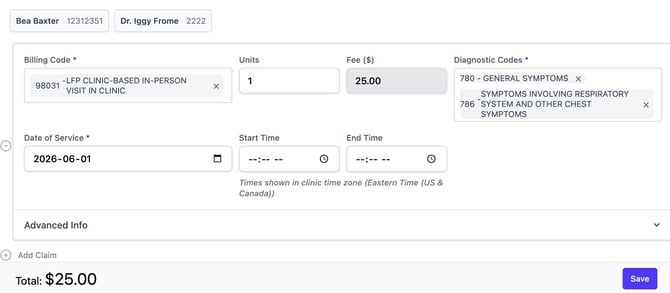
- Interaction Code: 98031
- ICD-9: 780, 786
Here is the Bill Claim for the daughter:
8. I'll save the Bill Claim and Sign and Save the Chart Note.
Patient 3
9. I’ll open the patient profile for Benny Baxter (the son) and create a new Chart Note. The SOAP note summary:
- Fever and cough
- Stable exam
10. I'll create Embeds for critical patient information
11. I'll create a Standard Workflow for LFP Patient Interaction Bill Claim with the following:
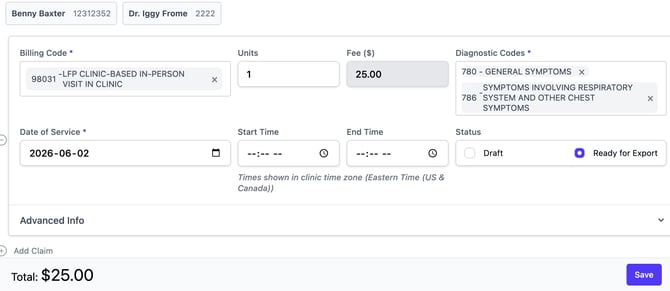
- Interaction Code: 98031
- ICD-9: 780, 786
Here is the Bill Claim for the son:
12. I'll save the Bill Claim and Sign and Save the Chart Note.
13. Go back to the Calendar and mark the status of the appointment to Complete
To recap:
We are not creating one claim for all three patients, and we are not billing multiple units on a single interaction claim.
We have one appointment on the Calendar for all three patients of the same family, and we created three individual Chart Notes specific to each patient, and attached a Patient Interaction Bill Claim to each Chart Note (so there are three in total).
⏱️ LFP Time Calculation Notes
All three patients share one 15-minute calendar block, so this contributes one unit of direct patient care time (98010) not three. Time is counted by the clock, not by headcount.
Example of Standard Visit & Procedure Claim (12:17 in Video)
10:15 AM – Wart Treatment
This is another example of a Standard Workflow for LFP Patient Interaction with an Additional Claim.
SOAP note summary:
- Painful wart
- Cryotherapy performed
First Bill claim:
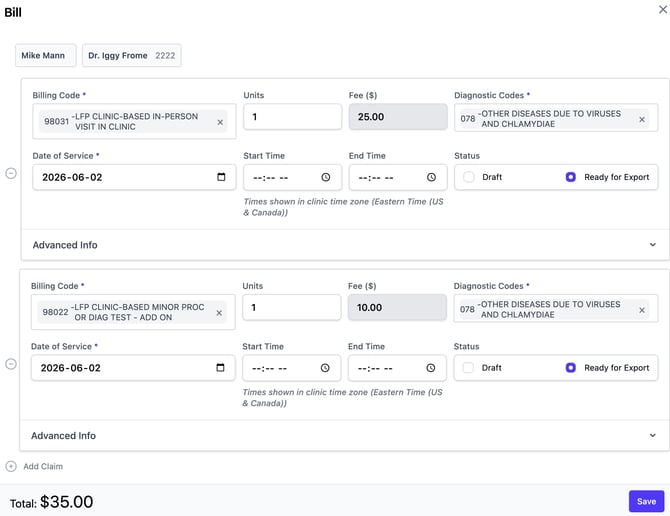
- Interaction Code: 98031
- ICD-9: 078
Add-On Procedure
- Interaction Code: 98022
- ICD-9: 078
Here is the Bill Claim for this appointment:
⏱️ LFP Time Calculation Notes
This counts as one 15 minute unit of Clinic-based Direct Patient Care time (98010)
Now let's see what happens with a WorksafeBC visit.
Example of WCB Visit (12:57 in Video)
10:30 AM – WorkSafeBC Visit
This patient is being seen for a WorkSafeBC issue.
1. Follow the same steps as the Standard Workflow for LFP Patient Interactions, but STOP when you get to the Bill Claim.
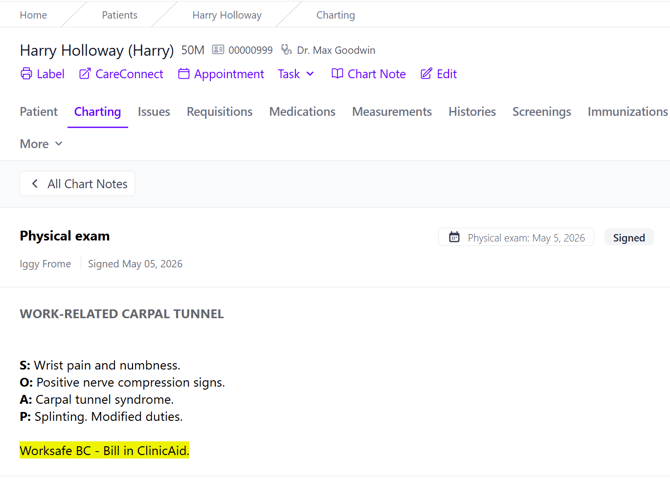
SOAP note summary:
- Wrist pain and numbness
- Carpal tunnel symptoms
WCB Billing
Because this visit is billed to WorkSafeBC and not under the LFP model, no LFP interaction claim is created. In this example workflow, the WCB billing is completed directly in ClinicAid rather than through an LFP interaction claim in Aeon.
2. Optional: You could add a note referring to that in the Chart Note - in this example, I've used the highlighting feature of the Chart Note to emphasize this. This can be quite helpful for MOAs or Billing Staff to understand this situation:
3. The ClinicAid instructions for billing WCB would be followed.
⏱️ LFP Time Calculation Notes
WCB is excluded from LFP Time Submission.
Now, let's look at a split billing scenario.
Example of Split Billing (MSP and WCB) (13:45 in Video)
10:45 AM – WorkSafeBC Back Injury (Split Billing Example)
📢 Important Concept
This appointment includes WCB-related care, but part of the encounter is still eligible under the LFP model.
Some encounters may involve both uninsured or third-party billing work and insured patient care during the same visit.
In this example, the practitioner will still create an LFP interaction claim for the insured interaction portion of the visit.
The WCB paperwork or uninsured components are managed separately outside the LFP interaction claim.
❗As Split billing scenarios can be nuanced and depend on MSP/WCB rules, please treat this as one example workflow, not the way to always bill these situations.
1. I'll open the appointment for Cynthia Carver and note she is here for:
- WCB Back Injury; and
- OCP refill
2. I'll follow the Standard Workflow for LFP Patient Interactions instructions
SOAP note summary for insured portion:
- Request for OCP refill
- No side effects or contraindications
- Prescription renewed
I'll create an LFP interaction claim for the insured interaction portion of the visit.
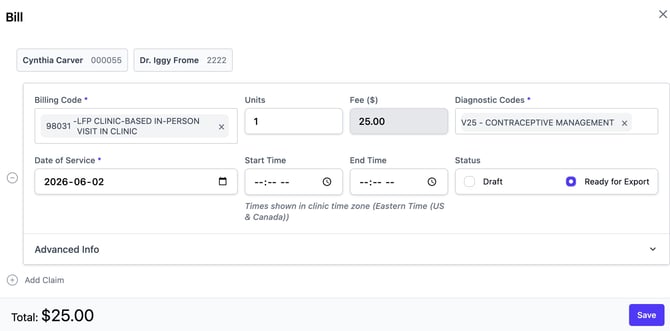
Bill claim:
- Interaction Code: 98031
- ICD-9: V25
Here is the Bill Claim for this appointment:
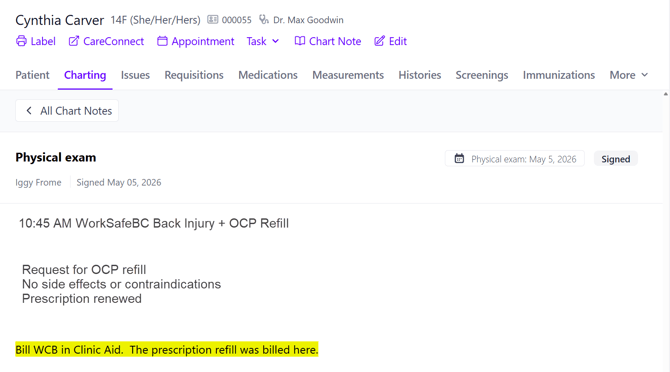
3. Optional: You could add a note referring to that in the Chart Note - in this example, I've used the highlighting feature of the Chart Note to emphasize this. This can be quite helpful for MOAs or Billing Staff to understand this situation:
⏱️ LFP Time Calculation Notes
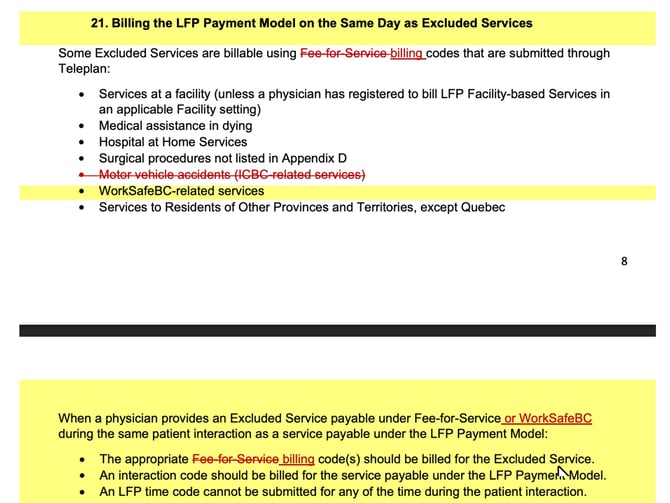
Because an excluded service (WCB) happened inside this same interaction, I bill the interaction code but I cannot claim a time code for this block. The interaction counts; the time does not.
This aligns with the February 23, 2026, LFP Payment Schedule:
Now let's do a Video Visit.
Example of a Video Visit (14:50 in Video)
11:00 AM – Video Visit
This appointment is being completed virtually.
1. Follow the same steps as the Standard Workflow for LFP Patient Interactions
SOAP note summary:
- Grief counselling
- Sleep difficulties
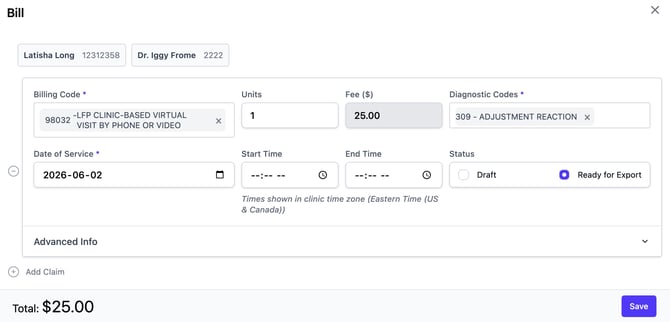
Bill claim:
- Interaction Code: 98032
- ICD-9: 309
Here is the Bill Claim for this appointment:
🎓 Training Tip: Different Interaction Code!
Make sure you are using the correct code for virtual visits. Previously, for our in-clinic visits, we were using the Interaction Code 98031. Because this visit took place via video, the Interaction code is 98032.
⏱️ LFP Time Calculation Notes
This counts as one 15 minute unit of Clinic-based Direct Patient Care time (98010)
Now, let's have a look at an example where the practitioner "Fits In" Patient Work.
Example of No-Patient, Ad Hoc Appointment (15:17 in Video)
11:15 AM – RACE Call / Phone Consult
During the clinic session, the practitioner also completes a RACE consult by phone.
Ad Hoc Appointment Workflow
Because this interaction was not originally booked, I’ll create an ad hoc calendar appointment so the interaction has its own documentation and billing record. In this case, there was an opening on my Calendar.
1. Click into the Calendar2. Create a new appointment
- Note the appointment type is Phone
3. Open the Chart Note
This is not a scheduled patient visit appointment. It is documentation related to a phone consultation about a patient. Document the call.
4. Chart Note is Signed and Saved
This is aligned with the February 23, 2026, LFP Payment Schedule
The schedule folds indirect care provided between patient interactions during the clinic day into your 98010 time. So this call is silent on interactions but it still counts toward your day's direct-care time.
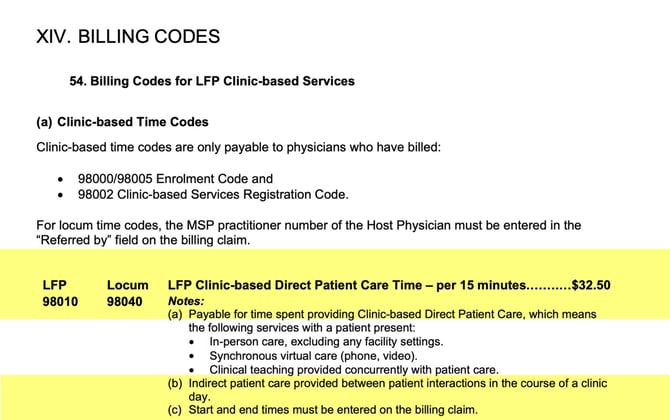
⏱️ LFP Time Calculation Notes
This counts as one 15 minute unit of Clinic-based Direct Patient Care time (98010)
Example of 1 Procedure Claim and 1 Minor Test Claim (16:27 in Video)
Jennifer's in for an IUD removal, an IUD insertion, and a urine pregnancy test — booked across two blocks on the Calendar:
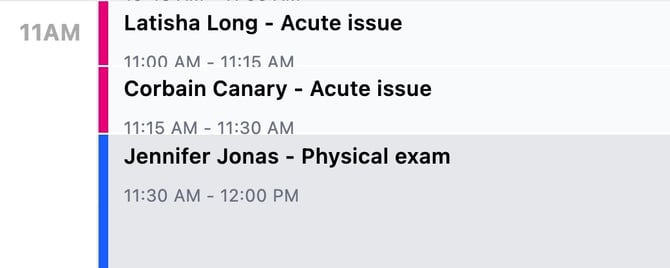
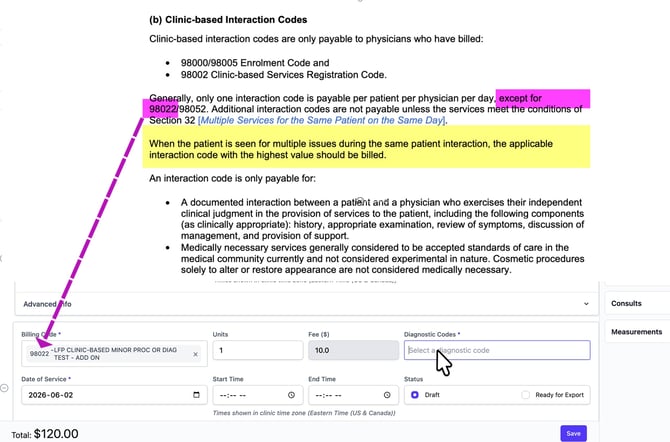
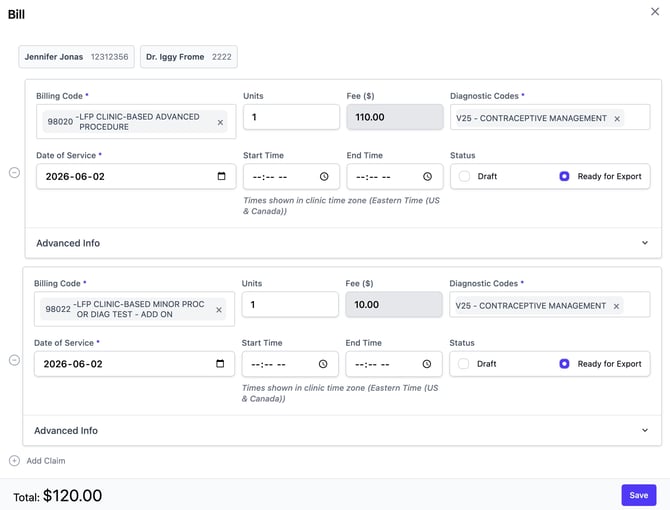
When one encounter has several procedures, you bill the highest-value one. The IUD insertion is an advanced procedure, 98020, so that's the headline claim. The urine pregnancy test is a listed minor test, so it rides along as a 98022. This is aligned with the FFebruary 23, 2026, LFP Payment Schedule:
Here is the Bill Claim for this appointment:
⏱️ LFP Time Calculation Notes
As this appointment is 30 minutes long, this counts as two 15 minute units of Clinic-based Direct Patient Care time (98010)
Example of a Working Lunch (17:11 in Video)
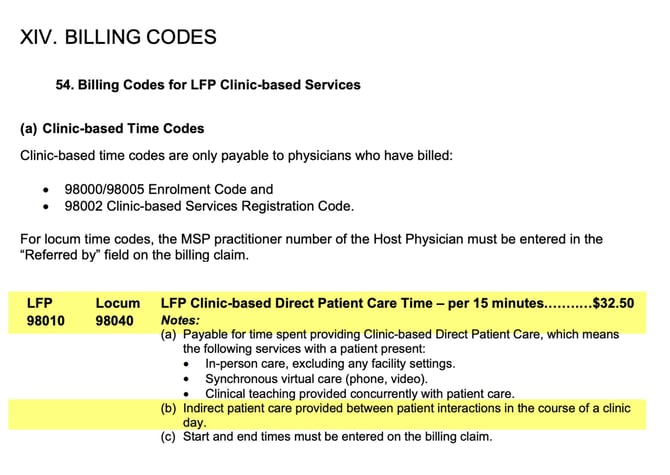
My calendar says lunch, but for the first half hour I'm at my desk clearing labs, imaging, consult letters, fax refills, and long-term-care orders. No patient in front of me, so no interaction codes. And here's the part people get backwards: this is indirect-type work, but because it happens between patient interactions during the clinic day, it rolls into 98010 — my clinic-day direct-care time — not 98011:
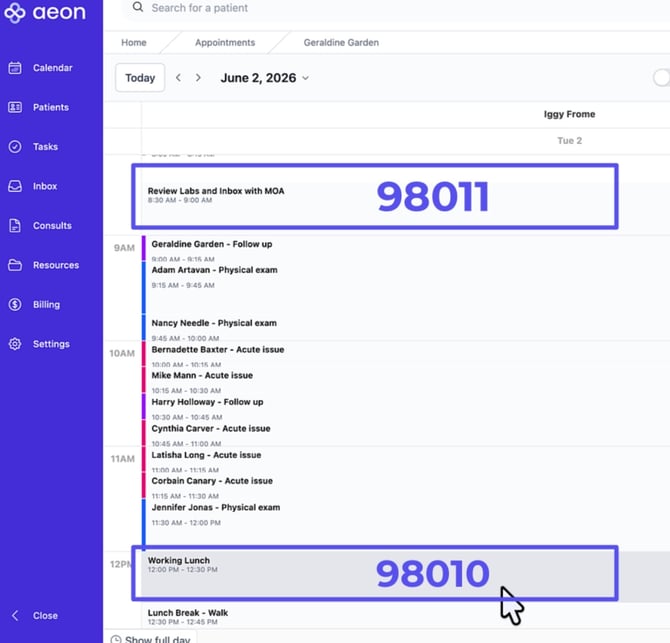
This aligns with the February 23, 2026, LFP Payment Schedule:
There are no patient interactions during this time, and therefore, I will not bill any. However, I will come back at the end of the day to calculate my LFP Time Codes. To make that easier, I do the following:
1. Click on the Lunch Break event in the Calendar
2. In the Appointment Details, expand the Timeline
3. Add Timeline Notes to capture what I completed:
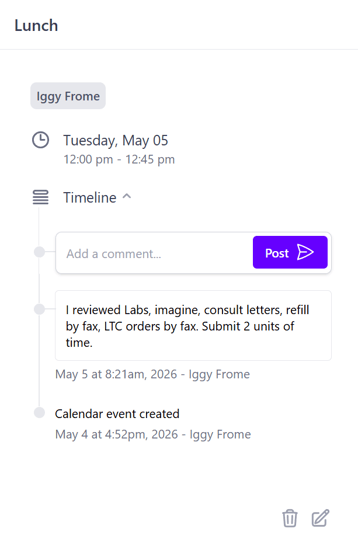
I noted the 2 units of time as I went for a walk during the last 15 minutes of my lunch, so that is not billable. Adding this note makes it easier for MOAs and Billing Specialists to understand what I did.
Always capture patient-level information in their Patient Profiles. So, if I'm reviewing labs, for example, I would add a Chart Note to the patient's profile.
⏱️ LFP Time Calculation Notes
This counts as two 15 minute unit of Clinic-based Direct Patient Care time (98010), due to the rules noted above.
Another Standard Workflow Example
12:45 PM – A quick fit in/ walk in (19:01 in Video)
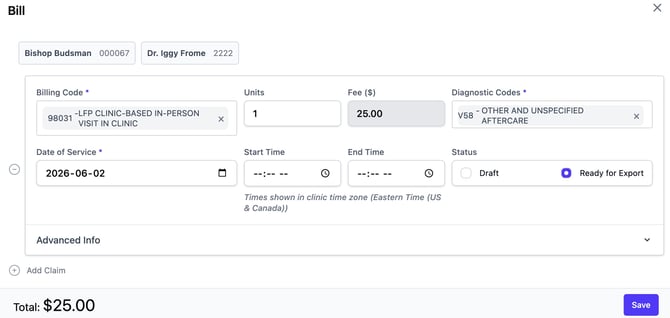
Suture removal, walk-in. I create the appointment in the Calendar.
Bill claim:
Interaction Code: 98031
ICD-9: V58
Here is the Bill Claim for this appointment:
⏱️ LFP Time Calculation Notes
This counts as one 15 minute unit of Clinic-based Direct Patient Care time (98010)
Example of a 98021 Procedure Code (19:24 in Video)
1:00 PM – A Different Procedure Code
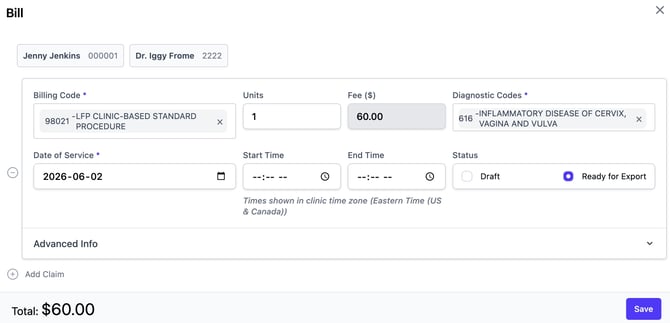
Jenny's in with vaginal discharge and an STI discussion, and I do a speculum exam. That's a standard procedure, so the code is 98021, not the usual office-visit code. ICD-9 616. Small change, easy to miss.
Bill claim:
Interaction Code: 98021
ICD-9: 616
Here is the Bill Claim for this appointment:
⏱️ LFP Time Calculation Notes
This counts as one 15 minute unit of Clinic-based Direct Patient Care time (98010)
Example of Private Pay (19:47 in Video)
1:15 PM – Driver's Medical Examination Report (Yellow Stripe)
Fanny's 98 and in for her age-based Driver's Medical Examination Report, the routine senior's exam RoadSafetyBC mails out at 80, 85, and every two years after.
This is the private-pay example to remember: RoadSafetyBC doesn't reimburse the age-based report, and MSP doesn't cover it:
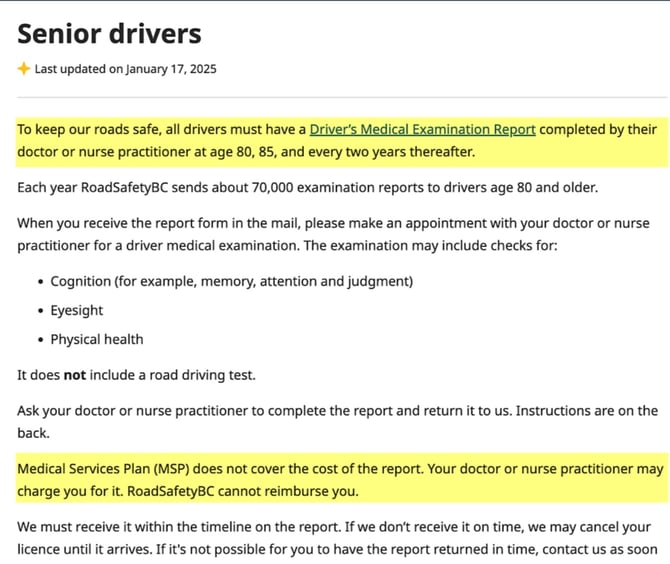
Fanny pays me directly and I set my own fee. It's outside LFP entirely - no interaction code, and on its own, no LFP time for the block.
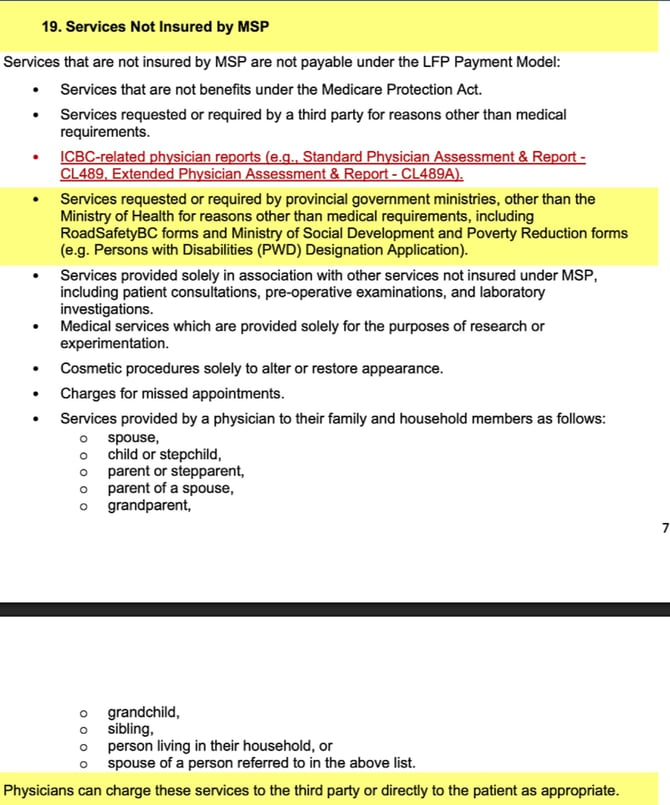
This is aligned with the February 23, 2026, LFP Payment Schedule:
Section 19 [Services Not Insured by MSP] lists RoadSafetyBC forms as excluded from LFP, and says to charge them “to the third party or directly to the patient as appropriate.” For the age-based exam, that’s the patient — private pay. (The other DMER known as "Blue Stripe", for a known or suspected condition, is the $75 fee item 96220 through Teleplan instead. Fanny’s isn’t that one.)
⏱️ LFP Time Calculation Notes
RoadSafetyBC Forms are excluded from LFP Time Submission.
In Part 2 of this video series, we'll create this Private Pay entry in ClinicAid.
Example of Overlapping Appointments - Saving Time Block (21:17 in Video)
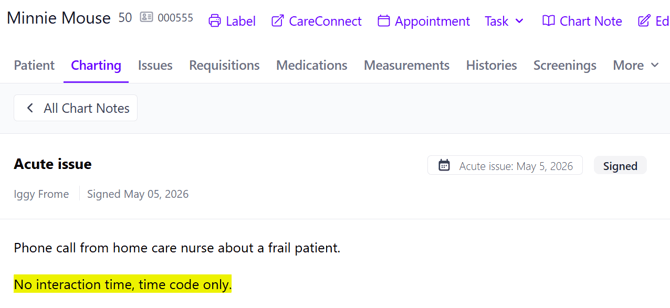
But during that same slot as Fanny at 1:15, a home-care nurse calls about Patty, a frail patient of mine. That's patient-care work inside my practice. No interaction code — but it's indirect care between interactions, so it makes this 15-minute block count toward my direct-care time after all.

1. I'll create a new Calendar appointment that overlaps the existing 1:15 appointment
2. I'll create a Chart Note from the new appointment:
The February 23, 2026, LFP Payment Schedule, notes that the Time Code 98010 is used when there is:
Indirect patient care provided between patient interactions in the course of a clinic
day
I will not create a Patient Interaction Bill Claim.
⏱️ LFP Time Calculation Notes
This counts as one 15 minute unit of Clinic-based Direct Patient Care (98010).
Notice I'm not double-counting the clock. The Driver's Medical earns no LFP time, so the Patty call becomes the eligible activity for that single block. One block, one unit — never two claims on the same fifteen minutes.
Example of New for 2026 MVA Rule (22:31 in Video)
1:30 PM – Sandford's ICBC Follow Up
Sandford's following up on a soft-tissue injury from a car accident, and I'm referring him to physiotherapy. If you learned LFP billing a year ago, your instinct is to push this to ICBC and skip LFP entirely. That instinct is now wrong.
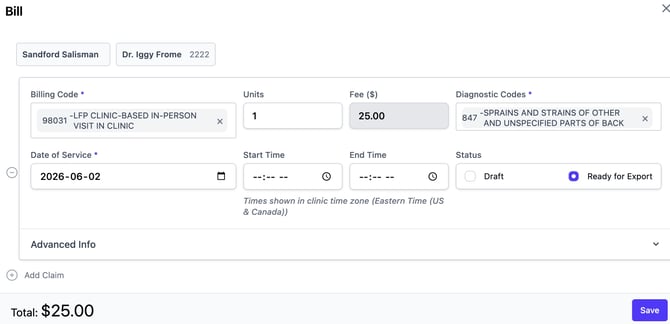
As of the February 23, 2026, LFP Payment Schedule, motor-vehicle-accident services are no longer excluded from LFP. Visits, procedures, counselling, and consultations related to an MVA are billed under the LFP model — both interaction and time codes. So Sandford gets a 98031, ICD-9 847, and the block counts toward my time.
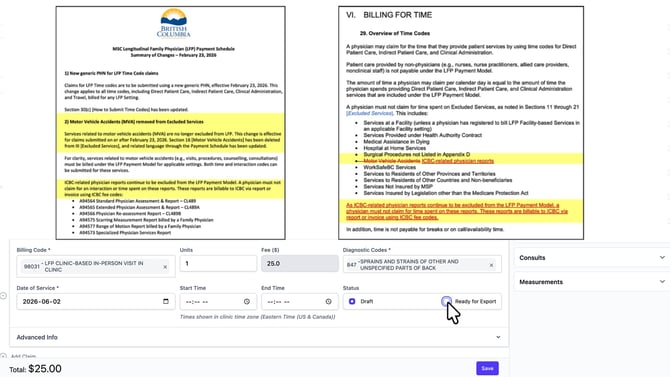
The one carve-out: ICBC physician reports, the formal CL489 assessments, are still excluded and still billed to ICBC. The visit goes through LFP; the report does not.
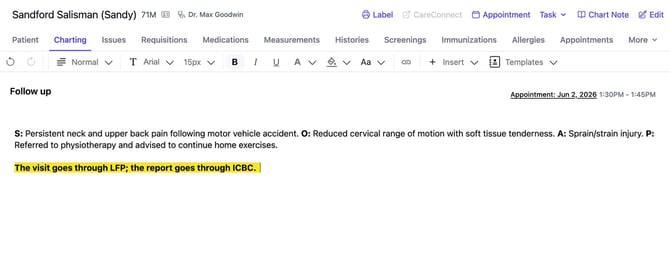
Here is the note I added to his chart note:
Here is the LFP Portion of the Bill Claim for this appointment:
⏱️ LFP Time Calculation Notes
This counts as one 15 minute unit of Clinic-based Direct Patient Care (98010).
Example of Two Related Patients, back to back (23:48 in Video)
1:45 PM – 2:15 Breastfeeding Assessment for Mother
This is a standard visit.
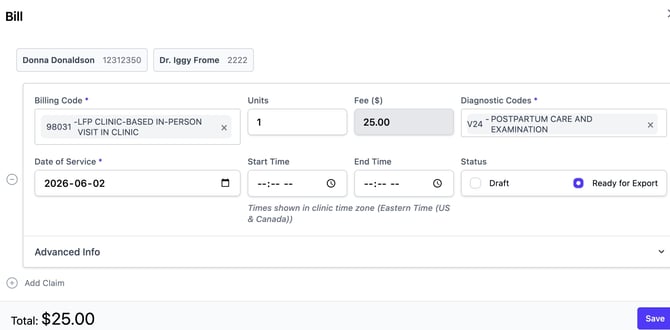
Bill claim:
Interaction Code: 98031
ICD-9: V24
Here is the Bill Claim for this appointment:
⏱️ LFP Time Calculation Notes
This counts as one 15 minute unit of Clinic-based Direct Patient Care (98010).
2:00 - 2:15 Newborn Assessment for Baby
Donna's newborn, seen as her own patient, separate chart, separate claim. 98031, ICD-9 V20. One unit. Same lesson as the Baxters: two people, two claims.
Bill claim:
Interaction Code: 98031
ICD-9: V20
Here is the Bill Claim for this appointment:
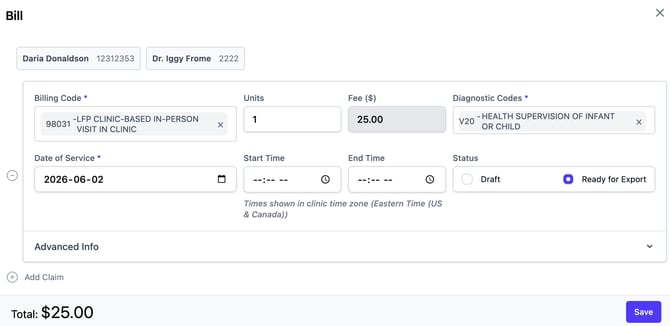
Because these are two separate patients, each patient receives their own interaction claim.
⏱️ LFP Time Calculation Notes
This counts as one 15 minute unit of Clinic-based Direct Patient Care (98010).
End of Patient Appointments for the Day
After Hours Indirect Patient Care (24:28 in Video)
Though I’ve stopped taking patient appointments for the day, I have a bit more work to do.
At 4:30 I review lab results and consult letters.
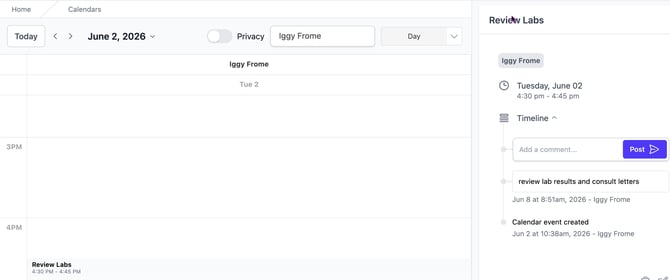
This is like our 8:30 a.m. appointment where the indirect patient care is happening outside of patient appointments. So, I will bill 1 unit of 98011. I add this to my calendar so that I have a record of this that matches my time claims submitted.
⏱️ LFP Time Calculation Notes
This counts as one 15 minute unit of Indirect Patient Care (98011)
Example of After Hours Clinical Administration
From 4:45 to 5:15 I complete Clinical Admin work - recall lists, and medical director duties. I will bill this time as Clinical Admin 98012 for 2 units.
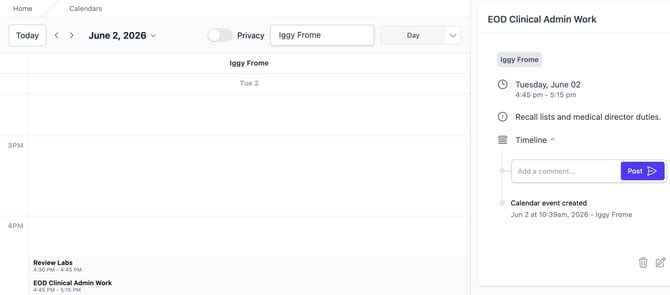
⏱️ LFP Time Calculation Notes
This counts as two 15 minute units of Clinical Administration (98012)
Calculating Time Codes
Appointment to Capture Daily Time Codes (25:21 in Video)
If you bill LFP and do not have the recurring appointment to capture LFP Time Codes, follow the instructions here:
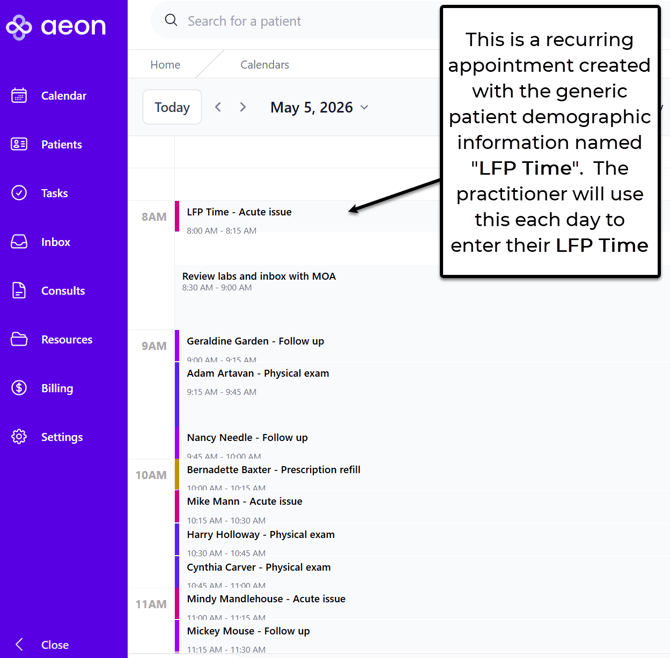
Now that our Patient Interactions have been created for the day, we can turn our attention to our Time Codes. Note: We'll return in Part 2 of this series to submit our Patient Interaction codes to MSP.
Standard Procedure for Entering Time Codes (25:21 in Video)
1. Open the recurring LFP Time appointment in your Calendar
2. In the Appointment Details, click the Claim icon (dollar bill icon):
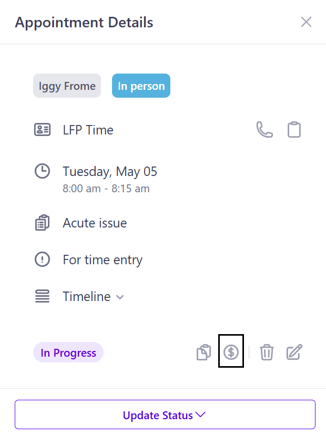
3. A bill tray will open at the bottom of your Calendar screen with LFP Time as the patient.
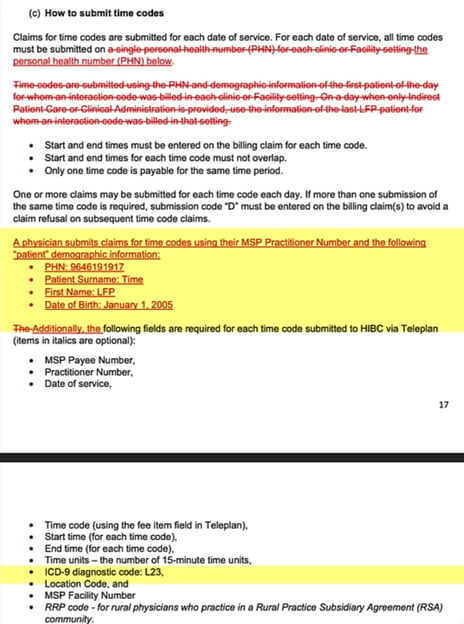
💡 Did you know that Incorrect Use of the Generic LFP Patient is one of the top reasons LFP Bill Claims are rejected?
This occurs when a real patient is used to submit Time Codes instead of the generic patient "LFP Time". This applies only to Time Code billing (98010, 98011, 98012).
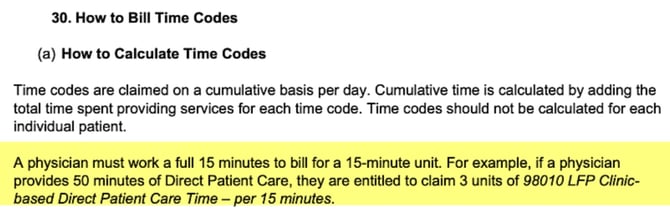
This aligns with the February 23, 2026, LFP Payment Schedule:
4. By default, the template for a Bill Claim will open; if not, click Add Claim
5. For this example, as I am first entering Direct Patient Care, I'll type the Billing Code 98010 into the field and choose it from the dropdown
Now we need to determine the number of units. Further to section 30 a) of the LFP Payment Schedule, Feb 23, 2026, calculate the total time spent on direct patient care (excluding breaks) and divide by 15 minutes.
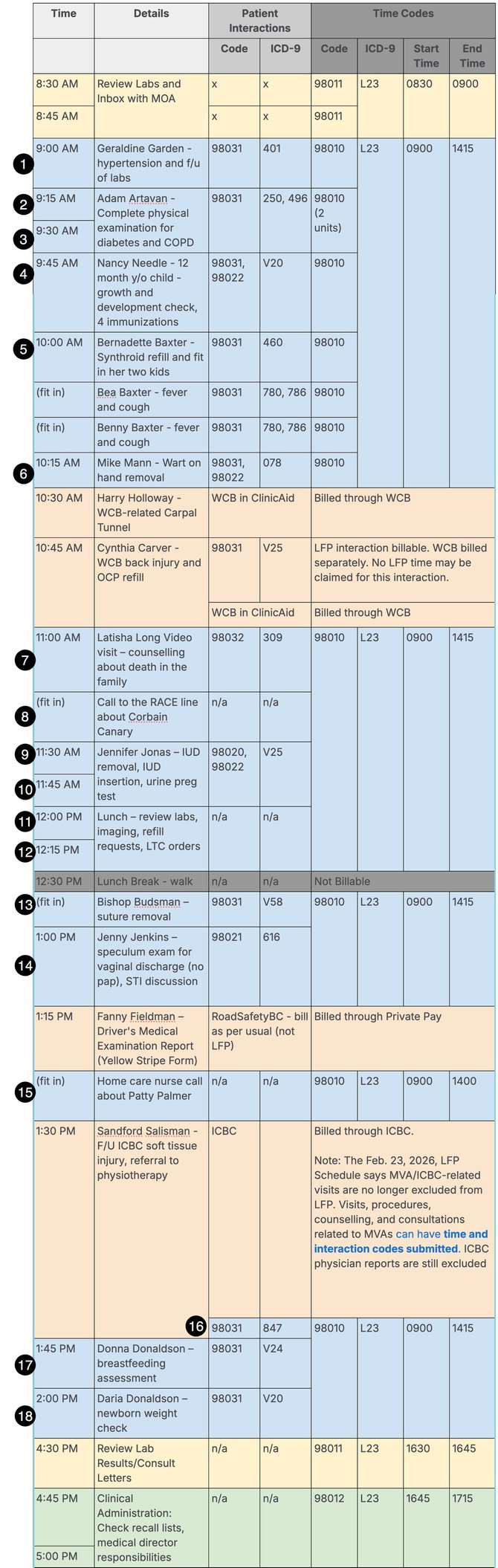
Let's calculate the Indirect Patient Care units. There is 3 units of Indirect Patient Care time but it is split across two time blocks (98011):
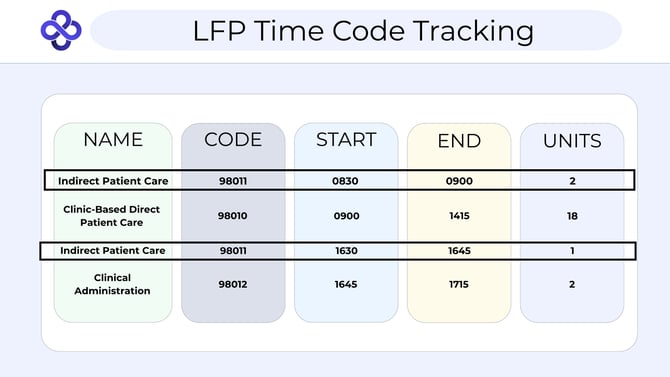
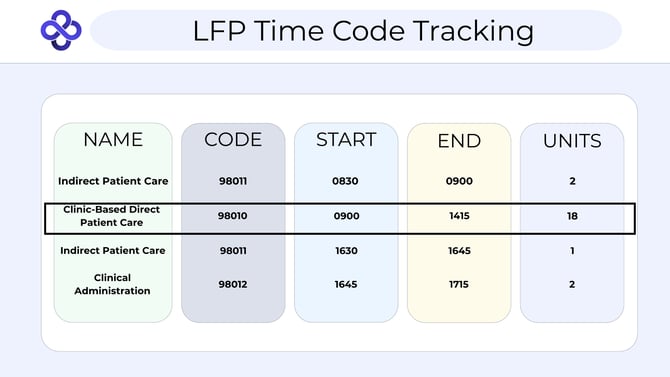
If I look at the day's appointments, I count 18 units of Direct Patient Care (98010):
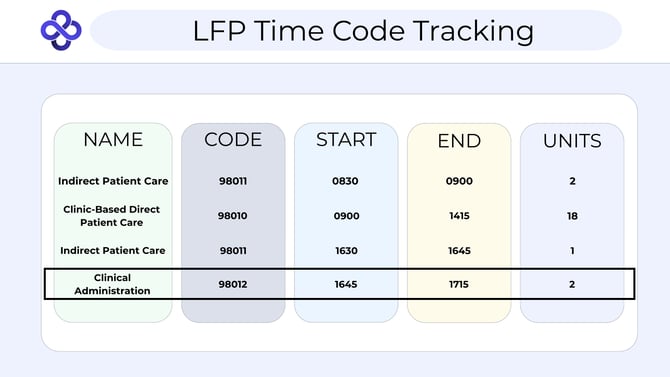
Next, let's calculate the Clinical Administration units. I count 2 units of Clinical Administration (98012) at the end of the day:
6. Create the Bill Claims for the first Indirect Patient Care (98011) entry:
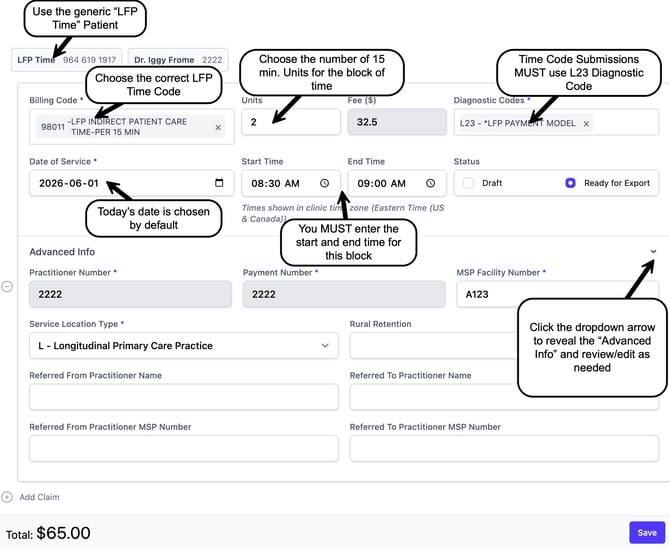
🎓 Training Tip: Not all Indirect Time was Captured
You'll note that in the above Time Code claim, I did not include the Indirect Patient care that occurred between 4:30 and 4:45 p.m. That's because it is a separate time block. Your bill claims will be rejected if you overlap time. We'll come back to this soon.
7. In the same Bill Claim form, click Add Claim (Don't click the "-" button to the left of the time entry as this will delete the claim you just created!) 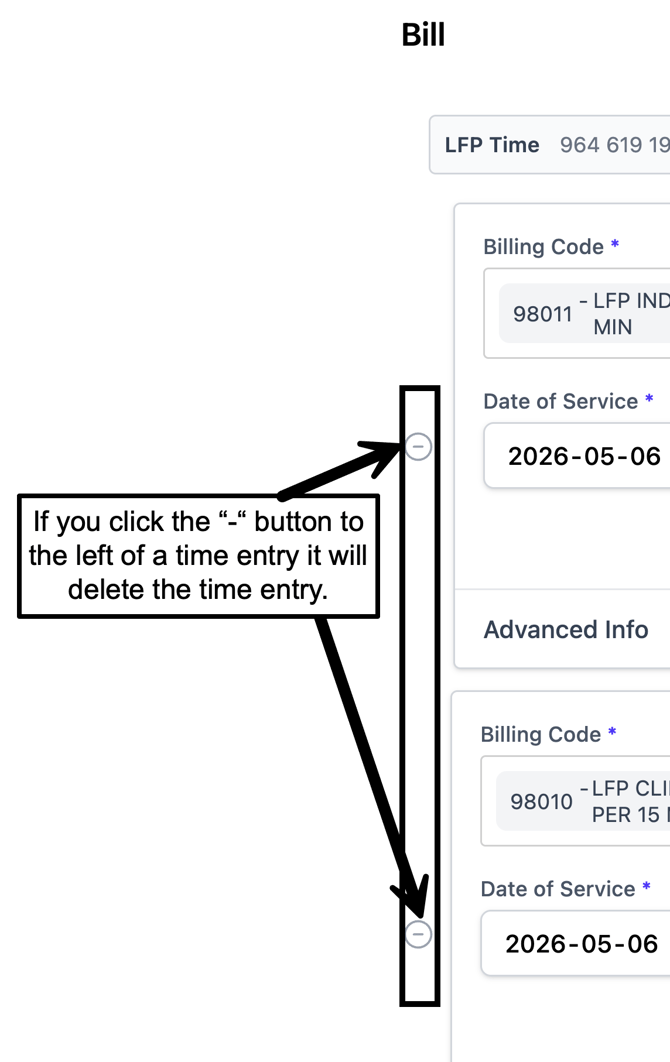
8. In the new claim form, create the Bill Claim for the Direct Patient Care (98010)Time Codes
9. In the same Bill Claim form, click Add Claim (Don't click the "-" button to the left of the time entry as this will delete the claim you just created!)
10. Create the Bill Claim for the second block of Indirect Patient Care (98011)
11. In the same Bill Claim form, click Add Claim (Don't click the "-" button to the left of the time entry as this will delete the claim you just created!)
12. Create the Bill Claim for the Clinical Administration (98012) work
Here are all the entries together once complete:
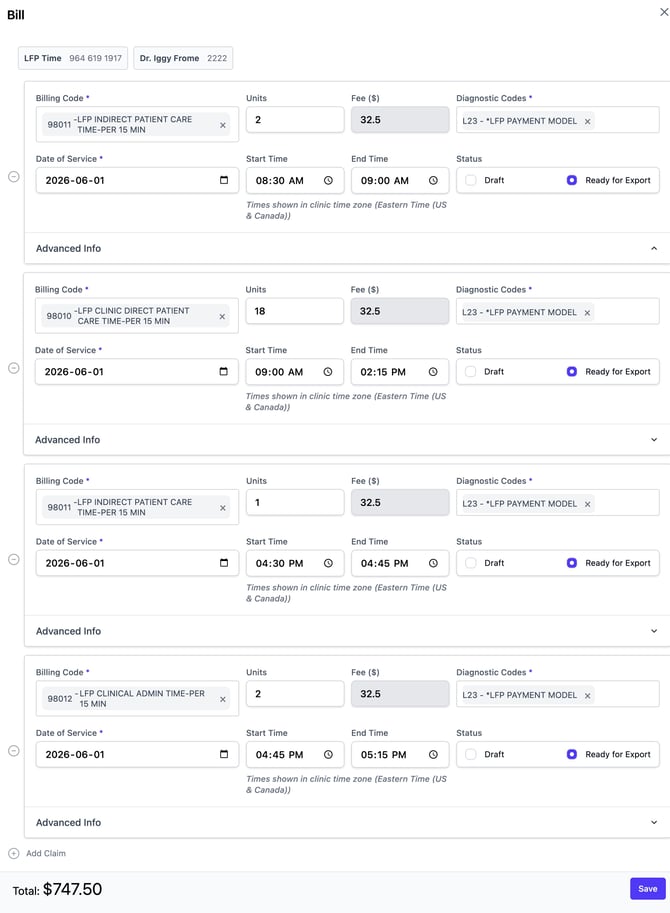
13. Save
You have successfully captured the Time Codes for the day. Next up is Submission.
Export to ClinicAid and Submit (Part 2 Video)
We have captured a day's worth of Patient Interaction and Time Code Bill Claims. Now we need to export the claims from Aeon and import them into ClinicAid for submission to Teleplan. This overview is covered in the Part 2 of this video series.
1. Export the Claims from Aeon to ClinicAid
2. Import the Claims into ClinicAid
3. Create any WCB/ICBC/Private Pay claims in ClinicAid
4. Submit Billing in ClinicAid
5. Reconcile and Track in ClinicAid
We trust this has been a helpful overview on how to Bill LFP time with Aeon. If you have any clinic workflows you'd like to discuss with us, please reach out to support@aeon.health