
Official source
This guide is based on the LFP Payment Schedule dated Feb 23 2026. See the full schedule on the BC government website.
Disclaimer
This article supports the use of the Aeon EMR. Billing decisions remain the responsibility of the physician. Always consult MSP guidelines and the LFP Payment Schedule for authoritative rules.
Last reviewed
April 30, 2026
In This Article
Environment
Billing for Interaction Instructions
🔹Interaction Billing Codes
🔹LFP Bill Claim Setup
🔹Create an Interaction claim in Aeon
🔹Export the Bill Claims from Aeon to ClinicAid
🔹Import the Bill Claim to ClinicAid
🔹Submit Billing in ClinicAid
Breakdown of Aeon Bill Claim Form for LFP Interaction Entries
Special Situations
🔹Seeing the Patient Twice in the Same Day
Environment
- This guide is for BC Practitioners who are billing time using the Longitudinal Family Physician (LFP) Model (Feb. 23, 2026) under the LFP Payment Schedule.
- This article has instructions for billing LFP Interaction Codes only. If you are interested in learning about how to bill LFP Time Codes, click here.
Billing For Interaction Instructions
Note: Motor‑vehicle accident (MVA) services are no longer excluded from the LFP model and should be billed under the LFP Payment Model. (Source: page 1 of the LFP Payment Schedule, February 23, 2026).
According to the LFP Payment Schedule, Feb 23, 2026 in S. I. 3.c):
A physician bills for the total daily time they spend providing care, including time spent on direct care, indirect care and clinical administration. They also bill for each patient interaction and conferencing/communication. In addition, they receive a quarterly panel payment based on the number of patients on their panel and the complexity of those patients.
(emphasis added)
Interaction Billing Codes
For a full list of Interaction Billing Codes, see Section 54 b) in the LFP Payment Schedule, Feb 23, 2026.
LFP Bill Claim Setup
These steps assume that you have:
- According to the LFP Payment Schedule, Feb 23, 2026:
Clinic-based interaction codes are only payable to physicians who have billed: 98000/98005 Enrolment Code and 98002 Clinic-based Services Registration Code
- Understand that the LFP Time Codes are submitted separately, per these instructions.
If you have not completed the above, please do do before continuing or your Bill Claim will fail.
Create an Interaction claim in Aeon
-
Open the Appointment in the Aeon Calendar
-
Click the Claim icon in the Appointment Details
-
By default, the template for a Bill Claim will open, if not, click Add Claim
- The patient's name, PHN, and DOB will be filled in from the details in their Patient Profile
-
In the Billing Code field, enter the appropriate LFP Interaction Code (e.g., 98031 for an in-person visit) and select it from the dropdown.
👉 According to the LFP Payment Schedule, Feb 23, 2026:
"Generally, only one interaction code is payable per patient per physician per day, except for 98022/98052. Additional interaction codes are not payable unless the services meet the conditions of Section 32 [Multiple Services for the Same Patient on the Same Day]. When the patient is seen for multiple issues during the same patient interaction, the applicable interaction code with the highest value should be billed." - The number of units will typically be 1 as you provided 1 of that particular Billing Code
-
Change the Date of Service if you are entering time for a different day
-
Add the Diagnostic Code based on the patient’s condition (ICD-9). Do not use L23 for interaction claims.
👉 According to the LFP Payment Schedule, Feb 23, 2026, S. 33:
"ICD-9 Diagnostic Codes (1 code mandatory, 3 maximum)." -
Set the Claim Status:
-
Draft – if you want to review later.
-
Ready for export – if finalized and ready to send to ClinicAid
-
-
Click the dropdown for the Advanced tab and confirm the required fields are filled in (Service Location, Facility Number, RRP code if applicable). These values may auto‑populate from your clinic settings:
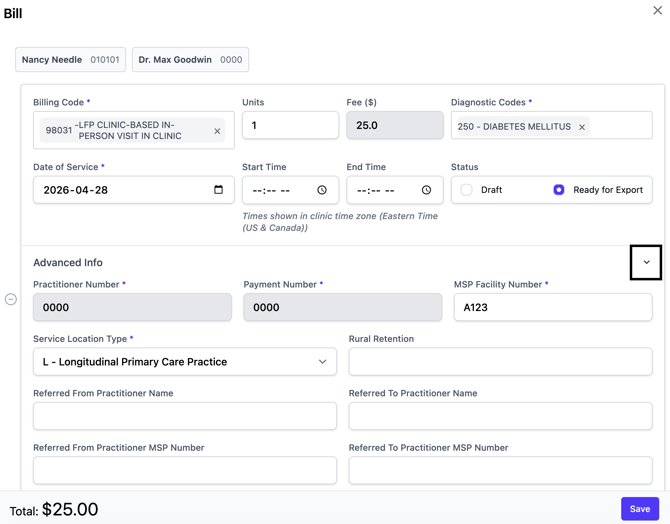
-
Save the claim
Best Practices 🚀:
-
Check eligibility: Ensure the encounter meets the criteria outlined in the LFP Payment Schedule before billing an interaction code.
-
Avoid overlap: Do not bill a time code and an interaction code for the same patient interaction. Time codes are billed separately as cumulative daily totals.
-
Maintain documentation: Keep start and end times, consultation letters and patient notes to support your claims. Teleplan and HIBC may request documentation during audits.
-
Rural physicians: If you practise in a Rural Practice Subsidiary Agreement community, include your RRP code to receive rural retention benefits.
-
Stay current: Fee values and eligibility rules may change. Always refer to the latest LFP Payment Schedule and update your codes and amounts accordingly.
Export the Bill Claims from Aeon to ClinicAid
Following the submission timelines of your clinic (daily, etc.), complete the next steps to move your LFP Interaction Claims from Aeon to Clinic Aid.
12. Go to Billing in the left column
13. Click Claims
14. Click Filter
15. Choose your name or the one Practitioner to view the claims for
16. Your claims will either be found under "Draft" or "Ready for Export", depending on what you chose within the Bill Claim form:
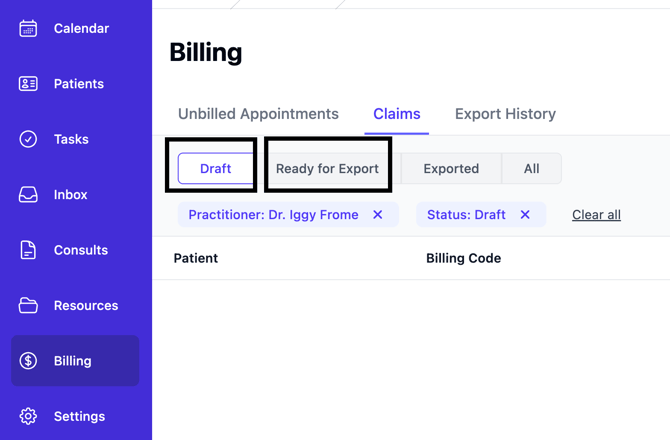
17. Draft Bill Claims: Review the Draft by clicking on the entry and making any changes. When complete, change the button at the bottom right to Ready for Export
18. Ready for Export Claims: You can only export one practitioner's Bill Claims at a time. Therefore, click on Filter and ensure there is only one practitioner chosen.
19. Click the blue Export button at the top right of the list
20. You will see a popup, click Export:
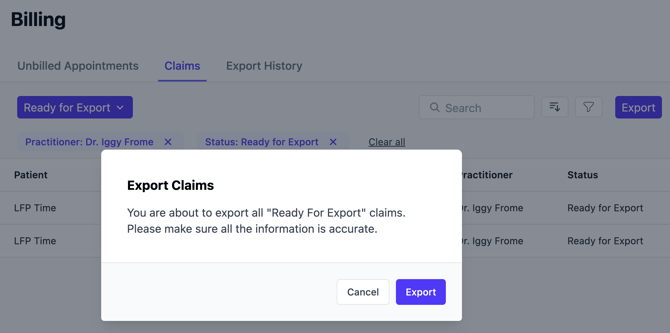
21. Click Download Export
22. Click Close
Import the Bill Claim to ClinicAid
23. Open your ClinicAid account
24. In ClinicAid, click Create Invoice in the left column
25. Click Import Invoices
26. Change the Date Format to YYYY-MM-DD
27. Choose the Provider
28. Choose Select File
29. Choose the file from your computer
30. Run Test Import
31. If there are no issues, click Confirm Import and Run Live
Submit Billing in ClinicAid
32. Once you've reviewed your invoices for accuracy in ClinicAid, click the top checkbox (next to Service Date) - this will select all of the claims visible on the page
- Click Send to send the claims you are viewing per page; or
- Click Send All to send ALL claims in the New tab
If there are issues, refer to ClinicAid's Support Resources.
Following the above steps, you would use ClinicAid to make changes and/or reconcile. Please see this article for more information.
Breakdown of Aeon Bill Claim Form for LFP Interaction Entries
According to the LFP Payment Schedule, Feb 23, 2026, each interaction code claim submitted to MSP via Teleplan must include the following fields. In Aeon these fields appear in the Claims tab (main bill form) or Advanced tab (additional fields). Fields marked with an asterisk (*) are mandatory in Aeon.
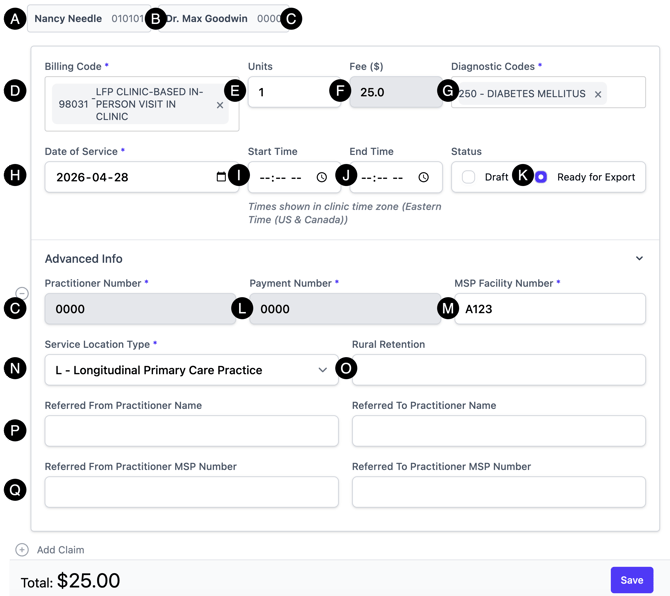
| What is Required? | Where is the Information Entered? | Notes | |
| A. |
Patient Name and PHN |
Within the Billing Entry |
The patient's name, PHN, and DOB is pulled in to the Bill Claim from their Patient Profile. |
| B. |
Practitioner's Name |
Appointment |
Pulled automatically from the Calendar appointment |
| C. |
Practitioner Number* ❓Unique identifier issued by MSP to physicians enrolled with the CPSBC. Set once unless your practitioner number changes. |
Settings → Users → (Practitioner) → Edit |
Your MSP Practitioner Number |
| D. |
LFP Interaction Code ❓ Select the appropriate LFP interaction code. Refer to the LFP Payment Schedule with questions. |
Within the Billing Entry |
Typically 1 unit per interaction In Aeon, this is referred to as the "Billing Code". |
| E. |
Time units – the number units performed of the code in Step D. |
Within the Billing Entry |
Typically this is "1" as you are performing 1 unit of whatever Billing Code is entered. |
| F. |
Fee |
Auto-populated |
Automatically populated dependent on the Billing Code entered. See the LFP Payment Schedule for the rate per unit. |
| G. |
ICD-9 diagnostic code ❓ All claims submitted by physicians to the Medical Services Plan (MSP) must include a diagnostic code. |
Within the Billing Entry |
Further to the LFP Payment Schedule, 1 ICD-9 code must be entered, up to a maximum of 3. |
| H. |
Date of service* ❓The date you provided the service; adjust when entering claims for a previous day. |
Within the Billing Entry | Date the service was provided |
| I. |
Start time (for each time code)
|
According to the LFP Payment Schedule, Start and end times are generally not required for interaction claims, except in specific scenarios (e.g., multiple services for the same patient on the same day). Refer to the LFP Payment Schedule with questions. | |
| J. | End time (for each time code) | According to the LFP Payment Schedule, Start and end times are generally not required for interaction claims, except in specific scenarios (e.g., multiple services for the same patient on the same day). Refer to the LFP Payment Schedule with questions. | |
| K. |
Status |
Within the Billing Entry |
If the time entry must be reviewed before submitting to ClinicAid, mark "Draft". If it's ready to be exported to ClinicAid, choose "Ready to Export". |
| L. |
MSP Payee Number* ❓Tells MSP where to deposit payments; normally the same as your MSP billing number. Set once and update only if your payment number changes. |
Settings → Users → (Practitioner) → Edit |
In Aeon, this is referred to as the "Payment Number". Refer to the LFP Payment Schedule with questions. |
| M. |
MSP Facility Number* ❓Unique identifier for community‑based clinics issued by MSP. |
Settings → General → Edit
|
Refer to the LFP Payment Schedule with questions. |
| N. |
Location Code * ❓Also called the MSP Service Locations Codes (SLCs). Use the Service Location Code that describes your site (e.g., L for longitudinal primary care practice). See the BC Family Doctors SLC guide for options. |
Billing Entry → Advanced Tab |
In Aeon, this is called "Service Location". Typically L – Longitudinal Primary Care Practice Refer to the LFP Payment Schedule with questions. |
| O. | RRP code - Enter your Rural Retention Program code if practising in an RSA community. RRP benefits provide extra compensation for rural practice. | Billing Entry → Advanced Tab |
Required for rural physicians Refer to the LFP Payment Schedule with questions. |
| P. |
Referred From Practitioner Name |
Billing Entry → Advanced Tab |
Refer to the LFP Payment Schedule with questions. |
| Q. |
Referred From Practitioner MSP Number |
Billing Entry → Advanced Tab |
Refer to the LFP Payment Schedule with questions. |
Special Situations
Seeing the Patient Twice in the Same Day
In a clinic-based setting, Direct Patient Care Time (98010) is billable and a second code of the same is not billable, except in certain situations. See the LFP Payment Schedule, Feb.23, 2026 to determine if your entry meets the requirements.
If it does, create the entries as follows:
- Both entries must include the Start Time and the End Time
- On the second bill, in ClinicAid, add a "D" for Duplicate
- On the second bill, in ClinicAid, add a Claim Note