
In This Article
Description
Location
Video Walkthrough
Use
🔹View a Calendar
🔹Create a Patient Appointment
🔹The Patient's view
🔹Edit a Calendar Entry
🔹Delete a Calendar Entry
🔹Changing the Status of a Calendar Appointment
🔹Link a Calendar Entry to a Chart Note
🔹Create Recurring Patient Appointments
Permissions
Description
Our Appointment Scheduling system makes life easier by simplifying bookings, modifications, and cancellations.
Location
You can find this feature right in the clinician's workflow during patient visits, accessed through:
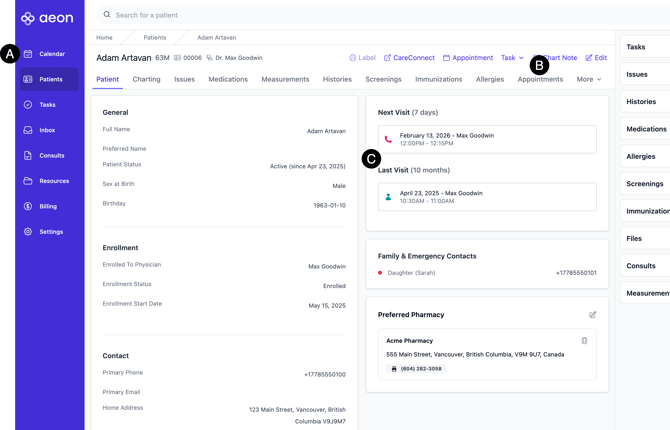
A. Main Calendar Tab: Click on this tab to be taken to the complete Calendar, where you can view all your patient appointments and the appointments of other practitioners. You can book and manage appointments here.
B. Patients > Appointments: In the Appointments sub-tab within a Patient Profile, you can easily check out Upcoming and Past appointments for that patient, set up a new appointment just for them, and even hop over to your main Calendar.
C. Patient Dashboard: The main Dashboard for your Patient displays the Last Visit and the Next Visit.
Video Walkthrough
Check out how to use the Calendar feature in this step-by-step tutorial:
You'll see icons at the bottom right of the video screen that will allow you to change the speed, quality, or size of the video and move between chapters. You can also turn on the CC/Subtitles.
Chapters:
- 00:18 View a Calendar
- 04:24 Changing the Status of a Calendar Appointment
-
04:52 Link a Calendar Appointment to a Chart Note
-
06:51 Delete a Calendar Entry
-
07:29 Edit a Calendar Entry
-
07:40 Appointment Notifications: The Patient's View
-
08:57 Create a Patient Appointment
-
11:34 Create Recurring Patient Appointments
Use
Below, we will cover all the features of the main Calendar and how to use it. For information specifically on the Appointments tab within a Patient Profile, please see the Patients: An Overview article.
View a Calendar (00:18 in Video)
1. Click the Calendar icon on the left-hand side of the screen
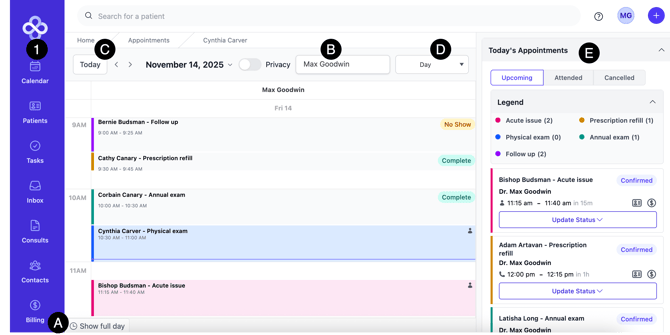
A. Business Hours/Full Day: Use this toggle to switch between viewing the Calendar during business hours only (set in Settings) vs. a full 24-hour day.
B. Filter by User: View the Calendar for All or a specific practitioner.
C. Calendar Date: Change the date of the Calendar you are viewing. By default, it is today.
D. Day/Week/Month/Agenda: View the Calendar in different ways.
E. Today's Appointments OR Appointment Details:
-
- Today's Appointments: When the Calendar is opened, this is the area where you will see all upcoming appointments. From here, you can change the status of an appointment.
- Appointment Details: When a Calendar entry is clicked on, this is the area where you will create/edit the information.
Create a Patient Appointment (8:57 in Video)
1. Go to the right date
2. Click on the Calendar at the desired time
3. Fill out the information in the Appointment Details located at the far right of your screen (if you have minimized your screen, expand it to see this area):
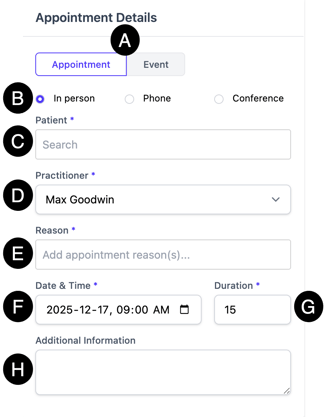
A. Type: By default, you will create appointments, which are linked to patients. Events are not linked to patients, i.e., a Staff Meeting.
B. Modality (*mandatory): By default, this is "In person," but you can change this to "Conference" - aka video call, or "Phone."
C. Patient (*mandatory): Start typing a patient's name and choose it from the list. This patient must already exist in Aeon; if they don't, create an Event instead until you can create the Patient Profile.
D. Practitioner (*mandatory): Assign the practitioner responsible for the appointment. The default will be the practitioner that you clicked to create the appointment.
E. Reason (*mandatory): Choose from the dropdown.
F. Date & Time (*mandatory): You can manually change the start date and time.
G. Duration (*mandatory): You can manually change the duration
H. Additional Information: This is an open field where you can enter information about the appointment.
4. Click Create Appointment
Appointment Notifications: The Patient's View (7:40 in Video)
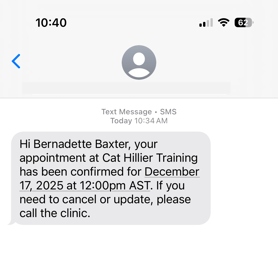
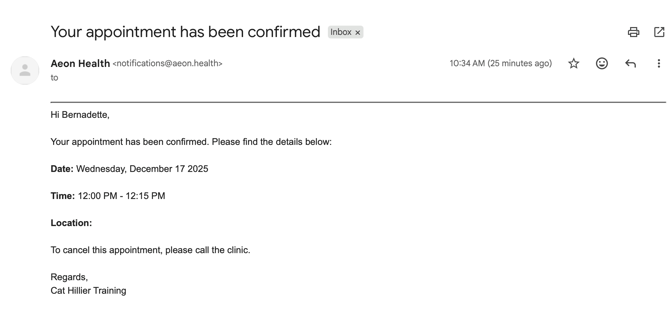
When you associate a patient with a Calendar entry, they receive a booking confirmation. This is what it looks like from the patient's point of view with both SMS and email notifications set up (note: the clinic's name in this example is "Cat Hillier Training" and the patient's timezone is AST):
SMS Reminder
 Email Reminder
Voice Reminder
Here is an example of the voice message a patient will receive by phone when a calendar appointment has been edited:
☎️ "Hi [name of patient]. Your appointment at [name of clinic] has been updated to [date] at [time], [timezone]. If you have questions, please contact the clinic."
The messages for creating a new appointment and cancelling an appointment follow the same format, with wording adjusted to match the specific event.
You'll note that in the timeline of the Calendar Appointment, there is a notation about the system notifications:
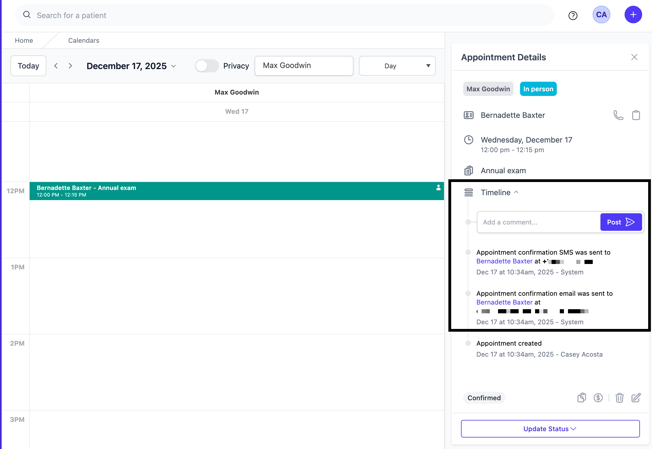
🎓 Training Tip: A Calendar Reminder will be sent to the patient the day before their appointment.
Edit a Calendar Entry (7:29 in Video)
1. Find the Calendar entry
2. Click on the entry
3. In the Appointment Details located at the far right of your screen (if you have minimized your screen, expand it to see this area), click the edit icon found at the bottom right of the Appointment Details
4. Make the changes
5. Click Update Calendar Event
🎓 Training Tip: When you edit a Calendar entry, the patient will receive a notification via SMS/email/phone, per the details in their Patient Profile.
Delete a Calendar Entry (6:51 in Video)
Please note that if you delete a Calendar Entry, any notes that have been manually added will also be deleted.
1. Find the Calendar entry
2. Click on the entry
3. In the Appointment Details located at the far right of your screen (if you have minimized your screen, expand it to see this area), click the delete icon found at the bottom right of the Appointment Details
4. Click Delete
5. You'll see a pop-up asking you if you're sure. You also have the option (checked by default) to create a Booking Task to rebook this appointment.
🎓 Training Tip: When you cancel a Calendar entry, the patient will receive a notification via SMS/email/phone, per the details in their Patient Profile.
Changing the Status of a Calendar Appointment (4:24 in Video)
Available Statuses:
- Confirmed
- Patient Here
- In Progress
- Complete
- No Show
1. Click on the Calendar icon on the left side
2. See the list of Today's Appointments on the right
3. Under the applicable appointment, click the dropdown Update Status
4. Choose the status from the list
You may need to refresh your browser to update the status on the Calendar view.
🎓 Training Tip: If you already have the Calendar entry open, choose the dropdown Update Status at the bottom of the Appointment Details.
Link a Calendar Appointment to a Chart Note (4:52 in Video)
You can link the Calendar Appointment from within the Chart Note, or from within the Calendar Appointment. See the complete steps here.
Create Recurring Patient Appointments (11:34 in Video)
Aeon allows for many options to repeat Calendar Appointments on a daily, weekly, monthly, or yearly basis. For full instructions, click here.
Permissions
Practitioners: Access to personal and shared schedules, with the ability to block, edit, and manage appointments.
Staff: Full access to scheduling, cancellation, and follow-up workflows.