---
title: "⭐ Patient Profile: An Overview"
description: Understand the layout of the Aeon patient profile, including tabs for demographics, charting, billing, tasks, and how to navigate between them.
---
[Skip to content](https://help.aeon.health/patient-profile-an-overview#main-content)
English
Show submenu for translations
[Contact us](https://help.aeon.health/kb-tickets/new?hsLang=en)
[](https://aeon.health)
Open main navigation
Close main navigation
- English
Show submenu for translations
- [Contact us](https://help.aeon.health/kb-tickets/new)
- [Aeon's Status Page](https://status.aeon.health/)
[Aeon's Status Page](https://status.aeon.health/)
How can we help you?
- There are no suggestions because the search field is empty.
1. [Aeon Health Help Center](https://help.aeon.health/?hsLang=en)
2. [Aeon Features](https://help.aeon.health/aeon-features?hsLang=en)
3. [Patient Profile](https://help.aeon.health/aeon-features?hsLang=en#patient-profile)
May 15, 2026
# ⭐ Patient Profile: An Overview
## Explore the patient profile’s structure and tools for managing patient information
**In This Article**
[Description](https://help.aeon.health/patient-profile-an-overview#desc)
[Location](https://help.aeon.health/patient-profile-an-overview#loc)
[Use](https://help.aeon.health/patient-profile-an-overview#use)
🔹[View a Patient's Profile](https://help.aeon.health/patient-profile-an-overview#viewsc)
🔹[Create a Patient Profile](https://help.aeon.health/patient-profile-an-overview#crscr)
🔹[Quick Add a new Patient Profile](https://help.aeon.health/patient-profile-an-overview#quickadd)
🔹[Edit a Patient Profile](https://help.aeon.health/patient-profile-an-overview#editscr)
🔹[Managing Patient Status and Enrollment](https://help.aeon.health/patient-profile-an-overview#status)🔹[Access CareConnect](https://help.aeon.health/patient-profile-an-overview#careconnect)
[Permissions](https://help.aeon.health/patient-profile-an-overview#perm)
Description
The Patient Profile gives you a handy snapshot of the patient. It serves as a Complete Patient Profile ("CPP"), showcasing essential details like basic demographics, appointment histories, the patient's PHN/DOB/age, contact info, and more.
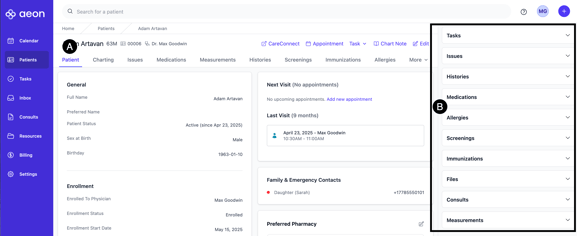
You'll find the rest of the CPP data on the sidebar, including patient histories, active issues, medications, allergies, screenings, etc.
Some common tasks you'll complete in/with Patient Profiles are:
- Add patient demographics
- Add patient Contacts
- Add patient family members
- Track patient appointment history
---
### Location
In the Patients tab, after you click on the name of a patient, you'll see their Patient Profile (A) and the sidebar information (B):
---
### Use
Below, we will cover all the features of the Patient Profile and how to use it.
---
##### View a Patient's Profile
1.Click **Patients** in the left-hand column
2. Find the patient and click on their name
You will now be in the **Patient** tab and viewing the Patient Profile
---
##### Create a Patient Profile
There are two methods to create a new patient. The first is via the Patients tab, and the second is the [Quick Add button](https://help.aeon.health/patient-profile-an-overview#quickadd)located at the top right of the page. Let's review creating a Patient Profile via the Patients tab:
1.Click **Patients** in the left-hand column
2. Click **New Patient**
3. Fill in the information (\* indicates the field is mandatory)
4. Note there are two additional (and optional) sections located at the top - **Personal Information** and **Activities and Hobbies**
5. Click **Save**
---
##### Quick Add a new Patient Profile
Using the Quick Add is the second method to create a Patient Profile. The steps are as follows:
1. At the top right of your screen in Aeon, click on the **plus icon**
2. Choose **Create New Patient**
3. Fill in the information (\* indicates the field is mandatory)
4. Note there are two additional (and optional) sections located at the top - **Personal Information** and **Activities and Hobbies**
5. Click **Save**
---
##### Edit a Patient Profile
1.Click **Patients** in the left-hand column
2. Find the patient and **click on their name**
3. At the top right under the email field, click **Edit**
4. Make your changes/additions
👉 Note that all changes will be reflected in the Timeline for the Patient, including what was changed.
---
### Managing Patient Status and Enrollment
Within the Patient Profile, you have access to settings that enable you to manage information related to Patient Status and Enrollment (for MOH). To learn more, [click here. ](https://help.aeon.health/how-to-use-patient-status-enrollment?hsLang=en)
---
### Access CareConnect
Reduce time and clicks by using the CareConnect Rapid Access. This allows you to access your patient's BC provincial records, including labs, medications, and encounters.
Click here to learn how to [use this feature](https://help.aeon.health/how-to-access-a-patients-careconnect-records?hsLang=en).
---
### Permissions
- **Practitioners:** Full access to add, edit, and modify all elements of the Patient Profile
- **Staff:** Currently has access to all patient demographics. Staff have various permissions to add, edit, and archive the patient's medical information. You can see the [permissions here](https://help.aeon.health/how-to-create-patients?hsLang=en).
- [Get Started](https://help.aeon.health/get-started?hsLang=en#main-content)
- [Quickstart Checklists ( ✅ Start Here! )](https://help.aeon.health/get-started?hsLang=en#quickstart-checklists-start-here)
- [Training](https://help.aeon.health/training?hsLang=en#main-content)
- [Practitioner Training](https://help.aeon.health/training?hsLang=en#practitioner-training)
- [30 Minute Onboarding](https://help.aeon.health/training?hsLang=en#30-minute-onboarding)
- [Aeon Features](https://help.aeon.health/aeon-features?hsLang=en#main-content)
- [Aeon Basics](https://help.aeon.health/aeon-features?hsLang=en#aeon-basics)
- [Allergies](https://help.aeon.health/aeon-features?hsLang=en#allergies)
- [Audit Exports](https://help.aeon.health/aeon-features?hsLang=en#audit-exports)
- [Billing: General](https://help.aeon.health/aeon-features?hsLang=en#billing-general)
- [Billing: Fee-For-Service (FFS) BC](https://help.aeon.health/aeon-features?hsLang=en#billing-fee-for-service-ffs-bc)
- [Billing: Longitudinal Family Physician (LFP) BC](https://help.aeon.health/aeon-features?hsLang=en#billing-longitudinal-family-physician-lfp-bc)
- [Calendar](https://help.aeon.health/aeon-features?hsLang=en#calendar)
- [Charting](https://help.aeon.health/aeon-features?hsLang=en#charting)
- [Consults](https://help.aeon.health/aeon-features?hsLang=en#consults)
- [Files](https://help.aeon.health/aeon-features?hsLang=en#files)
- [Histories](https://help.aeon.health/aeon-features?hsLang=en#histories)
- [Immunizations](https://help.aeon.health/aeon-features?hsLang=en#immunizations)
- [Inbox](https://help.aeon.health/aeon-features?hsLang=en#inbox)
- [Issues](https://help.aeon.health/aeon-features?hsLang=en#issues)
- [Measurements](https://help.aeon.health/aeon-features?hsLang=en#measurements)
- [Medications & Prescriptions](https://help.aeon.health/aeon-features?hsLang=en#medications-prescriptions)
- [Patient Profile](https://help.aeon.health/aeon-features?hsLang=en#patient-profile)
- [Requisitions](https://help.aeon.health/aeon-features?hsLang=en#requisitions)
- [Resources](https://help.aeon.health/aeon-features?hsLang=en#resources)
- [Settings](https://help.aeon.health/aeon-features?hsLang=en#settings)
- [Screenings](https://help.aeon.health/aeon-features?hsLang=en#screenings)
- [SRFax Integration](https://help.aeon.health/aeon-features?hsLang=en#srfax-integration)
- [Tasks](https://help.aeon.health/aeon-features?hsLang=en#tasks)
- [Settings](https://help.aeon.health/settings?hsLang=en)
[](https://aeon.health)
[mailto:email@email.com](mailto:email@email.com)
Copyright © 2024, Aeon Health