
In This Article
Description
Location
Video Walkthrough
Use
🔹Filter Options
🔹Chart Note Status & Action Icons
🔹Find and Resolve Missing Bill Claims
Permissions
Description
Use the Unbilled Appointments view to ensure every visit is captured for billing. This feature shows all appointments in your Calendar that do not yet have an associated billing claim.
Location
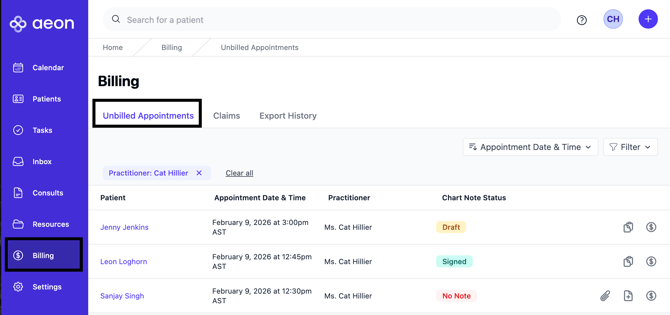
You can find this feature by clicking Billing in the left column and you will see the Unbilled Appointments:
Video Walkthrough
Check out how to use the Unbilled Appointments feature in this step-by-step tutorial:
You'll see icons at the bottom right of the video screen that will allow you to change the speed, quality, or size of the video and move between chapters. You can also turn on the CC/Subtitles.
Use
Below, we will cover all the features of Unbilled Claims and how to use them.
Filter Options
When you open the Unbilled Appointments page, you'll notice that Aeon automatically filters the list so that you are only viewing your own Patient Appointments.
If you are a staff member, you will see all of the Unbilled Appointments.
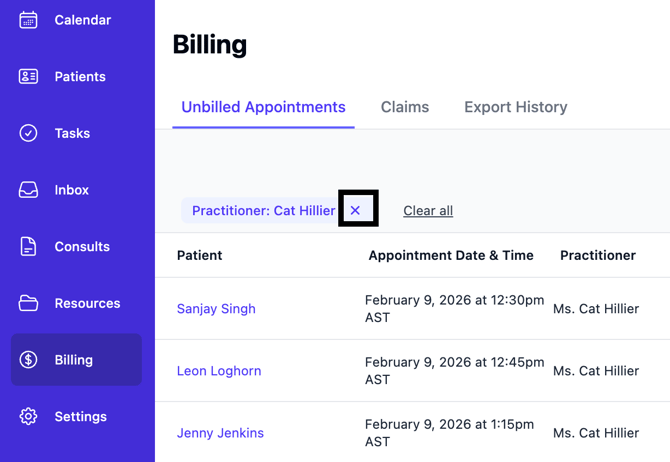
If you'd like to see ALL Unbilled Appointments, click the X on the filter chip next to your name:
To see the Unbilled Appointments for other practitioners, click the Filter button and choose their name from the list:
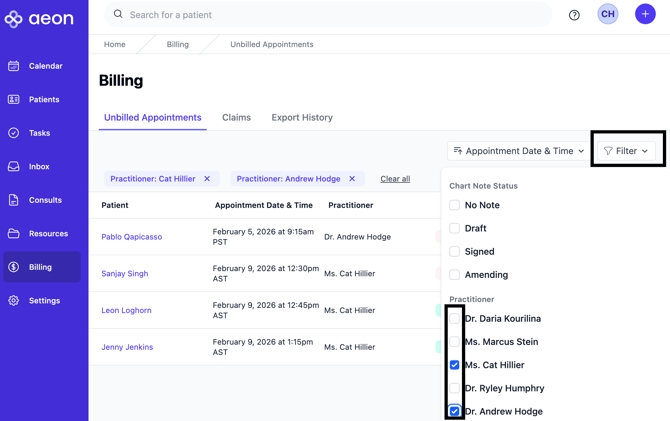
Chart Note Status & Action Icons
- Amending Chart Notes: These are notes that were previously saved as Draft, then reopened for updates, and have not yet been finalized by selecting Sign and Save. In this state, you’ll see 2 action buttons on the right:
- Go to Chart Note: (available only to the original author of the note) Navigate to the existing, linked Chart Note
-
- Create Bill: Create a Bill Claim without leaving this page

- Draft Chart Notes: These are notes that have been started and left incomplete. In this state, you’ll see 2 action buttons on the right:
-
- Go to Chart Note: (available only to the original author of the note) Navigate to the existing, linked Chart Note
- Create Bill: Create a Bill Claim without leaving this page.

- No Note: This refers to an unbilled appointment with no associated Chart Note linked (there may or may not be one created). In this state, you’ll see 3 action buttons on the right:
-
- Link Chart Note: Determine if there is a Chart Note on the Patient Profile that does not have an appointment linked to it. Using this feature, you can link them together here.
- New Chart Note: (available only to the original author of the note)
- Create Bill: Create a Bill Claim without leaving this page.

-
Signed: This refers to Chart Notes that are linked to appointments and are final, but do not yet have a Billed Claim. In this state, you’ll see 2 action buttons on the right:
-
- Go to Chart Note: (available only to the original author of the note) Navigate to the existing, linked Chart Note
- Create Bill: Create a Bill Claim without leaving this page.

Once a bill claim is associated with an appointment, that appointment is automatically removed from the Unbilled Appointments list.
Find and Resolve Missing Bill Claims
1. Click Billing in the left column
You are looking at a list of your own Unbilled Appointments (if you are a practitioner). If you'd like to see the Unbilled Appointments of additional pracitioners, use the Filter button.
2. Review the first line item - use the Chart Note Status & Action Icons information above to assist you
3. Choose the action icon appropriate for this line item to ensure the appointment is linked to a Chart Note, linked to a Calendar appointment, and has a Bill Claim created (either Draft or Ready to Export)
Once a Bill Claim has been created and linked to the Calendar appointment, it will be removed from this list, and you can now find the Bill Claim at Billing > Claims and proceed to export for submission.
Permissions
Permissions for this view match Billing permissions:
- Practitioners: Create, edit, and export claims
- Staff: Create, edit, and export claims
with the following additions:
-
Practitioners: If a Chart Note is created by another practitioner and is in Draft or Amended state, the Go To Note option will be disabled. You will still be able to view notes signed by other practitioners.
-
Staff: Will not see the chart note icon in the Unbilled Appointments list.