
Environment:
-
The view from the patient's perspective when they have been invited to your Aeon account
Video
To see a complete overview of the Patient Invite process, watch this video:
You'll see icons at the bottom right of the video screen that will allow you to change the speed, quality, or size of the video and move between chapters. You can also turn on the CC/Subtitles.
Instructions:
1. Invite the new patient to your Aeon Account
2. The new patient will see the following email:
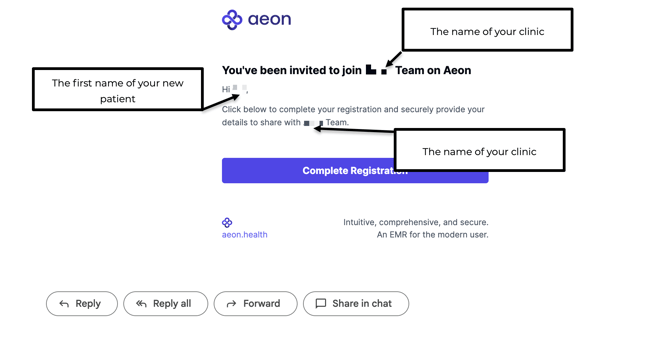
3. The new patient will click Complete Registration
4. The new patient will see the fields to fill in:
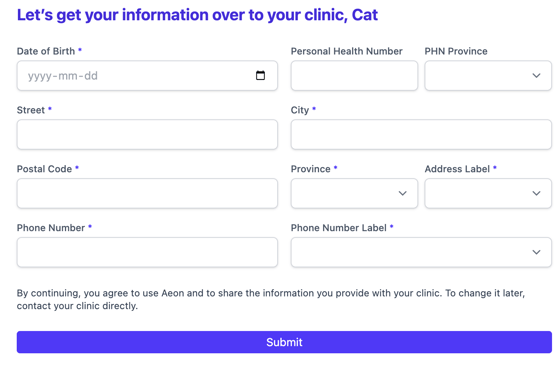
5. The patient will click Submit and see a confirmation screen:
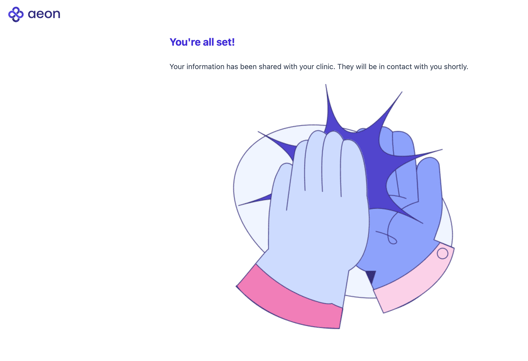
In Aeon, a new Patient Profile will be created with the information supplied by the new patient, saving you time!