
In This Article
Description
Location
Use
🔹View a Patient's Issues
🔹Create Issues
🔹Edit an Issue
🔹Archive an Issue
🔹View Archived Issues
🔹Restore Archived Issues
Permissions
Description
The Issues Management System is here to help healthcare providers easily track, update, and manage patient medical concerns, whether they're acute, chronic, or resolved.
Some common tasks you will perform with this feature include:
- View and manage active, chronic, and resolved Issues.
- Link Issues to Chart Notes and Consults.
- Using the timeline, track changes, including the history of edits and resolution status.
- Archive and review past Issues without data loss.
- Use Embeds to quickly add Issues to a Chart Note to track their management.
Issues are a key part of preventive care and can be easily created, reviewed, and managed in a few locations:
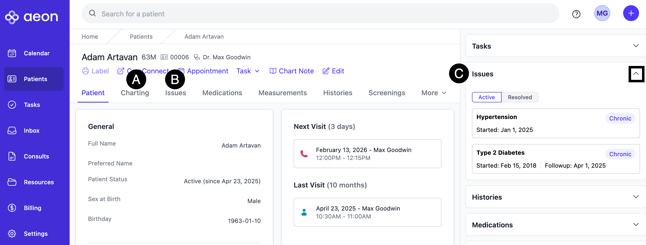
A. Chart Notes: These can be created and edited during patient visits.
B. Issues Index: This offers a consolidated view of all patient Issues, with options to create, edit, or archive records.
C. Patient Sidebar: Provides quick access to recent Issues during patient interactions.
View a Patient's Issues
1. Open the Patient Profile
2. Click on the Issues sub-tab
To then view the specifics of a particular Issue:
3. Click the title of the Issue to expand it
👉Note the three icons to the right of the Issues: Timeline, Delete, and Edit
Create Issues
Unlike other areas of the Patient Profile, Issues are created in Chart Notes, rather than directly in the Issues sub-tab.
1. Open the Patient Profile
2. Click on the Issues sub-tab
3. Click New Issue in Charting (you will be redirected to a new Chart Note with an Issue embed)
4. Enter the information
5. Click Sign and Save
Edit an Issue
1. Open the Patient Profile
2. Click on the Issues sub-tab
3. Find the Issue you wish to edit
4. Click on the title of the Issue
5. Click on the Edit icon to the right of the Issue
You will be redirected back to the Chart Notes. You will create an edited chart note here.
6. Make your changes
7. Click Sign and Save
Archive an Issue
Instead of deleting Issues, Aeon gives you the ability to archive Issues, removing them from active view. These archived Issues can be viewed or restored if desired.
1. Open the Patient Profile
2. Click on the Issues sub-tab
3. Find the Issue you wish to edit
4. Click on the title of the Issue
5. Click on the archive icon to the right of the Issue
6. View the confirmation message about Archiving the Issue
7. Click Confirm
View Archived Issues
1. Open the Patient Profile
2. Click on the Issues sub-tab
3. Click the filter button
4. Choose Archived
5. Click on the title of the Issues to see the details
Restore an Archived Issue
1. Open the Patient Profile
2. Click on the Issues sub-tab
3. Click the filter button
4. Choose Archived
5. Click on the title of the Issues to see the details
6. Click the Unarchive button
Permissions
- Practitioners: Can create, edit, and resolve Issues
- Staff: Can view Issues