---
title: Create a Recurring Calendar Appointment
description: Discover how to create recurring appointments in Aeon’s Calendar. Learn the step‑by‑step process for scheduling events that repeat daily, weekly, monthly or yearly, with options for setting an end date or continuing indefinitely.
---
[Skip to content](https://help.aeon.health/how-to-create-recurring-appointments#main-content)
English
Show submenu for translations
[Contact us](https://help.aeon.health/kb-tickets/new?hsLang=en)
[](https://aeon.health)
Open main navigation
Close main navigation
- English
Show submenu for translations
- [Contact us](https://help.aeon.health/kb-tickets/new)
- [Aeon's Status Page](https://status.aeon.health/)
[Aeon's Status Page](https://status.aeon.health/)
How can we help you?
- There are no suggestions because the search field is empty.
1. [Aeon Health Help Center](https://help.aeon.health/?hsLang=en)
2. [Aeon Features](https://help.aeon.health/aeon-features?hsLang=en)
3. [Calendar](https://help.aeon.health/aeon-features?hsLang=en#calendar)
January 21, 2026
# Create a Recurring Calendar Appointment
## A step‑by‑step guide to creating recurring appointments in Aeon’s Calendar
**🎓 Training Tip:** To learn more about the Calendar, [click here](https://help.aeon.health/calendar-an-overview?hsLang=en).
### Instructions
1\. Click **Calendar** in the left column
2\. In the main part of the screen, click on the **date and time** you want the appointment to start
3\. You will now see the **Appointment Details** window on the right side (If you don’t see the Appointment Details window on the right side, expand your browser to full width.)
4\. Fill out the appointment details
5\. Click **Recurring**
6\. Choose the appropriate **Repeating option** from the dropdown based on the options outlined below.
Quick Links:
[Day](https://help.aeon.health/how-to-create-recurring-appointments#day)
[Week](https://help.aeon.health/how-to-create-recurring-appointments#week)
[Month](https://help.aeon.health/how-to-create-recurring-appointments#month)
[Year](https://help.aeon.health/how-to-create-recurring-appointments#year)
---
### Repeat by Day Option
#### When to use this
Choose this option if you'd like the appointment to repeat every # day(s).
#### Example
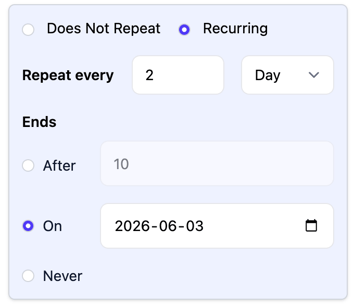
Repeat this calendar appointment every second day until June 3, 2026:
#### How to use this
##### **Repeat Options:**
This is where you determine how often the repetition takes place. For example, if you choose **Repeat every 1 Day**, then the appointment will be repeated every single day in the Calendar. If you choose **Repeat every 2 Days**, then the appointment will be repeated every other day.
##### **Repeat Ending:**
You can choose when the appointment will end.
- After: The number you choose will determine how many times you want this appointment to repeat. For example, if you choose ***10**,* then the appointment will repeat 10 times and then will end. *Please note that the appointment will appear on weekends. If that is undesirable, check out the Week option below.*
- On: Choose the date that you want the appointment to be removed. For example, if you choose **On 2026-02-03**, then the last day of the appointment will be 2026-02-02. *Please note that the appointment will appear on weekends. If that is undesirable, check out the Week option below.*
- Never: Choose this if you want this appointment to repeat in perpetuity. *Please note that the appointment will appear on weekends. If that is undesirable, check out the Week option below.*
---
### Repeat by Week Option
#### When to use this
Choose this option if you'd like the appointment to repeat every week - either a single day or multiple days within the week.
#### Example
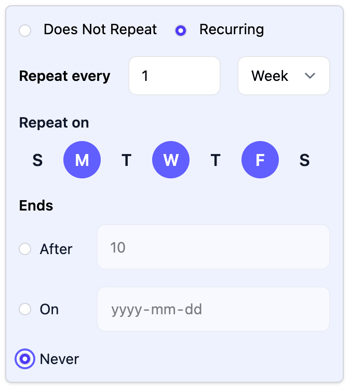
Repeat this calendar appointment every Monday, Wednesday, and Friday every week with no end date:
#### How to use this
##### **Repeat Options:**
This is where you determine how often the repetition takes place. For example, if you choose **Repeat every 1 Week**, then the appointment will appear on the Calendar on the days of the week selected every 1 week. If you choose **Repeat every 2 Weeks**, then the appointment will appear on the Calendar on the days of the week selected every other week.
##### **Repeat On:**
This is where you choose what day(s) of the week to repeat the appointment. You can choose 1 or more days. For example, if you'd like the appointment to be on every weekday, then choose M, T, W, T, F.
##### **Repeat Ending:**
You can choose when the appointment will end.
- After: The number you choose will determine how many times you want this appointment to repeat. For example, if you choose ***10 and also M, T, W, T, F**,* then the appointment will repeat 10 times over two weeks and then will end. If you choose **10 and also M**, then the appointment will repeat 10 times over 10 weeks.
- On: Choose the date that you want the appointment to be removed.
- Never: Choose this if you want this appointment to repeat in perpetuity.
---
### Repeat by Month Option
#### When to use this
Choose this option if you'd like the appointment to repeat on the same day of the Month (i.e., *Every Month on the 12th*) or the same week of the Month (i.e., *Every Month on the 2nd Monday*).
#### Example
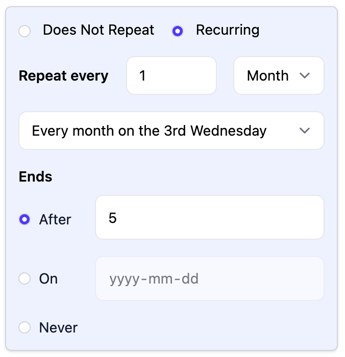
Repeat this calendar appointment on the 3rd Wednesday of every Month, five times:
#### How to use this
##### **Repeat Options:**
This is where you determine how often the repetition takes place.
- For example, if you choose **Repeat every 1 Month**, then the appointment will repeat every single month based on the other settings noted below.
- Once you've determined the monthly cadence, you have two choices from the dropdown - **the same day of the week or the same week of the month**. If the options do not match your preferences, then you'd need to delete this appointment and move to a different starting date in the Calendar. The starting date is what allows you to build the repeating option from.
##### **Repeat Ending:**
You can choose when the appointment will end.
- After: The number you choose will determine how many times you want this appointment to repeat. For example, if you choose ***10**,* then the appointment will repeat 10 times (in this case, 10 months) and then will end.
- On: Choose the date that you want the appointment to be removed.
- Never: Choose this if you want this appointment to repeat in perpetuity.
---
### Repeat by Year Option
#### When to use this
Choose this option if you'd like the appointment to repeat on the same day of the year.
#### Example
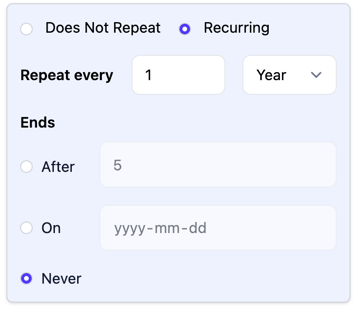
Repeat this calendar appointment on May 10th every year, with no end date:
#### How to use this
##### **Repeat Options:**
This is where you determine how often the repetition takes place. For example, if you choose **Repeat every 1 Year**, then the appointment will be repeated on the same Calendar day every year. If you choose **Repeat every 2 Years**, then the appointment will be repeated every other year.
##### **Repeat Ending:**
You can choose when the appointment will end.
- After: The number you choose will determine how many times you want this appointment to repeat. For example, if you choose ***10**,* then the appointment will repeat 10 times (in this case, 10 years) and then will end.
- On: Choose the date that you want the appointment to be removed.
- Never: Choose this if you want this appointment to repeat in perpetuity.
### Additional Information
[How to Edit a Recurring Calendar Appointment](https://help.aeon.health/how-to-edit-recurring-appointments?hsLang=en)
[How to Delete a Recurring Calendar Appointment](https://help.aeon.health/how-to-delete-recurring-appointments?hsLang=en)
- [Get Started](https://help.aeon.health/get-started?hsLang=en#main-content)
- [Quickstart Checklists ( ✅ Start Here! )](https://help.aeon.health/get-started?hsLang=en#quickstart-checklists-start-here)
- [Training](https://help.aeon.health/training?hsLang=en#main-content)
- [Practitioner Training](https://help.aeon.health/training?hsLang=en#practitioner-training)
- [30 Minute Onboarding](https://help.aeon.health/training?hsLang=en#30-minute-onboarding)
- [Aeon Features](https://help.aeon.health/aeon-features?hsLang=en#main-content)
- [Aeon Basics](https://help.aeon.health/aeon-features?hsLang=en#aeon-basics)
- [Allergies](https://help.aeon.health/aeon-features?hsLang=en#allergies)
- [Audit Exports](https://help.aeon.health/aeon-features?hsLang=en#audit-exports)
- [Billing: General](https://help.aeon.health/aeon-features?hsLang=en#billing-general)
- [Billing: Fee-For-Service (FFS) BC](https://help.aeon.health/aeon-features?hsLang=en#billing-fee-for-service-ffs-bc)
- [Billing: Longitudinal Family Physician (LFP) BC](https://help.aeon.health/aeon-features?hsLang=en#billing-longitudinal-family-physician-lfp-bc)
- [Calendar](https://help.aeon.health/aeon-features?hsLang=en#calendar)
- [Charting](https://help.aeon.health/aeon-features?hsLang=en#charting)
- [Consults](https://help.aeon.health/aeon-features?hsLang=en#consults)
- [Files](https://help.aeon.health/aeon-features?hsLang=en#files)
- [Histories](https://help.aeon.health/aeon-features?hsLang=en#histories)
- [Immunizations](https://help.aeon.health/aeon-features?hsLang=en#immunizations)
- [Inbox](https://help.aeon.health/aeon-features?hsLang=en#inbox)
- [Issues](https://help.aeon.health/aeon-features?hsLang=en#issues)
- [Measurements](https://help.aeon.health/aeon-features?hsLang=en#measurements)
- [Medications & Prescriptions](https://help.aeon.health/aeon-features?hsLang=en#medications-prescriptions)
- [Patient Profile](https://help.aeon.health/aeon-features?hsLang=en#patient-profile)
- [Requisitions](https://help.aeon.health/aeon-features?hsLang=en#requisitions)
- [Resources](https://help.aeon.health/aeon-features?hsLang=en#resources)
- [Settings](https://help.aeon.health/aeon-features?hsLang=en#settings)
- [Screenings](https://help.aeon.health/aeon-features?hsLang=en#screenings)
- [SRFax Integration](https://help.aeon.health/aeon-features?hsLang=en#srfax-integration)
- [Tasks](https://help.aeon.health/aeon-features?hsLang=en#tasks)
- [Settings](https://help.aeon.health/settings?hsLang=en)
[](https://aeon.health)
[mailto:email@email.com](mailto:email@email.com)
Copyright © 2024, Aeon Health