---
title: Accept Your Aeon Invite to Join a Clinic Account
description: Follow these steps to accept your Aeon invitation, set up your password, and access your clinic’s workspace for the first time.
---
[Skip to content](https://help.aeon.health/how-to-accept-your-aeon-invite#main-content)
English
Show submenu for translations
[Contact us](https://help.aeon.health/kb-tickets/new?hsLang=en)
[](https://aeon.health)
Open main navigation
Close main navigation
- English
Show submenu for translations
- [Contact us](https://help.aeon.health/kb-tickets/new)
- [Aeon's Status Page](https://status.aeon.health/)
[Aeon's Status Page](https://status.aeon.health/)
How can we help you?
- There are no suggestions because the search field is empty.
1. [Aeon Health Help Center](https://help.aeon.health/?hsLang=en)
2. [Aeon Features](https://help.aeon.health/aeon-features?hsLang=en)
3. [Aeon Basics](https://help.aeon.health/aeon-features?hsLang=en#aeon-basics)
August 12, 2026
# Accept Your Aeon Invite to Join a Clinic Account
## Process for new users to accept invitations and join their clinic’s Aeon account.
### Video Instructions
You'll see icons at the bottom right of the video screen that will allow you to change the speed, quality, or size of the video. You can also turn on the CC/Subtitles.
### Written Instructions
Your invite will arrive via email with the title "**Join \[name of team\] on Aeon**".
1\. Click the **Get Started** button in the email
2\. Create a strong **password**:
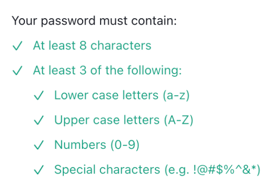
**Best Practice 🚀:** Ensure that you are using a password considered strong by industry standards, such as a [passphrase.](https://www.cyber.gc.ca/en/guidance/best-practices-passphrases-and-passwords-itsap30032)Never reuse passwords across websites.
3\. Once your password has been changed, click **Back to Aeon**
4\. Click **Login to Aeon**
5\. Enter the **email address** that your invite was sent to, then **Continue**
6\. Enter your **password**, then **Continue**
7\. You will now see your **QR code** to set up Multi-Factor-Authentication:
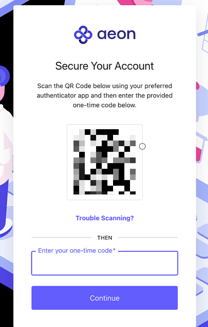
8. On your mobile device, open the **app for your chosen authenticator**. If you've never used one before, you can use a tool like Google Authenticator
**Note:** You may already have an authenticator you use, so feel free to continue using it!
**iPhone Users**
- If your clinic uses a username and password login, you can use the built-in [Passwords app](https://discussions.apple.com/thread/254732628?sortBy=rank) to store your username, password, and authenticator code.
---
Setting up **Apple Passwords**
- - Open the **Passwords app** on your iPhone
- Tap **All**, then choose the account for the website or app you want to set up
- Under **Security**, tap **Setup Verification Code**
- Tap **Scan QR Code** and use the camera to scan the QR code provided by Aeon
- **Enter the code** provided into the screen in Aeon and click **Continue**
- **Skip to step 14 below**
---
- If you are logging in with a social connection (e.g., Google login), you will need to use a dedicated authenticator app such as [Google Authenticator.](https://apps.apple.com/us/app/google-authenticator/id388497605)
**Android Users**
- Use [Google Authenticator](https://play.google.com/store/apps/details?id=com.google.android.apps.authenticator2&hl=en_CA&pli=1) or another third-party authenticator app.
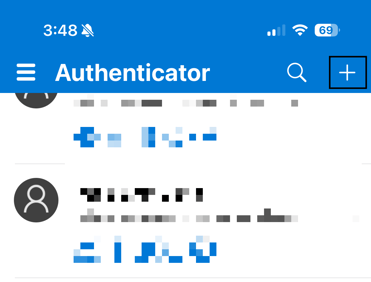
9\. In the authenticator app, click the **+ icon** to add a new item:
10\. If you see a screen asking for the **type of account**, choose one and then choose **Scan QR code:**
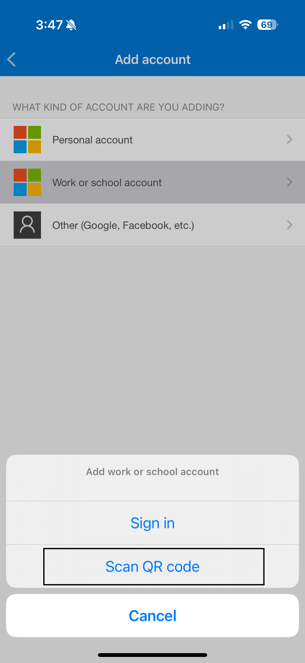
11\. **Scan the code** from Step 7 above
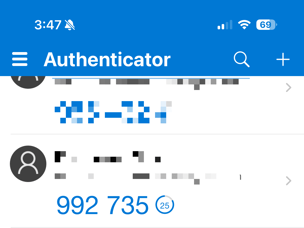
12\. In your list of codes, there will now be an entry for your Aeon login with a number underneath it. You'll notice the number has a countdown and will change at the end of the countdown:
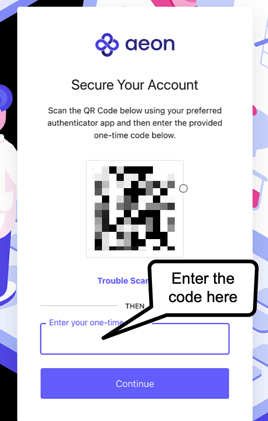
13\. Go back to Aeon and **enter the code** and then **Continue:**
14\. You will see a **Complete Your Profile** page - it's important to fill this out as your account will not be created until you do! If you leave this page, you may need to start the login process all over again.
15\. You will see a title "**User Profile Created**" - click **Go to Aeon**
🎉 You are now logged into Aeon! Going forward, you can access Aeon at [https://app.aeon.health/landing](https://app.aeon.health/landing) where you will enter your email and the one time code from your authenticator app.
- [Get Started](https://help.aeon.health/get-started?hsLang=en#main-content)
- [Quickstart Checklists ( ✅ Start Here! )](https://help.aeon.health/get-started?hsLang=en#quickstart-checklists-start-here)
- [Training](https://help.aeon.health/training?hsLang=en#main-content)
- [Practitioner Training](https://help.aeon.health/training?hsLang=en#practitioner-training)
- [30 Minute Onboarding](https://help.aeon.health/training?hsLang=en#30-minute-onboarding)
- [Aeon Features](https://help.aeon.health/aeon-features?hsLang=en#main-content)
- [Aeon Basics](https://help.aeon.health/aeon-features?hsLang=en#aeon-basics)
- [Allergies](https://help.aeon.health/aeon-features?hsLang=en#allergies)
- [Audit Exports](https://help.aeon.health/aeon-features?hsLang=en#audit-exports)
- [Billing: General](https://help.aeon.health/aeon-features?hsLang=en#billing-general)
- [Billing: Fee-For-Service (FFS) BC](https://help.aeon.health/aeon-features?hsLang=en#billing-fee-for-service-ffs-bc)
- [Billing: Longitudinal Family Physician (LFP) BC](https://help.aeon.health/aeon-features?hsLang=en#billing-longitudinal-family-physician-lfp-bc)
- [Calendar](https://help.aeon.health/aeon-features?hsLang=en#calendar)
- [Charting](https://help.aeon.health/aeon-features?hsLang=en#charting)
- [Consults](https://help.aeon.health/aeon-features?hsLang=en#consults)
- [Files](https://help.aeon.health/aeon-features?hsLang=en#files)
- [Histories](https://help.aeon.health/aeon-features?hsLang=en#histories)
- [Immunizations](https://help.aeon.health/aeon-features?hsLang=en#immunizations)
- [Inbox](https://help.aeon.health/aeon-features?hsLang=en#inbox)
- [Issues](https://help.aeon.health/aeon-features?hsLang=en#issues)
- [Measurements](https://help.aeon.health/aeon-features?hsLang=en#measurements)
- [Medications & Prescriptions](https://help.aeon.health/aeon-features?hsLang=en#medications-prescriptions)
- [Patient Profile](https://help.aeon.health/aeon-features?hsLang=en#patient-profile)
- [Requisitions](https://help.aeon.health/aeon-features?hsLang=en#requisitions)
- [Resources](https://help.aeon.health/aeon-features?hsLang=en#resources)
- [Settings](https://help.aeon.health/aeon-features?hsLang=en#settings)
- [Screenings](https://help.aeon.health/aeon-features?hsLang=en#screenings)
- [SRFax Integration](https://help.aeon.health/aeon-features?hsLang=en#srfax-integration)
- [Tasks](https://help.aeon.health/aeon-features?hsLang=en#tasks)
- [Settings](https://help.aeon.health/settings?hsLang=en)
[](https://aeon.health)
[mailto:email@email.com](mailto:email@email.com)
Copyright © 2024, Aeon Health