
Official source
This guide is based on the LFP Payment Schedule dated Feb 23 2026. See the full schedule on the BC government website. The Locum specific Section is S 48. Locum Services in the LFP Payment Model.
Disclaimer
This article supports the use of the Aeon EMR. Billing decisions remain the responsibility of the physician. Always consult MSP guidelines and the LFP Payment Schedule for authoritative rules.
Last reviewed
April 29, 2026
In This Article
Environment
Example of Locum LFP Time Code Submission
🔹Locum LFP Bill Claim Setup
🔹Create the Locum LFP Bill Claim in Aeon
🔹Export the Bill Claims from Aeon to ClinicAid
🔹Import the Bill Claim to ClinicAid
🔹Submit Billing in ClinicAid
Resources
🔹Breakdown of Aeon Bill Claim Form for Locum LFP Entries
🔹Locum Time Codes and What They Cover
Environment
- This guide is for Locum BC Practitioners who are billing time using the Longitudinal Family Physician (LFP) Model (Feb. 23, 2026) under the LFP Payment Schedule.
⚠️ Not a Locum?
If you are not a Locum Physician, please go to this article.
Example of Locum LFP Time Code Submission
The LFP Payment Schedule, February 23, 2026 details in section 48 how to submit Locum Time Codes.
The information below demonstrates how to fill in your Locum LFP Time Codes using Aeon, Export the Bill Claims from Aeon, Import the Bill Claims into ClinicAid, and lastly submit to Teleplan.
🎓 Training Tip: MSP Overview
If you'd like an overview of the MSP process using Aeon and ClinicAid, click here.
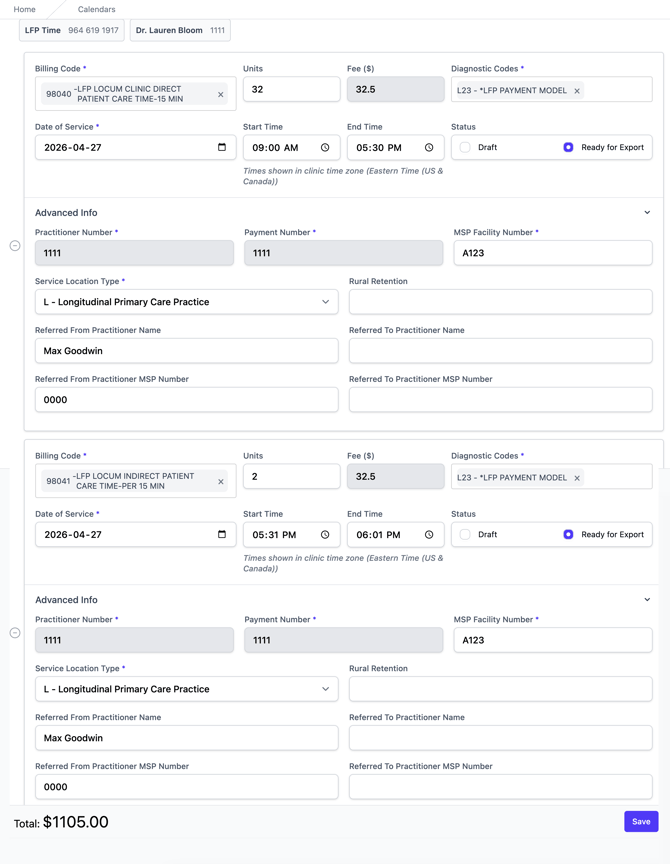
In this example, Dr. Goodwin worked from 9:00 a.m. to 5:30 p.m. on patient appointments with a half hour break. Then, Dr. Goodwin worked from 5:30 p.m. to 6:00 p.m. on Indirect Patient Care time.
Locum LFP Bill Claim Setup
1. These steps assume that you have:
-
Set up LFP Billing in your Aeon and specifically enrolled Locum Physicians
- Set up your generic Patient Profile;
- Set up a recurring appointment for the generic patient to use daily for submitting Time Codes; and
- Understand that the LFP Interaction Codes are submitted separately, per these instructions.
If you have not completed the above, please do do before continuing or your Bill Claim will fail.
Create the Locum LFP Bill Claim in Aeon
2. Open your Calendar
3. As a Locum Physician, you may not already have an appointment set up to use for your Locum LFP Time Code submission. This will use the generic "LFP Time" patient that has the demographics required by MSP. For example, here is one created for this purpose:
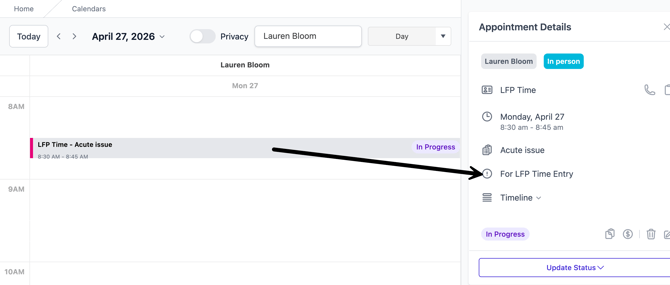
If you do not have this appointment, create a single appointment or a recurring appointment that spans multiple days. Remember to use the LFP Time patient for the appointment!
4. Open the recurring appointment in your Calendar
5. In the Appointment Details, click the Claim icon (dollar bill icon):
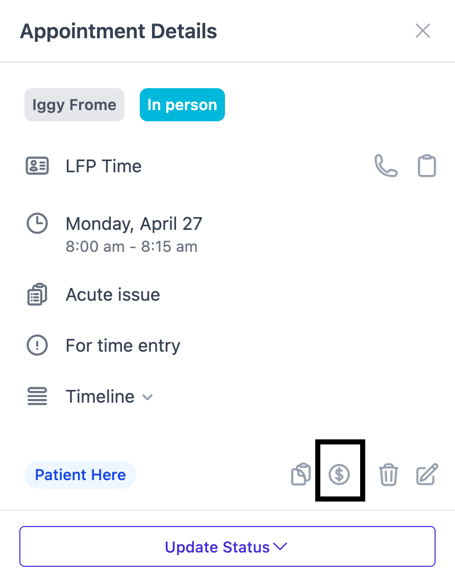
A bill tray will open at the bottom of your Calendar screen.
5. By default, the template for a Bill Claim will open, if not, click Add Claim
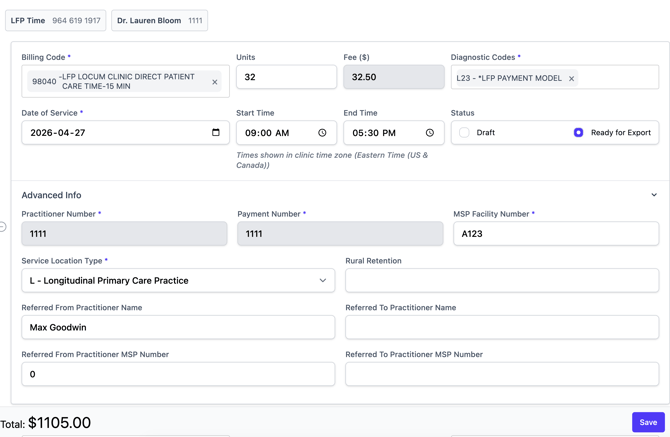
6. For this example as we are first entering Locum Direct Patient Care, type the Billing Code 98040 into the field and choose it from the dropdown
🎓 Training Tip: Locum Time Codes
For quick reference to current time codes see the section "Time Codes and What They Cover" at the bottom of this article.
7. Enter the number of units: Further to the LFP Payment Schedule, Feb 23, 2026, calculate total time spent on direct patient care (excluding breaks) and divide by 15 minutes
In this example: Dr. Goodwin worked from 9:00 a.m. to 5:30 p.m. with a 30‑minute lunch break; 8 hours of direct care equals 32 units because the 30-minute lunch break is excluded from payable time.
6. Enter the diagnostic code L23. According to the LFP Payment Schedule, Feb 23, 2026 this is the required ICD‑9 code for LFP time claims
7. Change the Date of Service if you are entering time for a different day
8. Enter start and end times (9:00 a.m. and 5:30 p.m. in this example). Use the clock icon to select times easily
Training Tip 🎓: Time Selector
In the time field, there is a clock icon. When chosen, you can easily pick your time:
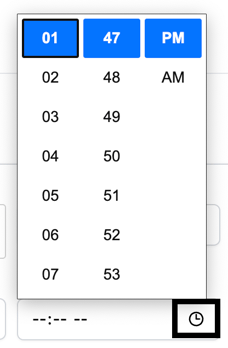
9. Set Claim Status:
-
Draft – if you want to review later.
-
Ready for export – if finalized and ready to send to ClinicAid
10. Click the dropdown for the Advanced tab and confirm the required fields are filled in - for Locum Time Code Entry ensure the MSP Facility (same as Host Facility), Referred From Practitioner Name (Host Name), and Referred From Practitioner MSP Number (Host MSP Number), and others. Refer to the LFP Payment Schedule to determine what information to add. These values may auto‑populate from your clinic settings:
🎓 Training Tip: Locum Bill Claim Fields
For a full breakdown of all fields in a Bill Claim form, please see Breakdown of Aeon Bill Claim Form for Locum LFP Entries in the Resources area at the bottom of this article.
👉 If you only had one type of Time Code to submit for the day, you'd stop here and continue with step 14 below. In this example, we'll enter time for the Locum Indirect Patient Care.
11. Under the first Bill Claim, click + Add Claim on the left to open a second Bill Claim
12. Follow the same instructions as above for the second time entry, but this time choose the 98041 code for Locum Indirect Patient care:
13. Save
Export the Bill Claims from Aeon to ClinicAid
Following the submission timelines of your clinic (daily, etc.), complete the next steps to move your LFP Time Code Claims from Aeon to Clinic Aid.
14. Go to Billing in the left column
15. Click Claims
16. Click Filter
17. Choose your name or the one Practitioner to view the claims for
18. Your claims will either be found under "Draft" or "Ready for Export", depending on what you chose within the Bill Claim form:
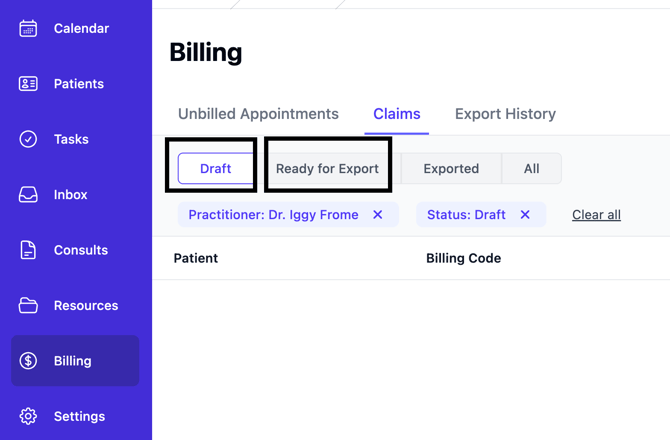
19. Draft Bill Claims: Review the Draft by clicking on the entry and making any changes. When complete, change the button at the bottom right to Ready for Export
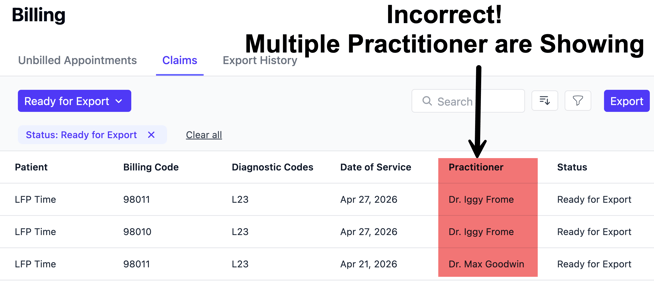
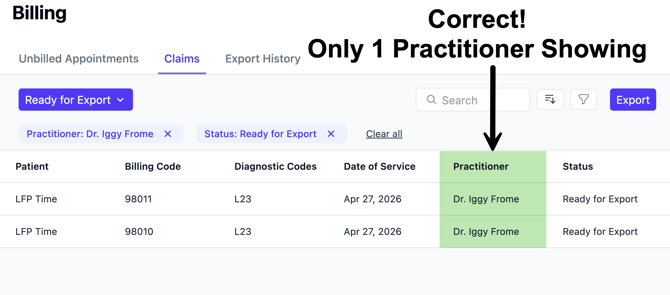
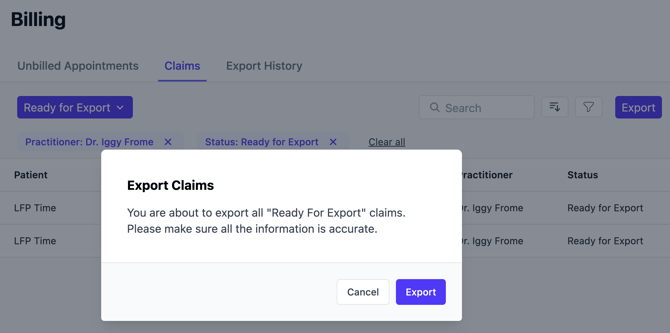
20. Ready for Export Claims:. You can only export one practitioner's Bill Claims at a time. Therefore, click on Filter and ensure there is only one practitioner chosen:
21. Click the blue Export button at the top right of the list
22. You will see a popup, click Export:
23. Click Download Export
24. Click Close
Import the Bill Claim to ClinicAid
25. Open your ClinicAid account
26. In ClinicAid, click Create Invoice in the left column
27. Click Import Invoices
28. Change the Date Format to YYYY-MM-DD
29. Choose the Provider
30. Choose Select File
31. Choose the file from your computer
32. Run Test Import
33. If there are no issues, click Confirm Import and Run Live
Submit Billing in ClinicAid
34. Once you've reviewed your invoices for accuracy in ClinicAid, click the top checkbox (next to Service Date) - this will select all of the claims visible on the page
- Click Send to send the claims you are viewing per page; or
- Click Send All to send ALL claims in the New tab
If there are issues, refer to ClinicAid's Support Resources.
Following the above steps, you would use ClinicAid to make changes and/or reconcile. Please see this article for more information.
Resources
Breakdown of Aeon Bill Claim Form for Locum LFP Entries
According to the LFP Payment Schedule, Feb 23, 2026, each time-code claim submitted to MSP via Teleplan must include the following fields. In Aeon these fields appear in the Claims tab (main bill form) or Advanced tab (additional fields). Fields marked with an asterisk (*) are mandatory in Aeon.
Additionally, the LFP Payment Schedule, Feb 23, 2026 notes the following regarding Locum LFP Time Entry:
"For locum time codes, the MSP practitioner number of the Host Physician must be entered in the “Referred by” field on the billing claim. When an LFP Locum is providing care on behalf of more than one Host Physician at the same clinic, use the MSP practitioner number of one of the Host Physicians. "
When an LFP Locum is providing care on behalf of more than one Host Physician at the same clinic, use the MSP practitioner number of one of the Host Physicians.
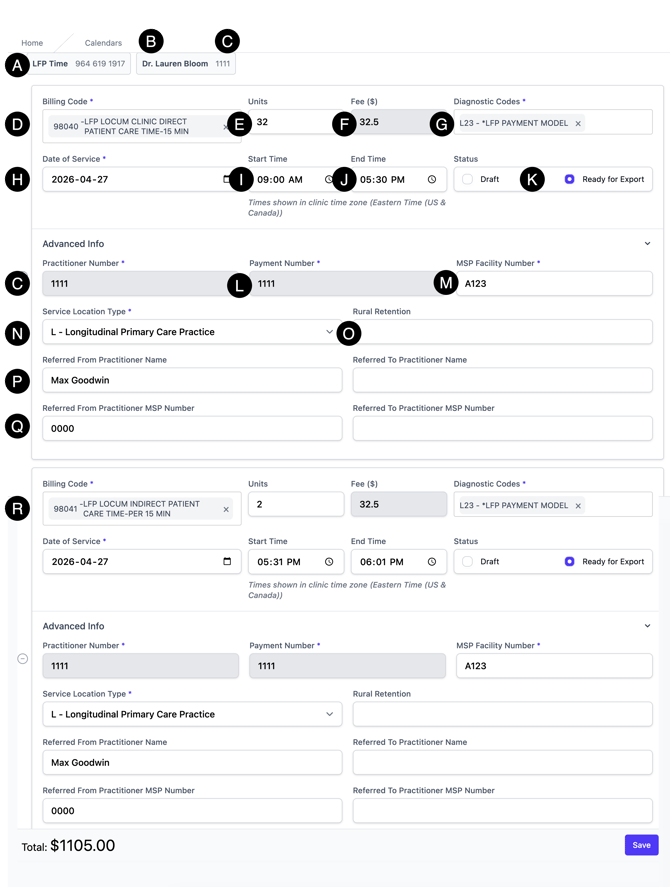
| What is Required? | Where is the Information Entered? | Notes | |
| A. |
Patient Name and PHN (generic for LFP time codes) |
Within the Billing Entry |
For Locum LFP time‑code claims submitted on or after Feb 23, 2026, enter the generic patient demographic information: -PHN: 964 619 1917-Surname: Time -First name: LFP -Date of birth: Jan. 1, 2005 -(there are a few other mandatory fields, use your own clinic info for address /phone / etc.) as required by the LFP Payment Schedule. |
| B. |
Locum Practitioner's Name |
Pulled from the Calendar Appointment |
|
| C. |
Locum Practitioner Number* ❓Unique identifier issued by MSP to physicians enrolled with the CPSBC. Set once unless your practitioner number changes. |
Settings > Users > (Practitioner's name) > Edit > Practitioner Number |
Pulled automatically from the assigned practitioner in the patient’s profile. |
| D. |
Locum LFP Time code ❓ Select the appropriate Locum LFP time code (98040, 98041, 98042). Travel time (98219) may apply in specific scenarios. Refer to the LFP Payment Schedule with questions. |
Within the Billing Entry |
In Aeon, this is referred to as the "Billing Code". |
| E. |
Time units – the number of 15-minute time units ❓ Calculate total time spent on the activity and divide by 15 minutes. For example: 15 minutes = 1 unit 8 hours = 32 units |
Within the Billing Entry |
|
| F. |
Fee |
See the LFP Payment Schedule for the rate per unit. |
|
| G. |
ICD-9 diagnostic code: L23* ❓ All claims submitted by physicians to the Medical Services Plan (MSP) must include a diagnostic code. |
Within the Billing Entry |
Further to the LFP Payment Schedule, enter L23 as the Diagnostic Code for LFP time-code claims: Direct Patient Care, Indirect Patient Care, and Clinical Administration. |
| H. |
Date of service* ❓The date you provided the service; adjust when entering claims for a previous day. |
Within the Billing Entry | |
| I. |
Start time (for each time code)
|
Within the Billing Entry | Further to the LFP Payment Schedule, for LFP Bill Claims, enter the start and end times for the period covered by this time code, including a.m. or p.m. |
| J. | End time (for each time code) | Within the Billing Entry | Further to the LFP Payment Schedule, for LFP Bill Claims, Enter the end time for the period covered by this time code, including a.m. or p.m. |
| K. |
Status |
Within the Billing Entry |
If the time entry must be reviewed before submitting to ClinicAid, mark "Draft". If it's ready to be exported to ClinicAid, choose "Ready to Export". |
| L. |
MSP Payee Number* ❓Tells MSP where to deposit payments; normally the same as your MSP billing number. Set once and update only if your payment number changes. |
Settings > Users > (Practitioner's name) > Edit > Payment Number |
In Aeon, this is referred to as the "Payment Number". Refer to the LFP Payment Schedule with questions. |
| M. |
MSP Facility Number* ❓Unique identifier for community‑based clinics issued by MSP.
|
Settings > General > Edit>Facility Number
|
According to the LFP Payment Schedule, Locum LFP Bill Claims must use the same Facility Number of the host physician's clinic. |
| N. |
Location Code * ❓Also called the MSP Service Locations Codes (SLCs). Use the Service Location Code that describes your site (e.g., L for longitudinal primary care practice). See the BC Family Doctors SLC guide for options. |
Within the Billing Entry > Advanced Tab |
In Aeon, this is called "Service Location".
Refer to the LFP Payment Schedule with questions. |
| O. | RRP code - Enter your Rural Retention Program code if practising in an RSA community. RRP benefits provide extra compensation for rural practice. | Within the Billing Entry > Advanced Tab |
Refer to the LFP Payment Schedule with questions. |
| P. |
Referred From Practitioner Name |
Within the Billing Entry > Advanced Tab |
According to the LFP Payment Schedule, Locum Physicians enter the name of the Host Physician in this field (the physician you are providing care on behalf of) Refer to the LFP Payment Schedule with questions. |
| Q. |
Referred From Practitioner MSP Number |
According to the LFP Payment Schedule, Locum Physicians enter the MSP number of the Host Physician in this field (not your own MSP number) When an LFP Locum is providing care on behalf of more than one Host Physician at the same clinic, use the MSP practitioner number of one of the Host Physicians. Refer to the LFP Payment Schedule with questions. |
|
| R. |
LFP Time code |
Under the first Bill Claim click + on the left to create an additional Bill Claim |
Similar to "D" above, choose more than one Billing Code as appropriate. In this example, an entry for 98011 is created. |
Locum Clinic-Based Time Codes and What They Cover
This information is sourced from the Longitudinal Family Physician (LFP) Model (Feb. 23, 2026).
| Code | Description | When to use | Fee per 15 min | Citation |
|---|---|---|---|---|
| 98040 | Direct Patient Care – in‑person or synchronous virtual visits, including clinical teaching concurrent with patient care and short indirect tasks between interactions. | When you are physically or virtually (phone/video) attending to patients, including teaching when the patient is present. | $32.50 | LFP Payment Schedule, Section XIV. Billing Codes - 98040 |
| 98041 | Indirect Patient Care – documentation, chart review, referrals, asynchronous virtual care (e.g., secure messaging), care coordination, patient/family discussions and clinical teaching immediately following patient care. | Use when performing patient care tasks without the patient present. Do not include travel or general clinic administration. | $32.50 | LFP Payment Schedule, Section XIV. Billing Codes - 98041 |
| 98042 | Clinical Administration – proactive panel management, EMR/EHR optimization, quality improvement, practice evaluation and clinic director/privacy officer duties. | Use for administrative tasks directly related to patient care. Limited to 10 % of your annual LFP hours; not payable for travel, non‑clinical leadership roles or general management. | $32.50 | LFP Payment Schedule, Section XIV. Billing Codes - 98042 |
🎓 Training Tip: Locum LFP Travel Time (98219)
Please refer to the LFP Payment Schedule, Feb. 23, 2026 for questions and instructions on this topic.
🎓 Training Tip: Locum Long-term Care and Palliative Facility Services Time Codes & any other time codes
Please refer to the LFP Payment Schedule, Feb. 23, 2026 for questions and instructions on additional Locum Time Codes.