
In This Article
Description
Location
Use
🔹View a Patient's Allergies
🔹Create Allergies
🔹Create Allergies within Chart Notes (Embeds)
🔹Create Additional Allergy Entries for the Same Allergen
🔹Edit Allergies
🔹Archive an Allergy
🔹View Archived Allergy
🔹Restore an Archived Allergy
Allergy Permissions
Description
Aeon’s allergy feature allows clinicians to quickly create, update, and manage a patient’s allergies and adverse reactions directly within the EMR. Allergy details are stored in the patient profile and surfaced in relevant workflows, making them easy to review and helping ensure allergy information is consistently considered during clinical decision-making.
Some common tasks you will perform with this feature include:
-
- Create new Allergy records from the index page or chart notes
- Select allergens from a predefined list
- Update Allergy records to ensure accuracy and reflect the current patient status
- View the Allergy list, including severity and reaction details, from multiple entry points within the system
- Archive outdated or irrelevant Allergy records while maintaining historical visibility
- Access a timeline of Allergy modifications to track changes over time
- Create new Allergy records from the index page or chart notes
⚠️: Created Allergies do not currently alert when prescribing Medication
Allergies do not automatically create an alert for the Practitioner when creating Prescriptions. This must be manually checked.
You can find this feature right in the clinician's workflow during patient visits, accessed through:
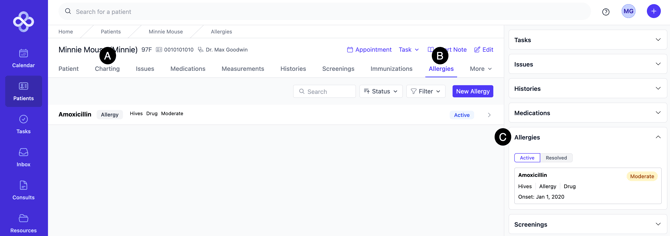
A. Chart Notes: to be created and edited during patient encounters
B. Allergy Index: consolidated view of all patient allergies with the ability to create and edit allergies
C. Patient Sidebar: for quick access to recent allergies during patient interactions
Use
Below, we will cover all the features of Allergies and how to use them.
View a Patient's Allergies
1. Open the Patient Profile
2. Click on Allergies sub-tab
To then view the specifics of a particular Allergy:
3. Click the title of the Allergy to expand it
Create Allergies
🎓 Training Tip: Multiple ways to create Allergies
These instructions will guide you through creating an Allergy in the sub-tab of a Patient Profile. If you'd like to create an Allergy within a Chart Note during a patient encounter, click here.
1. Open the Patient Profile
2. Click on Allergies sub-tab
3. Click New Allergy
4. Enter the information
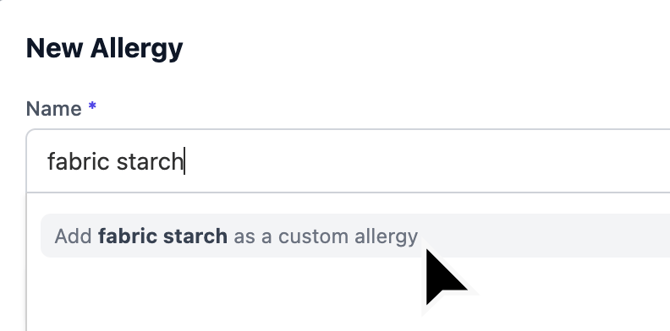
- If you type in a word or phrase that is not in the pre-populated Name list, you are given the ability to save it as a Custom Allergy:
- If Anaphylaxis is chosen as the Reaction Description, the Severity is automatically Severe
🎓 Training Tip: Changing the Name after Saving
Once you save an Allergy embed, you can edit the fields except for the Name field. If you've made a mistake, you can archive the Allergy and create a new one.
5. Click Create.
⚠️: Created Allergies do not currently alert when prescribing Medication
Any allergies created do not automatically create an alert for the Practitioner when they are creating Prescriptions.
Create Allergies within Chart Notes (Embeds)
1. Open the Patient Profile
2. Click Charting
3. Create your Chart Note
4. Within the Chart Note, start to type /allergies and choose it from the dropdown:
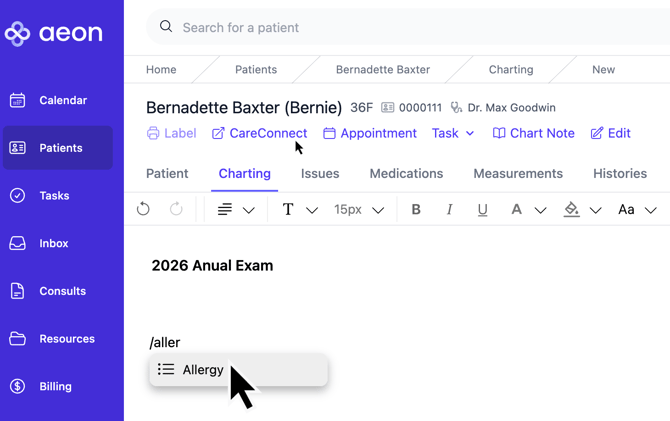
5. Fill out the fields and then continue with your chart note
🎓 Training Tip: Creating Chart Notes
For full instructions on creating Chart Notes, click here.
Create Additional Allergy Entries for the Same Allergen
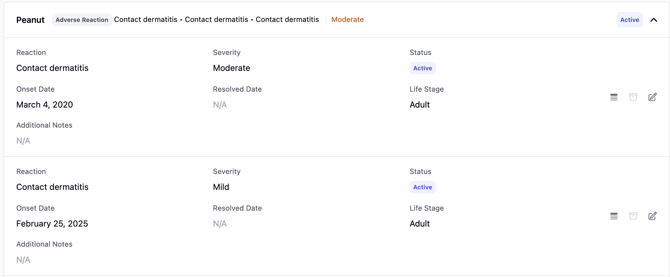
At a point in the future, if you create a second (or greater) entry for the same Allergen, the entries will stack together with the most severe reaction listed at the top:
Edit Allergies
1. Open the Patient Profile
2. Click on Allergies sub-tab
3. Find the Allergy you wish to edit
4. Click on the title of the Allergy
5. Click on the Edit icon to the right of the Allergy
6. Make your changes
7. Click Update
Archive an Allergy
Instead of deleting Allergies, Aeon gives you the ability to archive Allergies, which removes them from active view. These archived Allergies can be viewed or restored if desired.
1. Open the Patient Profile
2. Click on Allergies sub-tab
3. Find the Allergy you wish to archive
4. Click on the title of the Allergy
5. Click on the archive icon to the right of the Allergy
6. View the confirmation message about Archiving the Allergy
7. Click Confirm
View Archived Allergies
1. Open the Patient Profile
2. Click on Allergies sub-tab
3. Click the filter button
4. Choose Archived
You will now see a list of archived Allergies.
5. Click on the title of the Allergy to see the details
Restore an Archived Allergy
1. Open the Patient Profile
2. Click on Allergies sub-tab
3. Click the filter button
4. Choose Archived
5. Click the title of the Allergy
6. Choose Show Archived Allergies
7. Click the Unarchive icon to the right of the Allergy
Allergy Permissions
- Practitioners: View, create, edit, and archive records
- Staff: View, create and edit their own records